












トロン モード

こんにちは、プログラム。車両をライト サイクルに変更します。
「アプリランチャー」>「おもちゃ箱」>「トロン」の順に移動します。
3D建物

3D表示で建物や都市の景観をより詳細に確認することができるようになりました。 有効にするには、地図の表示に切り替え、3Dアイコンをタップします。
プレミアム接続が必要です。
サテライトビュー

地図上の地球儀アイコンをタップすると、衛星ビューに切り替えることができます。
ダッシュカム ビューアのアップデート

ダッシュカム イベントの詳細には道路名が表示されるため(利用可能な場合)、録画されたイベントを区別することができるようになりました。これに加え、モバイル ダッシュカム ビューアでは、より高解像度でストリーミングとダウンロードができるようになりました。Teslaアプリのバージョン4.49.5以降が必要です。
Side Cameras Recording

Your vehicle's side cameras (B-Pillar) will now be recorded to both Dashcam and Sentry clips.
スクロールホイールの新機能

左スクロールホイールには、対生物兵器モード、ナビをミュート、ミュージック ライトシンク、様々な車両コントロールにすばやくアクセスできる新しいオプションが追加されました。
左スクロールホイールを長押ししてメニューを開きます。
Grok(ベータ版)
xAIによって構築されたインテリジェント アシスタント、Grokと話すことができるようになりました。Grokの声とパーソナリティ(「ストーリーテラー」から「アンヒンジド」など)を選択することができます。Grokを起動するには、「アプリ ランチャー」>「Grok」の順に移動するか、ハンドルの音声ボタンを長押しします。
プレミアムコネクティビティまたはWi-Fi接続が必要です。やり取りはTeslaに対して匿名性が維持され、お客様の車両に関連付けられません。
注記:Grokは現在初期のベータ版であり、ナビゲーションやメディアなどの車両コントロールのための音声コマンドに対応していません。既存の音声コマンドに変更はありません。
オンボーディングガイド

オンボーディング ガイドは、お客様がTeslaを知るのに役立ちます。これは、タッチスクリーンを使用してドライバー設定を調整したり、ライト、ワイパー、オートパイロット機能を調整したりすることができます。
「アプリ ランチャー」>「マニュアル」>「Tesla車について知る」の順に移動します。
軽微なアップデート

- Apple Music は、フォルダー、拡張されたアーティスト ページ、さらに詳細な視聴履歴を表示する最近再生した曲のシェルフを備え、プレイリスト ビューを整理しました。
- Teslaアプリの通知を使用してメディアにログインすると、より速く、シームレスに使用していただけます。
- ドライバープロフィールを選択する前に、電話キーが必要かどうかを選択できるようになりました。「ドライバープロフィール設定」>「プロフィールには電話キーが必要」の順に移動します。
- このアップデートには重要なセキュリティに関する修正および改善が含まれます。
Santa Mode

Tesla has added Santa Mode to 2026 Model S and Model X vehicles. These cars use the Unreal Engine and did not include Santa Mode until this update. Santa Mode was noticeably absent from the Toybox, and when users tried to enable the feature through voice commands, the system would say that Santa Mode is not available and will be enabled in a future update.
New FSD Guide

When a user activates FSD from the Controls > Autopilot menu, Tesla will now present a one-screen guide that introduces the user to FSD.
The guide includes the same disclaimer as previous updates and now also includes an image of the steering wheel controls for FSD, letting the user know how to switch FSD Profiles and set the maximum speed (for FSD V13 and below).
The image used is specific to the vehicle and will either include steering wheel buttons or stalks, depending on the model.
More Charging Information

While a vehicle is charging, Tesla now includes a link for ‘Additional Charging Information’ in the Controls > Charging section. If the vehicle is charging, the link will appear in blue in the top-right corner.
Tapping the link displays a pop-up containing additional information, such as the maximum and current battery input power.
Maximum Battery Input Power is the total power the charger can deliver.
Battery Input Power is the amount of energy that is being actively put into the vehicle’s battery. The battery input power may be less than the maximum charger capability for several reasons, including a high vehicle charge level. The vehicle will also draw power directly from the charger rather than draining the battery if it needs to run the HVAC system, screen, or other components. This reduces battery wear by using energy from the battery, only to have to re-add it.
Keep Accessory Power On App Control
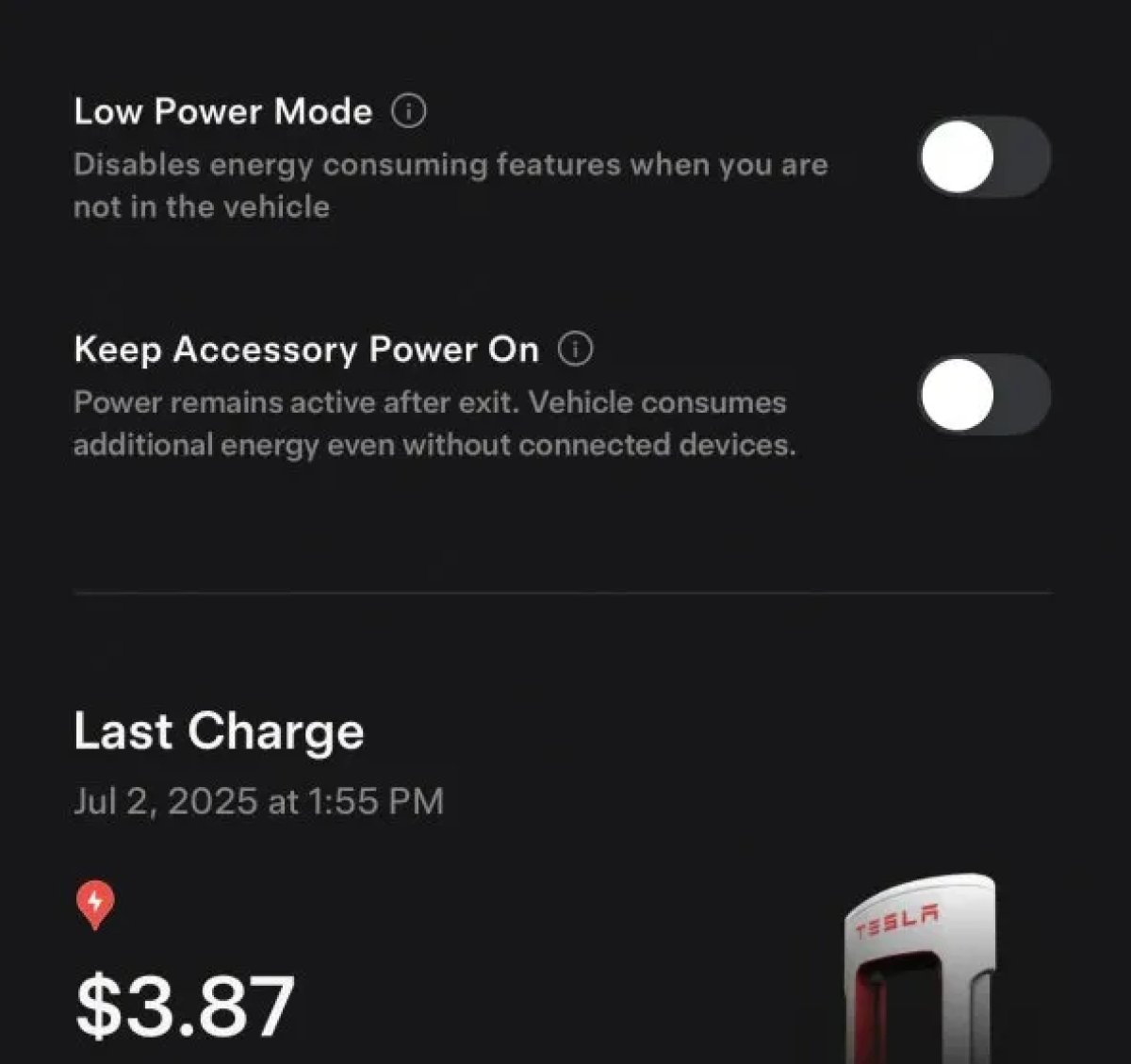
The 2025.38 vehicle update adds support for the ‘Keep Accessory Power On’ option in the latest Tesla app. This option is part of the latest Tesla app update, which adds the new Charging menu that consolidates most charging options under a single menu.
It also adds a button for Low Power Mode, instead of just being under Quick Actions.
Buy Parts

Tesla has added a Buy Parts button to Tesla’s Service Mode. Tapping the button displays a QR code that takes users to Tesla’s service site, where owners can buy parts directly from Tesla.
Parts can be shipped directly to the customer or to the nearest service center.
Charger Visualization

Tesla has added a visualization of a charger when the vehicle is parked and plugged in. In this photo, the owner is using a non-Tesla charger, so a generic charger is displayed. Tesla will presumably display a mobile charger, Wall Connector, or Supercharger if those are plugged into the vehicle.
Service Mode Improvements

New Trunk Panel
A new Trunk panel with an overview of the liftgate status, latch status, and calibration status for the trunk is now available. The panel also provides additional information, such as the request source, set liftgate height, and hands-free settings.
Models: ModelS (2021+), Model 3, Model X (2021+), Model Y
New Front Trunk Panel
A new Front Trunk (or frunk) panel with an overview of the liftgate status, latch status, and calibration status for the front trunk is now available. The panel also provides additional information, such as the request source, set liftgate height, and hands-free settings.
Models: Cybertruck
Cameras Panel Update - Mismatched Firmware Detection
In the Cameras panel, detection for when Driver Assistance System (DAS) Hardware 4 (HW4) cameras have mismatched firmware versions has been added.
If a DAS HW4 camera with mismatched firmware is detected, touch the Update Camera button to initiate a camera firmware update.
Models: ModelS (2021+), Model 3, Model X (2021+), Model Y, Cybertruck
Brakes Panel Update - ESP Stiffness Test Routine Changes
In the Electronic Stability Program (ESP) replacement panel, the routine TEST-BRAKE_CORNER_STIFFNESS-TEST has been replaced with TEST_BRAKE_X_STIFFNESS-TEST-SERVICE.
Models: Model 3(2017-2023), Model Y (2020-2024)

