











Modalità Tron

Salute, programmi. Trasforma il tuo veicolo nel ciclo luci.
Vai a Utilità di avvio app > Toybox > Tron.
Edifici 3D

Ora puoi vedere edifici e paesaggi urbani in modo più dettagliato con la vista 3D. Per attivare, passa alla vista mappa e tocca l'icona 3D.
Richiede Premium Connectivity.
Vista satellitare

Ora puoi passare alla vista satellitare toccando l'icona a forma di globo sulla carta sulla mappa.
Aggiornamenti del Visualizzatore dashcam

I nomi delle strade sono ora inclusi nei dettagli degli eventi della dashcam (se disponibili), facilitando la distinzione tra gli eventi registrati. Inoltre, il Visualizzatore dashcam mobile ora trasmette in streaming e scarica a una risoluzione più alta. Richiede l'app Tesla versione 4.49.5+.
Side Cameras Recording

Your vehicle's side cameras (B-Pillar) will now be recorded to both Dashcam and Sentry clips.
Nuove funzioni della rotellina

La rotellina sinistra include nuove opzioni per accedere rapidamente ai vari comandi del veicolo, come la Modalità di difesa da armi biologiche, Disattiva navigazione e Sincronizzazione luci musicali, se disponibili nel veicolo.
Tieni premuta la rotellina sinistra per aprire il menu.
Grok (Beta)
Ora puoi parlare con Grok, un assistente intelligente creato da xAI. Puoi scegliere la voce e la personalità di Grok, da Storyteller a Unhinged. Per avviare Grok, vai su Utilità di avvio app > Grok o tieni premuto il pulsante vocale sul volante.
Richiede Premium Connectivity o una connessione WiFi. Le interazioni sono anonime e non sono associate al tuo veicolo.
Nota: Grok è attualmente nella versione Beta e non supporta i comandi vocali per i comandi dell'auto come il navigatore o i contenuti multimediali. I comandi vocali esistenti rimangono invariati.
Guida onboarding

La Guida onboarding ti aiuta a familiarizzare con la tua Tesla. Copre la regolazione delle impostazioni del conducente, l'utilizzo del touchscreen e il controllo di luci, tergicristalli e funzioni dell'Autopilot, tra le altre funzioni.
Vai a Utilità di avvio app > Manuale > Impara a conoscere la tua Tesla.
Aggiornamenti minori

- Apple Musica offre una vista playlist organizzata con cartelle, pagine degli artisti espanse e una raccolta Ascoltato recentemente che mostra più informazioni sulla tua cronologia di ascolto.
- Puoi accedere ai tuoi contenuti multimediali utilizzando una notifica dell'app Tesla per un'esperienza più rapida e fluida.
- Ora è possibile scegliere se è necessaria una chiave sul telefono prima di poter selezionare un profilo conducente. Vai a Impostazioni profilo conducente > Richiedi chiave sul telefono per il profilo.
- Questo aggiornamento include importanti correzioni di sicurezza e miglioramenti.
Santa Mode

Tesla has added Santa Mode to 2026 Model S and Model X vehicles. These cars use the Unreal Engine and did not include Santa Mode until this update. Santa Mode was noticeably absent from the Toybox, and when users tried to enable the feature through voice commands, the system would say that Santa Mode is not available and will be enabled in a future update.
New FSD Guide

When a user activates FSD from the Controls > Autopilot menu, Tesla will now present a one-screen guide that introduces the user to FSD.
The guide includes the same disclaimer as previous updates and now also includes an image of the steering wheel controls for FSD, letting the user know how to switch FSD Profiles and set the maximum speed (for FSD V13 and below).
The image used is specific to the vehicle and will either include steering wheel buttons or stalks, depending on the model.
More Charging Information

While a vehicle is charging, Tesla now includes a link for ‘Additional Charging Information’ in the Controls > Charging section. If the vehicle is charging, the link will appear in blue in the top-right corner.
Tapping the link displays a pop-up containing additional information, such as the maximum and current battery input power.
Maximum Battery Input Power is the total power the charger can deliver.
Battery Input Power is the amount of energy that is being actively put into the vehicle’s battery. The battery input power may be less than the maximum charger capability for several reasons, including a high vehicle charge level. The vehicle will also draw power directly from the charger rather than draining the battery if it needs to run the HVAC system, screen, or other components. This reduces battery wear by using energy from the battery, only to have to re-add it.
Keep Accessory Power On App Control
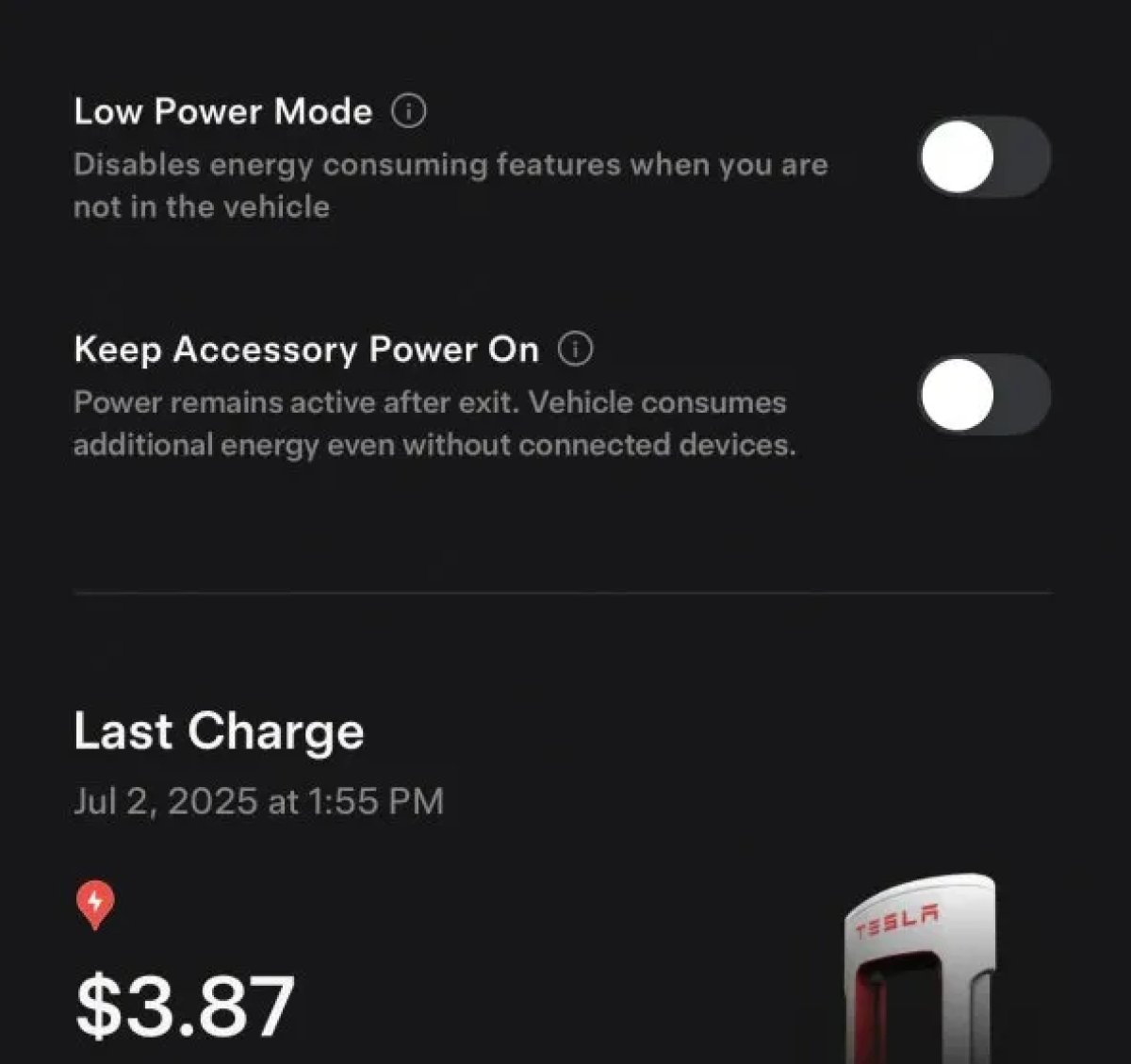
The 2025.38 vehicle update adds support for the ‘Keep Accessory Power On’ option in the latest Tesla app. This option is part of the latest Tesla app update, which adds the new Charging menu that consolidates most charging options under a single menu.
It also adds a button for Low Power Mode, instead of just being under Quick Actions.
Buy Parts

Tesla has added a Buy Parts button to Tesla’s Service Mode. Tapping the button displays a QR code that takes users to Tesla’s service site, where owners can buy parts directly from Tesla.
Parts can be shipped directly to the customer or to the nearest service center.
Charger Visualization

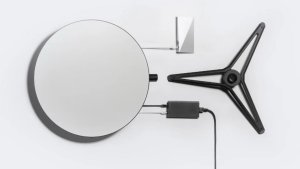
Tesla has added a visualization of a charger when the vehicle is parked and plugged in. In this photo, the owner is using a non-Tesla charger, so a generic charger is displayed. Tesla will presumably display a mobile charger, Wall Connector, or Supercharger if those are plugged into the vehicle.
Service Mode Improvements

New Trunk Panel
A new Trunk panel with an overview of the liftgate status, latch status, and calibration status for the trunk is now available. The panel also provides additional information, such as the request source, set liftgate height, and hands-free settings.
Models: ModelS (2021+), Model 3, Model X (2021+), Model Y
New Front Trunk Panel
A new Front Trunk (or frunk) panel with an overview of the liftgate status, latch status, and calibration status for the front trunk is now available. The panel also provides additional information, such as the request source, set liftgate height, and hands-free settings.
Models: Cybertruck
Cameras Panel Update - Mismatched Firmware Detection
In the Cameras panel, detection for when Driver Assistance System (DAS) Hardware 4 (HW4) cameras have mismatched firmware versions has been added.
If a DAS HW4 camera with mismatched firmware is detected, touch the Update Camera button to initiate a camera firmware update.
Models: ModelS (2021+), Model 3, Model X (2021+), Model Y, Cybertruck
Brakes Panel Update - ESP Stiffness Test Routine Changes
In the Electronic Stability Program (ESP) replacement panel, the routine TEST-BRAKE_CORNER_STIFFNESS-TEST has been replaced with TEST_BRAKE_X_STIFFNESS-TEST-SERVICE.
Models: Model 3(2017-2023), Model Y (2020-2024)

