











Modo Tron

Saludos, Programas. Transforme su vehículo en un Circuito de luz.
Vaya a Iniciador de aplicaciones > Toybox > Tron.
Edificios 3D

Ahora es posible visualizar edificios y paisajes urbanos con mayor nivel de detalle gracias a la vista 3D. Para habilitarlo, cambie a Vista de mapa y toque el icono 3D.
Requiere Conectividad premium.
Vista de satélite

Ahora puede cambiar a la vista de satélite tocando el icono del globo en el mapa.
Actualizaciones del Visor de Dashcam

Ahora los nombres de las calles se incluyen en los detalles de los eventos de la dashcam (si están disponibles), lo que facilita la distinción entre los eventos grabados. Además, ahora el visor de Dashcam móvil reproduce y descarga vídeos en una resolución superior. Requiere la versión 4.49.5+ de la app de Tesla.
Grabación de las cámaras laterales

Las cámaras laterales del vehículo (pilar B) ahora se grabarán en los clips de la Dashcam y del Centinela.
Nuevas funciones de la rueda de desplazamiento

La rueda de desplazamiento izquierda incluye nuevas opciones para acceder rápidamente a varios controles del vehículo, como el modo de defensa contra armas biológicas, silenciar la navegación y sincronización de luces y música, si están disponibles en su vehículo.
Mantenga pulsada la rueda de desplazamiento izquierda para abrir el menú.
Grok (Beta)
Ahora puede hablar con Grok, un asistente inteligente desarrollado por xAI. Puede elegir la voz y la personalidad de Grok, desde Narrador hasta Extravagante. Para iniciar Grok, vaya al Iniciador de aplicaciones > Grok, o mantenga pulsado el botón de voz del volante.
Requiere Conectividad Premium o conexión Wi-Fi. Las conversaciones son anónimas para Tesla y no están asociadas a su vehículo.
Nota: Grok se encuentra actualmente en una versión beta temprana y no admite comandos de voz para controles del coche como navegación o multimedia. Los comandos de voz existentes no se han modificado.
Guía de incorporación

La Guía de incorporación le ayudará a familiarizarse con su Tesla. Cubre el ajuste de la configuración del conductor, el uso de la pantalla táctil, así como el control de las luces, los limpiaparabrisas y las funciones del Piloto automático, entre otras funciones.
Vaya a Iniciador de aplicaciones > Manual > Conozca su Tesla.
Actualizaciones menores

- Apple Music ofrece una vista de lista de reproducción organizada con carpetas, páginas de artistas ampliadas y una sección de Reproducciones recientes que muestra un historial más extenso de su actividad.
- Para disfrutar de una experiencia más rápida y fluida, puede iniciar sesión en su contenido multimedia mediante una notificación de la app de Tesla.
- Ahora puede elegir si se necesita un teléfono-llave para poder seleccionar un perfil del conductor. Vaya a Ajustes de Perfil del conductor > Se requiere teléfono-llave para Perfil.
- Esta actualización incluye mejoras y correcciones de seguridad importantes.
Santa Mode

Tesla has added Santa Mode to 2026 Model S and Model X vehicles. These cars use the Unreal Engine and did not include Santa Mode until this update. Santa Mode was noticeably absent from the Toybox, and when users tried to enable the feature through voice commands, the system would say that Santa Mode is not available and will be enabled in a future update.
New FSD Guide

When a user activates FSD from the Controls > Autopilot menu, Tesla will now present a one-screen guide that introduces the user to FSD.
The guide includes the same disclaimer as previous updates and now also includes an image of the steering wheel controls for FSD, letting the user know how to switch FSD Profiles and set the maximum speed (for FSD V13 and below).
The image used is specific to the vehicle and will either include steering wheel buttons or stalks, depending on the model.
More Charging Information

While a vehicle is charging, Tesla now includes a link for ‘Additional Charging Information’ in the Controls > Charging section. If the vehicle is charging, the link will appear in blue in the top-right corner.
Tapping the link displays a pop-up containing additional information, such as the maximum and current battery input power.
Maximum Battery Input Power is the total power the charger can deliver.
Battery Input Power is the amount of energy that is being actively put into the vehicle’s battery. The battery input power may be less than the maximum charger capability for several reasons, including a high vehicle charge level. The vehicle will also draw power directly from the charger rather than draining the battery if it needs to run the HVAC system, screen, or other components. This reduces battery wear by using energy from the battery, only to have to re-add it.
Keep Accessory Power On App Control
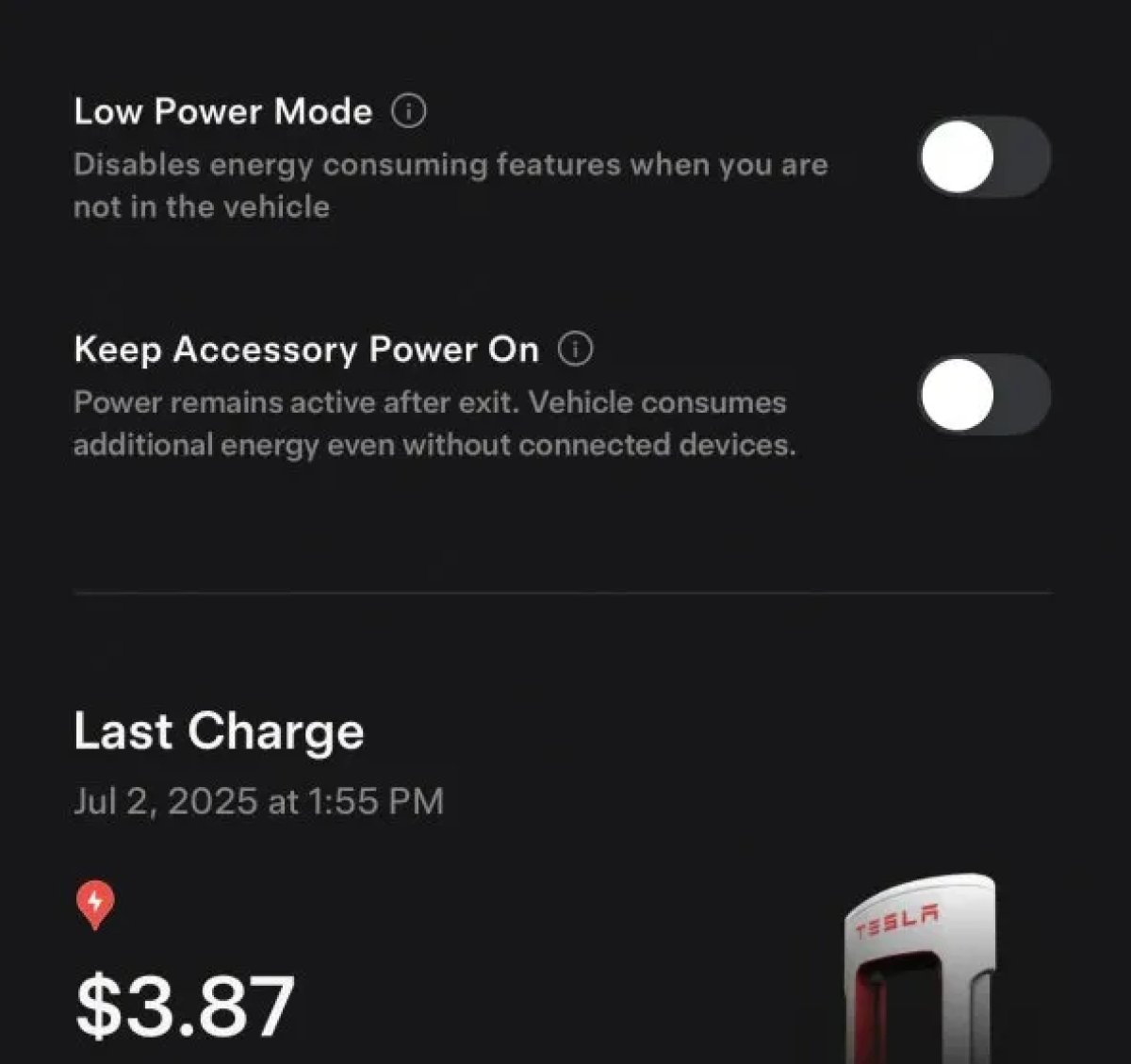
The 2025.38 vehicle update adds support for the ‘Keep Accessory Power On’ option in the latest Tesla app. This option is part of the latest Tesla app update, which adds the new Charging menu that consolidates most charging options under a single menu.
It also adds a button for Low Power Mode, instead of just being under Quick Actions.
Buy Parts

Tesla has added a Buy Parts button to Tesla’s Service Mode. Tapping the button displays a QR code that takes users to Tesla’s service site, where owners can buy parts directly from Tesla.
Parts can be shipped directly to the customer or to the nearest service center.
Charger Visualization

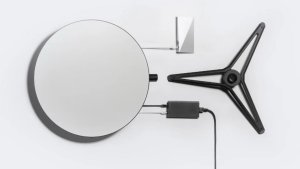
Tesla has added a visualization of a charger when the vehicle is parked and plugged in. In this photo, the owner is using a non-Tesla charger, so a generic charger is displayed. Tesla will presumably display a mobile charger, Wall Connector, or Supercharger if those are plugged into the vehicle.
Service Mode Improvements

New Trunk Panel
A new Trunk panel with an overview of the liftgate status, latch status, and calibration status for the trunk is now available. The panel also provides additional information, such as the request source, set liftgate height, and hands-free settings.
Models: ModelS (2021+), Model 3, Model X (2021+), Model Y
New Front Trunk Panel
A new Front Trunk (or frunk) panel with an overview of the liftgate status, latch status, and calibration status for the front trunk is now available. The panel also provides additional information, such as the request source, set liftgate height, and hands-free settings.
Models: Cybertruck
Cameras Panel Update - Mismatched Firmware Detection
In the Cameras panel, detection for when Driver Assistance System (DAS) Hardware 4 (HW4) cameras have mismatched firmware versions has been added.
If a DAS HW4 camera with mismatched firmware is detected, touch the Update Camera button to initiate a camera firmware update.
Models: ModelS (2021+), Model 3, Model X (2021+), Model Y, Cybertruck
Brakes Panel Update - ESP Stiffness Test Routine Changes
In the Electronic Stability Program (ESP) replacement panel, the routine TEST-BRAKE_CORNER_STIFFNESS-TEST has been replaced with TEST_BRAKE_X_STIFFNESS-TEST-SERVICE.
Models: Model 3(2017-2023), Model Y (2020-2024)

