











Tron-Modus

Grüße, Programme. Verwandeln Sie Ihr Fahrzeug in das Light-Cycle.
Gehen Sie zu App Launcher > Spielekiste > Tron.
3D-Gebäude

In der 3D-Ansicht können Sie Gebäude und Stadtlandschaften nun genauer sehen. Wechseln Sie zum Aktivieren zu „Kartenansicht“ und tippen Sie auf das 3D-Symbol.
Erfordert Premium-Konnektivität.
Satellitenbildkarten

Ab jetzt können Sie zur Satellitenansicht wechseln, indem Sie auf das Globus-Symbol auf der Karte tippen.
Updates der Dashcam-Anzeige

In den Ereignisdetails der Dashcam sind jetzt Straßennamen enthalten (falls verfügbar), um die Unterscheidung zwischen aufgezeichneten Ereignissen zu erleichtern. Darüber hinaus verwendet die mobile Dashcam-Anzeige beim Streamen und Herunterladen nun eine höhere Auflösung. Erfordert Tesla App Version 4.49.5+.
Side Cameras Recording

Your vehicle's side cameras (B-Pillar) will now be recorded to both Dashcam and Sentry clips.
Neue Scrollrad-Funktionen

Ihr linkes Scrollrad umfasst neue Optionen für einen schnellen Zugriff auf verschiedene Fahrzeugsteuerfunktionen, wie z. B. Biowaffen-Schutzmodus, Navigation stummschalten und Sync Musik und Beleuchtung - falls in Ihrem Fahrzeug verfügbar.
Zum Öffnen des Menüs linkes Scrollrad drücken und gedrückt halten.
Grok (Beta)
Sie können jetzt mit Grok, einem von xAI entwickelten intelligenten Assistenten, sprechen. Sie können die Stimme und Persönlichkeit von Grok wählen, die von „Geschichtenerzähler“ bis zu „Außer Kontrolle“ reicht. Um Grok zu starten, gehen Sie zu App Launcher > Grok, oder drücken Sie die Sprachtaste am Lenkrad lange.
Erfordert Premium-Konnektivität oder eine WLAN-Verbindung. Die Unterhaltungen sind für Tesla anonym und werden nicht mit Ihrem Fahrzeug in Verbindung gebracht.
Hinweis: Grok befindet sich in der frühen Beta-Phase und unterstützt keine Sprachbefehle zur Fahrzeugsteuerung, wie Navigation oder Medien. Bestehende Sprachbefehle bleiben unverändert.
Anleitung für Onboarding

Die Anleitung für Onboarding hilft Ihnen, sich mit Ihrem Tesla vertraut zu machen. Sie beinhaltet unter anderem das Anpassen der Fahrereinstellungen über den Touchscreen sowie die Steuerung von Beleuchtung, Scheibenwischern und Autopilotfunktionen.
Gehen Sie zu App Launcher > Handbuch > Einführung in Ihren Tesla.
Geringfügige Aktualisierungen

- Apple Music bietet eine organisierte Playlist-Ansicht mit Ordnern, erweiterten Künstlerseiten und einer Ablage „Zuletzt gespielt“, in der mehr zu Ihrem Hörverlauf angezeigt wird.
- Für ein schnelleres und nahtloser integriertes Benutzererlebnis können Sie sich mithilfe einer Tesla App-Benachrichtigung bei Ihren Medien anmelden.
- Sie können nun wählen, ob ein Handyschlüssel erforderlich ist, bevor ein Fahrerprofil ausgewählt werden kann. Gehen Sie zu Fahrerprofil-Einstellungen > Handyschlüssel für Profil erforderlich.
- Dieses Update enthält wichtige Sicherheitskorrekturen und Verbesserungen.
Santa Mode

Tesla has added Santa Mode to 2026 Model S and Model X vehicles. These cars use the Unreal Engine and did not include Santa Mode until this update. Santa Mode was noticeably absent from the Toybox, and when users tried to enable the feature through voice commands, the system would say that Santa Mode is not available and will be enabled in a future update.
New FSD Guide

When a user activates FSD from the Controls > Autopilot menu, Tesla will now present a one-screen guide that introduces the user to FSD.
The guide includes the same disclaimer as previous updates and now also includes an image of the steering wheel controls for FSD, letting the user know how to switch FSD Profiles and set the maximum speed (for FSD V13 and below).
The image used is specific to the vehicle and will either include steering wheel buttons or stalks, depending on the model.
More Charging Information

While a vehicle is charging, Tesla now includes a link for ‘Additional Charging Information’ in the Controls > Charging section. If the vehicle is charging, the link will appear in blue in the top-right corner.
Tapping the link displays a pop-up containing additional information, such as the maximum and current battery input power.
Maximum Battery Input Power is the total power the charger can deliver.
Battery Input Power is the amount of energy that is being actively put into the vehicle’s battery. The battery input power may be less than the maximum charger capability for several reasons, including a high vehicle charge level. The vehicle will also draw power directly from the charger rather than draining the battery if it needs to run the HVAC system, screen, or other components. This reduces battery wear by using energy from the battery, only to have to re-add it.
Keep Accessory Power On App Control
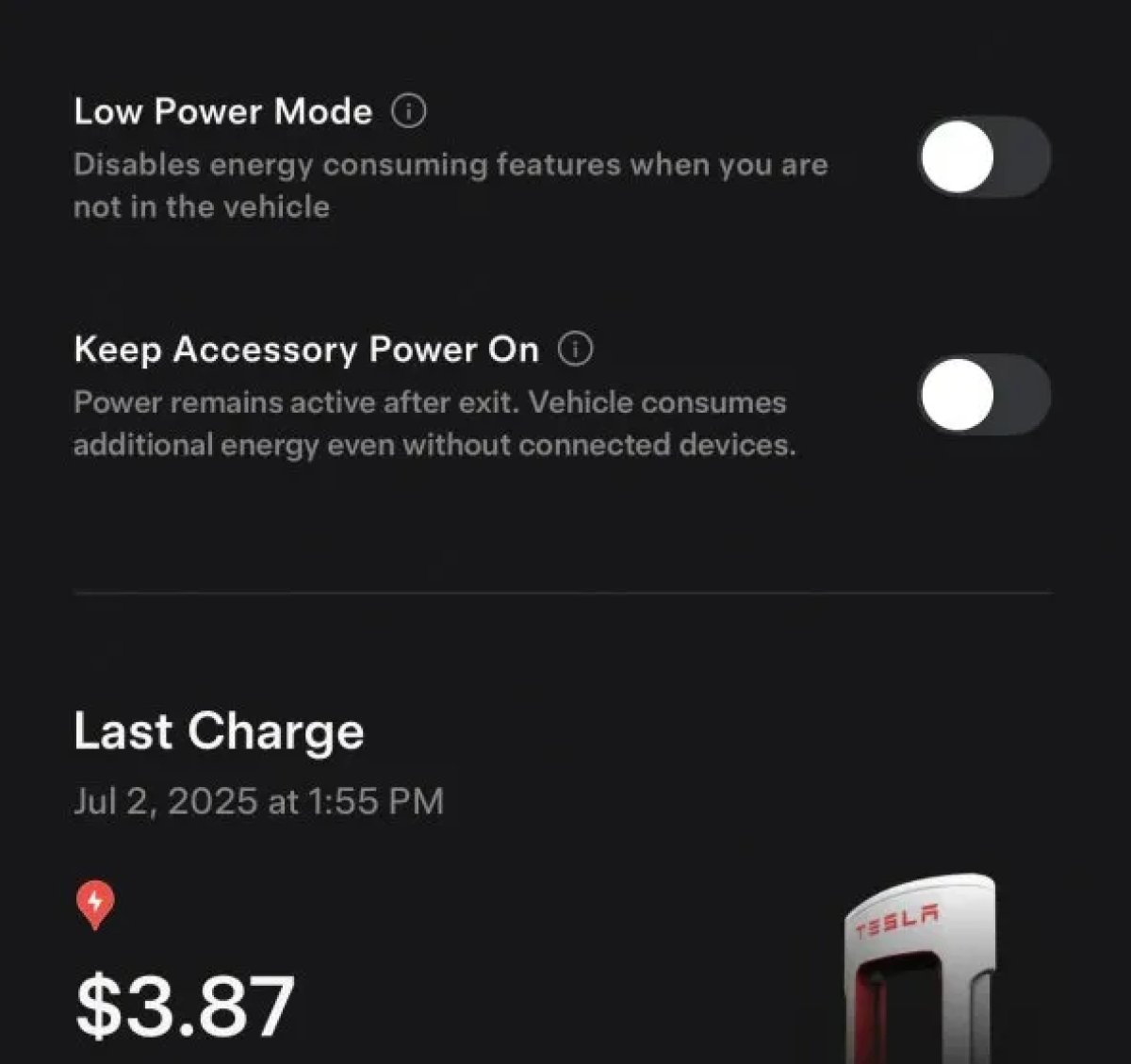
The 2025.38 vehicle update adds support for the ‘Keep Accessory Power On’ option in the latest Tesla app. This option is part of the latest Tesla app update, which adds the new Charging menu that consolidates most charging options under a single menu.
It also adds a button for Low Power Mode, instead of just being under Quick Actions.
Buy Parts

Tesla has added a Buy Parts button to Tesla’s Service Mode. Tapping the button displays a QR code that takes users to Tesla’s service site, where owners can buy parts directly from Tesla.
Parts can be shipped directly to the customer or to the nearest service center.
Charger Visualization

Tesla has added a visualization of a charger when the vehicle is parked and plugged in. In this photo, the owner is using a non-Tesla charger, so a generic charger is displayed. Tesla will presumably display a mobile charger, Wall Connector, or Supercharger if those are plugged into the vehicle.
Service Mode Improvements

New Trunk Panel
A new Trunk panel with an overview of the liftgate status, latch status, and calibration status for the trunk is now available. The panel also provides additional information, such as the request source, set liftgate height, and hands-free settings.
Models: ModelS (2021+), Model 3, Model X (2021+), Model Y
New Front Trunk Panel
A new Front Trunk (or frunk) panel with an overview of the liftgate status, latch status, and calibration status for the front trunk is now available. The panel also provides additional information, such as the request source, set liftgate height, and hands-free settings.
Models: Cybertruck
Cameras Panel Update - Mismatched Firmware Detection
In the Cameras panel, detection for when Driver Assistance System (DAS) Hardware 4 (HW4) cameras have mismatched firmware versions has been added.
If a DAS HW4 camera with mismatched firmware is detected, touch the Update Camera button to initiate a camera firmware update.
Models: ModelS (2021+), Model 3, Model X (2021+), Model Y, Cybertruck
Brakes Panel Update - ESP Stiffness Test Routine Changes
In the Electronic Stability Program (ESP) replacement panel, the routine TEST-BRAKE_CORNER_STIFFNESS-TEST has been replaced with TEST_BRAKE_X_STIFFNESS-TEST-SERVICE.
Models: Model 3(2017-2023), Model Y (2020-2024)

