








Modul Tron

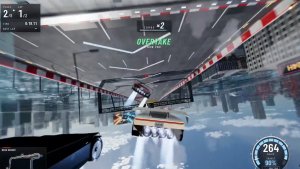
Salutări, Programe! Transformați-vă vehiculul în Ciclul Luminilor.
Accesați Lansator aplicații > Toybox > Tron.
Clădiri 3D

Acum puteți vedea clădirile și peisajele urbane mai detaliat cu vizualizarea 3D. Pentru activare, comutați la Vizualizare hartă și atingeți pictograma 3D.
Este necesară Conectivitate premium.
Vizualizare prin satelit

Acum, puteți comuta la vizualizarea prin satelit dacă atingeți pictograma pământeană de pe hartă.
Actualizări Vizualizator cameră de bord

Numele străzilor sunt acum incluse în detaliile unui eveniment înregistrat de camera de bord (atunci când sunt disponibile), facilitând distingerea între evenimentele înregistrate. În plus, Vizualizatorul camerei de bord de pe mobil transmite și descarcă acum la o rezoluție mai mare. Necesită cel puțin versiunea 4.49.5 a aplicației Tesla.
Side Cameras Recording

Your vehicle's side cameras (B-Pillar) will now be recorded to both Dashcam and Sentry clips.
Funcții noi pentru discul de derulare

Rotița de derulare din stânga include noi opțiuni pentru accesarea rapidă a diferitelor comenzi ale vehiculului, precum Modul de apărare contra armelor biologice, Dezactivare sonor navigație și Sincronizare muzică-lumină – dacă acestea sunt disponibile în vehiculul dvs.
Apăsați și mențineți apăsată rotița de derulare din stânga pentru a deschide meniul.
Grok (Beta)
Acum, puteți vorbi cu Grok, un asistent inteligent, bazat pe xAI. Puteți alege vocea și personalitatea lui Grok, de la Povestitor la Dezechilibrat. Pentru a lansa Grok, accesați Lansator aplicații > Grok sau apăsați prelungit butonul pentru voce de pe volan.
Necesită Conectivitate premium sau o conexiune la WiFi. Interacțiunile sunt anonime și nu sunt asociate cu vehiculul dvs.
Notă: Grok se află în prezent în stadiul în stadiul Beta și nu acceptă comenzile vocale pentru comenzile mașinii, cum ar fi navigația sau media. Comenzile vocale existente rămân neschimbate.
Ghid de familiarizare

Ghidul de familiarizare vă ajută să vă familiarizați cu vehiculul Tesla. Acesta acoperă reglarea setărilor șoferului, utilizarea ecranului tactil, precum și controlul luminilor, al ștergătoarelor și al funcțiilor Autopilot, printre altele.
Accesați Lansator aplicații > Manual > Familiarizați-vă cu Tesla.
Actualizări minore

- Apple Music oferă o vizualizare organizată a listelor de redare cu foldere, pagini extinse ale artiștilor și o secțiune Redate recent, care afișează mai multe despre istoricul dvs. de ascultare.
- Vă puteți conecta la conținutul dvs. media utilizând o notificare din aplicația Tesla, pentru o experiență mai rapidă și mai fluidă.
- Acum puteți alege dacă este necesară o cheie telefon înainte de a putea selecta un profil de șofer. Accesați Setări profil șofer > Solicită cheie telefon pentru profil.
- Această actualizare conține soluții și optimizări importante pentru securitate.
Santa Mode

Tesla has added Santa Mode to 2026 Model S and Model X vehicles. These cars use the Unreal Engine and did not include Santa Mode until this update. Santa Mode was noticeably absent from the Toybox, and when users tried to enable the feature through voice commands, the system would say that Santa Mode is not available and will be enabled in a future update.
New FSD Guide

When a user activates FSD from the Controls > Autopilot menu, Tesla will now present a one-screen guide that introduces the user to FSD.
The guide includes the same disclaimer as previous updates and now also includes an image of the steering wheel controls for FSD, letting the user know how to switch FSD Profiles and set the maximum speed (for FSD V13 and below).
The image used is specific to the vehicle and will either include steering wheel buttons or stalks, depending on the model.
More Charging Information

While a vehicle is charging, Tesla now includes a link for ‘Additional Charging Information’ in the Controls > Charging section. If the vehicle is charging, the link will appear in blue in the top-right corner.
Tapping the link displays a pop-up containing additional information, such as the maximum and current battery input power.
Maximum Battery Input Power is the total power the charger can deliver.
Battery Input Power is the amount of energy that is being actively put into the vehicle’s battery. The battery input power may be less than the maximum charger capability for several reasons, including a high vehicle charge level. The vehicle will also draw power directly from the charger rather than draining the battery if it needs to run the HVAC system, screen, or other components. This reduces battery wear by using energy from the battery, only to have to re-add it.
Keep Accessory Power On App Control
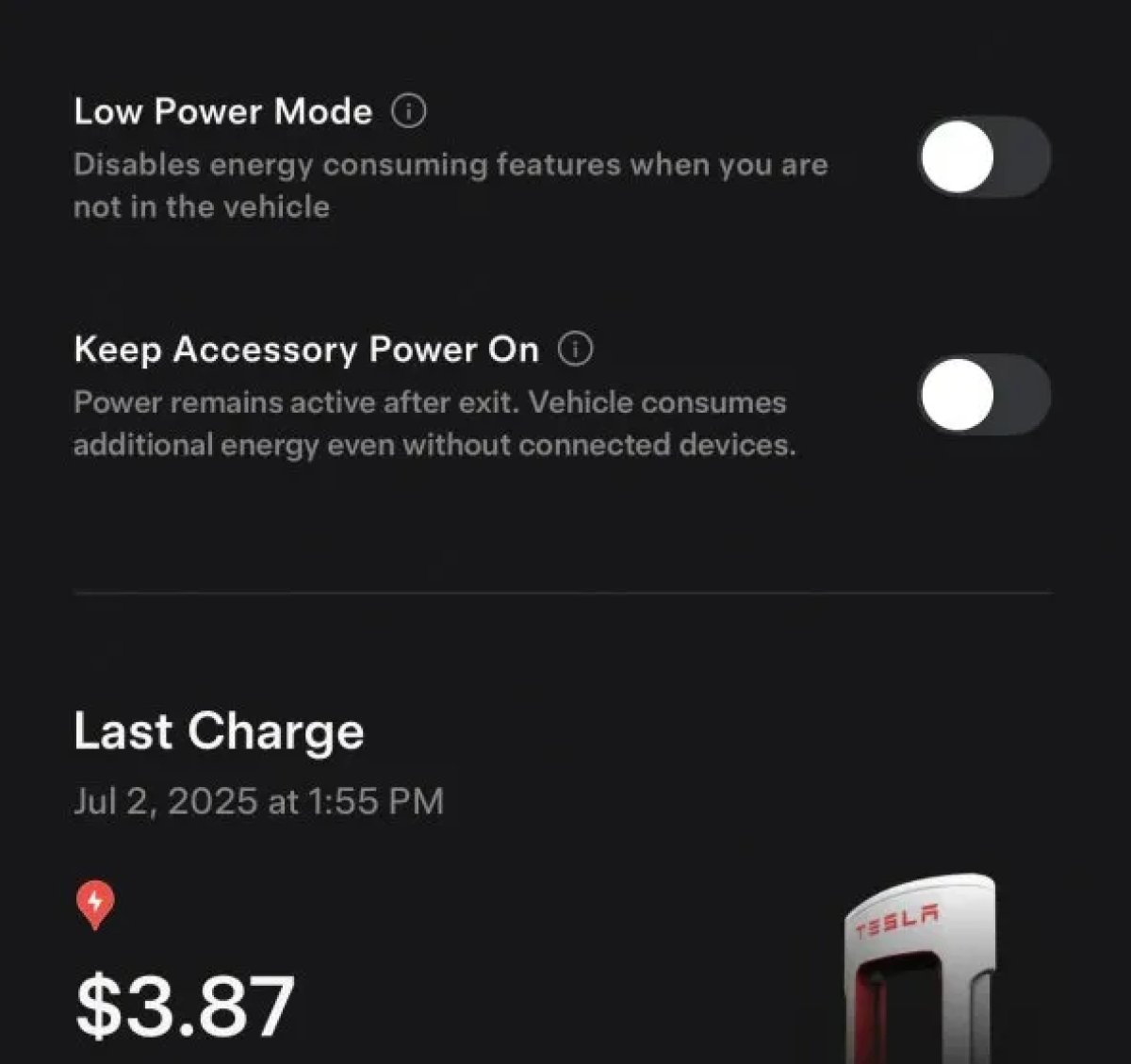
The 2025.38 vehicle update adds support for the ‘Keep Accessory Power On’ option in the latest Tesla app. This option is part of the latest Tesla app update, which adds the new Charging menu that consolidates most charging options under a single menu.
It also adds a button for Low Power Mode, instead of just being under Quick Actions.
Buy Parts

Tesla has added a Buy Parts button to Tesla’s Service Mode. Tapping the button displays a QR code that takes users to Tesla’s service site, where owners can buy parts directly from Tesla.
Parts can be shipped directly to the customer or to the nearest service center.
Charger Visualization

Tesla has added a visualization of a charger when the vehicle is parked and plugged in. In this photo, the owner is using a non-Tesla charger, so a generic charger is displayed. Tesla will presumably display a mobile charger, Wall Connector, or Supercharger if those are plugged into the vehicle.
Service Mode Improvements

New Trunk Panel
A new Trunk panel with an overview of the liftgate status, latch status, and calibration status for the trunk is now available. The panel also provides additional information, such as the request source, set liftgate height, and hands-free settings.
Models: ModelS (2021+), Model 3, Model X (2021+), Model Y
New Front Trunk Panel
A new Front Trunk (or frunk) panel with an overview of the liftgate status, latch status, and calibration status for the front trunk is now available. The panel also provides additional information, such as the request source, set liftgate height, and hands-free settings.
Models: Cybertruck
Cameras Panel Update - Mismatched Firmware Detection
In the Cameras panel, detection for when Driver Assistance System (DAS) Hardware 4 (HW4) cameras have mismatched firmware versions has been added.
If a DAS HW4 camera with mismatched firmware is detected, touch the Update Camera button to initiate a camera firmware update.
Models: ModelS (2021+), Model 3, Model X (2021+), Model Y, Cybertruck
Brakes Panel Update - ESP Stiffness Test Routine Changes
In the Electronic Stability Program (ESP) replacement panel, the routine TEST-BRAKE_CORNER_STIFFNESS-TEST has been replaced with TEST_BRAKE_X_STIFFNESS-TEST-SERVICE.
Models: Model 3(2017-2023), Model Y (2020-2024)

