









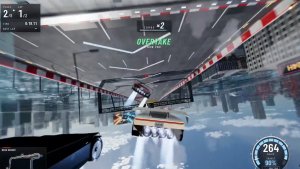
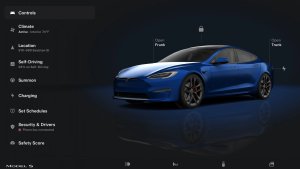
Tron Mode

Begroetingsprogramma's. Transformeer uw voertuig in de Light Cycle.
Ga naar App Launcher > Toybox > Tron.
3D-gebouwen

U kunt nu gebouwen en stadsgezichten gedetailleerder bekijken in de 3D-weergave. Schakel naar Kaartweergave en tik op het 3D-pictogram om dit in te schakelen.
Premium Connectivity vereist.
Satellietweergave

U kunt nu overschakelen naar de satellietweergave door op het wereldbolpictogram op de kaart te tikken.
Updates van Dashcam Viewer

Straatnamen zijn nu opgenomen in de details van dashcam-gebeurtenissen (indien beschikbaar), zodat gemakkelijker onderscheid kan worden gemaakt tussen opgenomen gebeurtenissen. Daarnaast streamt en downloadt Mobiele Dashcam Viewer nu met een hogere resolutie. Vereist versie 4.49.5+ van de Tesla-app.
Side Cameras Recording

Your vehicle's side cameras (B-Pillar) will now be recorded to both Dashcam and Sentry clips.
Nieuwe functies scrollwieltje

Het linker scrollwieltje biedt nieuwe opties voor snelle toegang tot verschillende bedieningselementen van het voertuig, zoals Bioweapon Defense Mode, Navigatie dempen en Lichtsynchronisatie met muziek - indien beschikbaar in uw voertuig.
Houd het linker scrollwieltje ingedrukt om het menu te openen.
Grok (bèta)
U kunt nu praten met Grok, een intelligente assistent gebouwd door xAI. U kunt de stem en het karakter van Grok kiezen, van Verteller tot Losgeslagen. Ga naar de App Launcher > Grok of druk lang op de spraakbedieningsknop op het stuurwiel om Grok te starten.
Vereist Premium Connectivity of een wifiverbinding. Gesprekken zijn anoniem voor Tesla en niet gekoppeld aan uw voertuig.
Opmerking: Grok bevindt zich momenteel in de vroege bètafase en ondersteunt geen spraakopdrachten voor bedieningselementen in de auto, zoals navigatie of media. Bestaande spraakopdrachten blijven ongewijzigd.
Introductiehandleiding

De Introductiehandleiding helpt u vertrouwd te raken met uw Tesla. Daarin wordt getoond hoe u de bestuurdersinstellingen aanpast met behulp van het touchscreen en hoe u de verlichting, ruitenwissers, Autopilot- en andere functies bedient.
Ga naar App Launcher > Handleiding > Maak kennis met uw Tesla.
Kleine updates

- Apple Music biedt een geordende afspeellijstweergave met mappen, uitgebreide artiestenpagina's en een legplank 'Onlangs afgespeeld' met meer informatie over uw luistergeschiedenis.
- U kunt zich aanmelden bij uw media via een melding in de Tesla-app voor een snellere en naadloze ervaring.
- U kunt nu kiezen of een telefoonsleutel is vereist voordat een bestuurdersprofiel kan worden geselecteerd. Ga naar Instellingen bestuurdersprofiel > Telefoonsleutel vereist voor profiel.
- Deze update bevat belangrijke beveiligingsoplossingen en -verbeteringen.
Santa Mode

Tesla has added Santa Mode to 2026 Model S and Model X vehicles. These cars use the Unreal Engine and did not include Santa Mode until this update. Santa Mode was noticeably absent from the Toybox, and when users tried to enable the feature through voice commands, the system would say that Santa Mode is not available and will be enabled in a future update.
New FSD Guide

When a user activates FSD from the Controls > Autopilot menu, Tesla will now present a one-screen guide that introduces the user to FSD.
The guide includes the same disclaimer as previous updates and now also includes an image of the steering wheel controls for FSD, letting the user know how to switch FSD Profiles and set the maximum speed (for FSD V13 and below).
The image used is specific to the vehicle and will either include steering wheel buttons or stalks, depending on the model.
More Charging Information

While a vehicle is charging, Tesla now includes a link for ‘Additional Charging Information’ in the Controls > Charging section. If the vehicle is charging, the link will appear in blue in the top-right corner.
Tapping the link displays a pop-up containing additional information, such as the maximum and current battery input power.
Maximum Battery Input Power is the total power the charger can deliver.
Battery Input Power is the amount of energy that is being actively put into the vehicle’s battery. The battery input power may be less than the maximum charger capability for several reasons, including a high vehicle charge level. The vehicle will also draw power directly from the charger rather than draining the battery if it needs to run the HVAC system, screen, or other components. This reduces battery wear by using energy from the battery, only to have to re-add it.
Keep Accessory Power On App Control
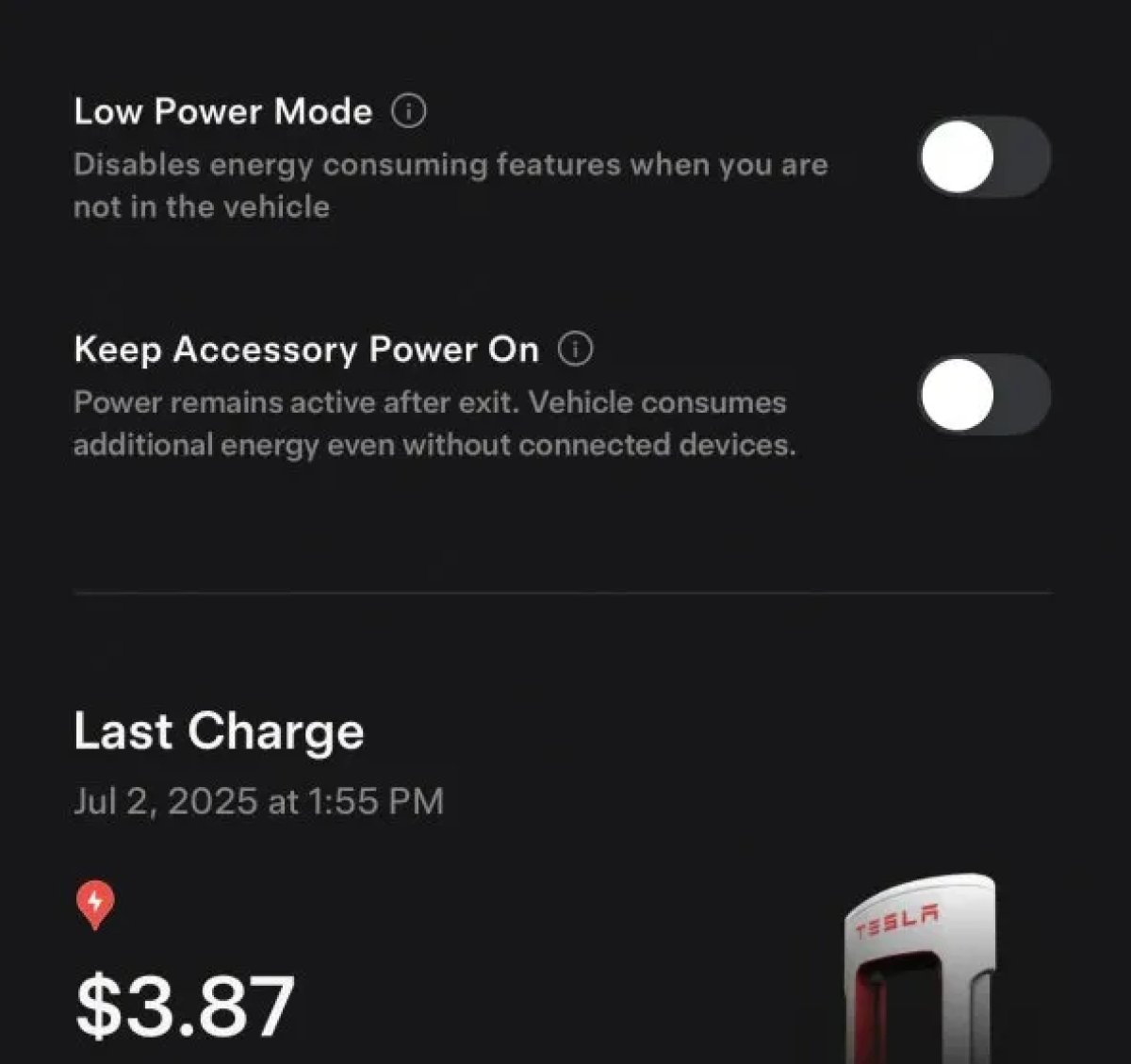
The 2025.38 vehicle update adds support for the ‘Keep Accessory Power On’ option in the latest Tesla app. This option is part of the latest Tesla app update, which adds the new Charging menu that consolidates most charging options under a single menu.
It also adds a button for Low Power Mode, instead of just being under Quick Actions.
Buy Parts

Tesla has added a Buy Parts button to Tesla’s Service Mode. Tapping the button displays a QR code that takes users to Tesla’s service site, where owners can buy parts directly from Tesla.
Parts can be shipped directly to the customer or to the nearest service center.
Charger Visualization

Tesla has added a visualization of a charger when the vehicle is parked and plugged in. In this photo, the owner is using a non-Tesla charger, so a generic charger is displayed. Tesla will presumably display a mobile charger, Wall Connector, or Supercharger if those are plugged into the vehicle.
Service Mode Improvements

New Trunk Panel
A new Trunk panel with an overview of the liftgate status, latch status, and calibration status for the trunk is now available. The panel also provides additional information, such as the request source, set liftgate height, and hands-free settings.
Models: ModelS (2021+), Model 3, Model X (2021+), Model Y
New Front Trunk Panel
A new Front Trunk (or frunk) panel with an overview of the liftgate status, latch status, and calibration status for the front trunk is now available. The panel also provides additional information, such as the request source, set liftgate height, and hands-free settings.
Models: Cybertruck
Cameras Panel Update - Mismatched Firmware Detection
In the Cameras panel, detection for when Driver Assistance System (DAS) Hardware 4 (HW4) cameras have mismatched firmware versions has been added.
If a DAS HW4 camera with mismatched firmware is detected, touch the Update Camera button to initiate a camera firmware update.
Models: ModelS (2021+), Model 3, Model X (2021+), Model Y, Cybertruck
Brakes Panel Update - ESP Stiffness Test Routine Changes
In the Electronic Stability Program (ESP) replacement panel, the routine TEST-BRAKE_CORNER_STIFFNESS-TEST has been replaced with TEST_BRAKE_X_STIFFNESS-TEST-SERVICE.
Models: Model 3(2017-2023), Model Y (2020-2024)

