










FSD(수퍼바이즈드) v14.1.5

풀 셀프-드라이빙(수퍼바이즈드) v14.1.5 포함 기능:
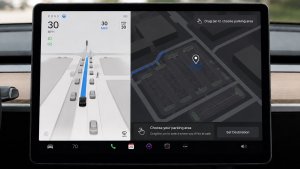
- FSD 이 주차할 위치를 선택할 수 있는 도착 옵션이 추가됨(예: 주차장, 도로변, 진입로, 주차 건물 또는 길가).
- 응급 차량(예: 경찰차, 소방차, 구급차)을 위해 길가에 정차하거나 양보하는 기능 추가됨.
- 차단된 도로 및 우회로를 실시간으로 처리하기 위해 비전 기반 신경망에 내비게이션 및 경로 설정을 추가함.
- 운전 스타일 선호도를 추가로 맞춤 설정할 수 있는 속도 프로필이 추가됨.
- 정적 및 동적 게이트 처리를 개선.
- 도로상의 파편(예: 타이어, 나뭇가지, 상자)에 대한 회피를 개선.
- 비보호 좌회전, 차선변경, 차량 끼어들기, 스쿨버스 등 여러 시나리오 처리 능력이 개선됨.
- 신뢰성 향상을 위해 시스템 오류 관리 및 성능 저하 상태에서의 원활한 복구 등 FSD 의 능력이 개선됨.
- 전면 카메라 시야에 영향을 줄 수 있는 실내 윈드실드의 잔류물 축적 알림 기능이 추가됨. 영향을 받는 경우 세척을 위해 서비스 센터를 방문하세요!
향후 개선 사항:
- 전반적인 부드러움과 감성
- 주차 공간 선택 및 주차 품질
도착 옵션

- 로보택시 하차를 위해 주차장, 도로변, 진입로, 주차 건물, 길가와 같은 도착 옵션을 선택할 수 있음.
- 각 목적지에 대한 도착 옵션 및 선호 주차 위치 설정이 저장됨.
- 추론 모델이 목적지에 적합한 옵션을 평가하고 직관적인 기본값을 선택.
속도 프로필

FSD(수퍼바이즈드)은 이제 운전자 프로필, 속도 제한, 주변 교통 상황을 종합적으로 판단하여 적절한 속도를 결정합니다.
- 컴포트보다 낮은 속도와 보수적인 차선 선택을 제공하는 새로운 속도 프로필인 나무늘보가 도입됨.
- 새로운 속도 프로필 'MAD MAX'를 도입했습니다. 해당 프로필은 '신속 주행' 대비 더 빠른 속도와 더 잦은 차선 변경 동작을 제공합니다.
- 운전자 프로필이 이제 주행 동작에 더 강한 영향을 미침. 프로필이 공격적일수록 최대 속도가 높아짐.
- 이제 오른쪽 스크롤 휠을 위/아래로 이동하여 mph/kph 단위의 정확한 최대 속도 오프셋 선택이 아닌 속도 프로필 설정을 조정할 수 있음.
UI 개선 사항

- 주차 모드에서 또는 주행 중 언제든지 터치스크린을 탭하여 자율주행 시작 가능.
- 중앙 디스플레이의 오토파일럿 시각화 화면에서 직접 속도 프로필 및 도착 옵션 같은 설정의 조정 가능.
브레이크 확인

자율주행 시작하기 버튼의 브레이크 확인 기능이 이제 기본적으로 꺼져 있습니다. 비활성화 시, 자율주행 시작 시 작동 확인을 위해 브레이크를 눌렀다 뗄 필요가 없습니다.
오토파일럿 > 브레이크 확인에서 브레이크 확인 기능을 활성화할 수 있습니다.
풀 셀프-드라이빙(수퍼바이즈드)

운전자의 감독 하에 풀 셀프 드라이빙 구현 기능(수퍼바이즈드)으로 Tesla를 거의 모든 곳에서 운전할 수 있습니다. 주차된 위치에서 출발하여 차선변경, 내비게이션 경로상의 분기 선택, 다른 차량 및 장애물 주변 운행, 좌우회전 및 목적지 주차 등 작업을 수행합니다. 사용자와 사용자가 허가한 모든 사람은 주의 깊은 관찰과 함께 추가적인 주의를 기울여 사용해야 합니다. 이 기능으로 차량이 자율주행 차량이 되는 것은 아닙니다. 방심하지 마세요.
풀 셀프 드라이빙 구현 기능(수퍼바이즈드)이 차량에서 활성화되었습니다. 이 기능을 사용하려면 UI의 자율주행 시작하기 버튼을 누르거나 오른쪽 스크롤 휠 버튼을 한 번 누르세요. 오토파일럿 설정에서 풀 셀프 드라이빙 구현 기능(수퍼바이즈드)을 비활성화할 수 있습니다.
Santa Mode

Tesla has added Santa Mode to 2026 Model S and Model X vehicles. These cars use the Unreal Engine and did not include Santa Mode until this update. Santa Mode was noticeably absent from the Toybox, and when users tried to enable the feature through voice commands, the system would say that Santa Mode is not available and will be enabled in a future update.
New FSD Guide

When a user activates FSD from the Controls > Autopilot menu, Tesla will now present a one-screen guide that introduces the user to FSD.
The guide includes the same disclaimer as previous updates and now also includes an image of the steering wheel controls for FSD, letting the user know how to switch FSD Profiles and set the maximum speed (for FSD V13 and below).
The image used is specific to the vehicle and will either include steering wheel buttons or stalks, depending on the model.
More Charging Information

While a vehicle is charging, Tesla now includes a link for ‘Additional Charging Information’ in the Controls > Charging section. If the vehicle is charging, the link will appear in blue in the top-right corner.
Tapping the link displays a pop-up containing additional information, such as the maximum and current battery input power.
Maximum Battery Input Power is the total power the charger can deliver.
Battery Input Power is the amount of energy that is being actively put into the vehicle’s battery. The battery input power may be less than the maximum charger capability for several reasons, including a high vehicle charge level. The vehicle will also draw power directly from the charger rather than draining the battery if it needs to run the HVAC system, screen, or other components. This reduces battery wear by using energy from the battery, only to have to re-add it.
Keep Accessory Power On App Control
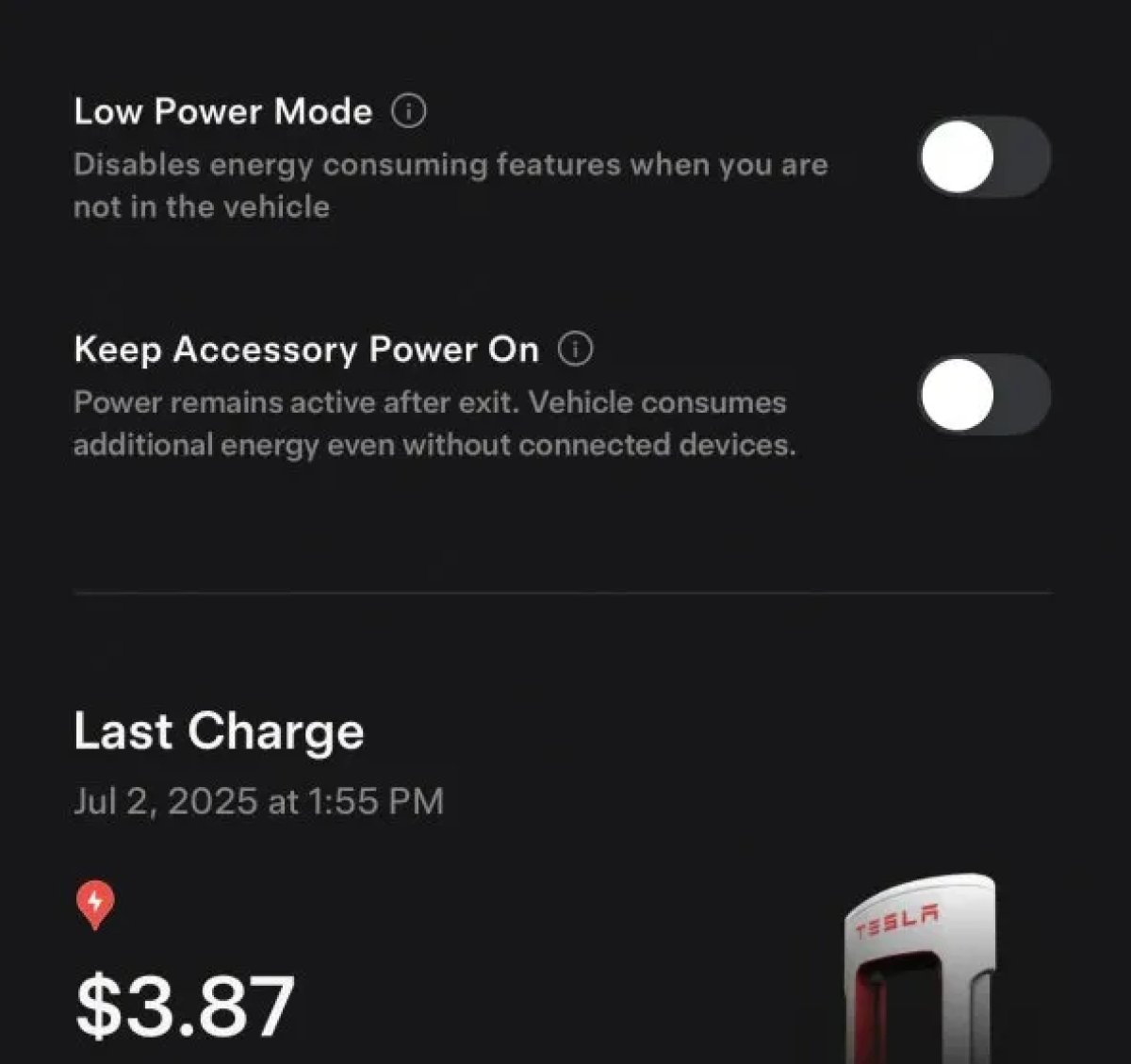
The 2025.38 vehicle update adds support for the ‘Keep Accessory Power On’ option in the latest Tesla app. This option is part of the latest Tesla app update, which adds the new Charging menu that consolidates most charging options under a single menu.
It also adds a button for Low Power Mode, instead of just being under Quick Actions.
Buy Parts

Tesla has added a Buy Parts button to Tesla’s Service Mode. Tapping the button displays a QR code that takes users to Tesla’s service site, where owners can buy parts directly from Tesla.
Parts can be shipped directly to the customer or to the nearest service center.
Charger Visualization

Tesla has added a visualization of a charger when the vehicle is parked and plugged in. In this photo, the owner is using a non-Tesla charger, so a generic charger is displayed. Tesla will presumably display a mobile charger, Wall Connector, or Supercharger if those are plugged into the vehicle.
Service Mode Improvements

New Trunk Panel
A new Trunk panel with an overview of the liftgate status, latch status, and calibration status for the trunk is now available. The panel also provides additional information, such as the request source, set liftgate height, and hands-free settings.
Models: ModelS (2021+), Model 3, Model X (2021+), Model Y
New Front Trunk Panel
A new Front Trunk (or frunk) panel with an overview of the liftgate status, latch status, and calibration status for the front trunk is now available. The panel also provides additional information, such as the request source, set liftgate height, and hands-free settings.
Models: Cybertruck
Cameras Panel Update - Mismatched Firmware Detection
In the Cameras panel, detection for when Driver Assistance System (DAS) Hardware 4 (HW4) cameras have mismatched firmware versions has been added.
If a DAS HW4 camera with mismatched firmware is detected, touch the Update Camera button to initiate a camera firmware update.
Models: ModelS (2021+), Model 3, Model X (2021+), Model Y, Cybertruck
Brakes Panel Update - ESP Stiffness Test Routine Changes
In the Electronic Stability Program (ESP) replacement panel, the routine TEST-BRAKE_CORNER_STIFFNESS-TEST has been replaced with TEST_BRAKE_X_STIFFNESS-TEST-SERVICE.
Models: Model 3(2017-2023), Model Y (2020-2024)

