![Tesla's Dashcam Clears Driver Arrested at Gunpoint [VIDEO]](https://www.notateslaapp.com/img/containers/article_images/2026/tesla-dashcam-footage-driving-stop-acquittal.png/7f610401d1bb748d6a1bbedfc4da621c/tesla-dashcam-footage-driving-stop-acquittal.jpg)
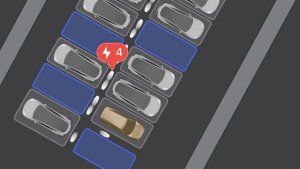
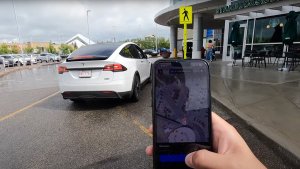
향상된 스마트 차량 호출

향상된 스마트 차량 호출(ASS) 및 간단 차량 호출이 이제 Cybertruck에서 제공됩니다!
풀 셀프 드라이빙(감독형) v14.3.4

풀 셀프 드라이빙(감독형) v14.3.4 포함 기능:
- 풀 셀프 드라이빙 신경망 학습의 강화 학습(RL) 단계를 업그레이드하여 다양한 주행 시나리오에서 성능을 개선했습니다.
- 신경망 비전 인코더를 업그레이드하여 드물게 발생하는 상황 및 시야가 제한된 상황에 대한 인식 성능을 개선하고, 3D 기하 구조에 대한 이해를 강화했으며, 교통 표지 인식 범위를 확장했습니다.
- AI 컴파일러와 런타임을 MLIR 기반으로 전면 재작성하여 반응 속도를 20% 높이고 모델 반복 속도를 개선했습니다.
- 불필요한 차선 편향 동작과 경미한 근접 주행 성향을 완화했습니다.
- 주차 공간 선택 및 주차 기동의 판단 속도와 정확성을 향상시켰습니다.
- 주차 위치 핀 표시 정확도를 개선했으며, 이제 지도에 P 아이콘으로 표시됩니다.
- 긴급 차량, 스쿨버스, 통행 우선권 등을 침해하는 차량 및 기타 드물게 마주치는 차량에 대한 대응 성능을 강화했습니다.
- 더 어려운 사례에 강화 학습(RL)을 집중하고 향상된 선제적 안전 확보에 대한 보상 메커니즘을 추가하여 소형 동물에 대한 대응 성능을 개선했습니다.
- Tesla 차량 플릿에서 수집한 어려운 강화 학습(RL) 사례를 기반으로, 복합 신호 체계가 적용된 복잡한 교차로, 곡선 도로 및 황색 신호 정지 상황에서의 신호등 처리 성능을 개선했습니다.
- 차량 진행 경로로 돌출되거나 매달리거나 기울어져 있는 드물고 특이한 물체에 대한 대응 성능을 개선했으며, 이를 위해 Tesla 차량 플릿에서 발생 빈도가 낮은 사례를 수집해 반영했습니다.
- 운전자 개입 없이도 제어를 유지하고 자동으로 복구하도록 하여 일시적인 시스템 성능 저하 상황에 대한 대응을 개선했으며, 불필요한 해제를 줄였습니다.
- 시선 추적 성능 향상, 안경 등 착용 상태 처리 개선, 가변적인 조명 환경에서의 정확도 향상을 통해 운전자 모니터링 시스템의 민감도를 개선했습니다.
- 향상된 스마트 차량 호출, 풀 셀프 드라이빙 및 Robotaxi 간 모델을 통합하여 보다 향상되고 신뢰성 높은 동작을 구현했습니다.
- 인계 후 메인 화면에서 개입 이유를 선택하여 Tesla의 어시스티드 드라이빙 개선에 도움을 주세요.
- 이제 개입 없이 풀 셀프 드라이빙(감독형)으로 주행한 거리를 확인할 수 있습니다. 어시스티드 드라이빙 앱은 최장 무개입 연속 기록도 표시합니다.
- 이제 목적지에 도착하면 지도에 주차 옵션이 디스플레이됩니다.
Upcoming Improvements:
- Expand reasoning to all behaviors beyond destination handling.
- Add pothole avoidance.
풀 셀프-드라이빙(수퍼바이즈드)

운전자의 감독 하에 풀 셀프 드라이빙 구현 기능(수퍼바이즈드)으로 Tesla를 거의 모든 곳에서 운전할 수 있습니다. 주차된 위치에서 출발하여 차선변경, 내비게이션 경로상의 분기 선택, 다른 차량 및 장애물 주변 운행, 좌우회전 및 목적지 주차 등 작업을 수행합니다. 사용자와 사용자가 허가한 모든 사람은 주의 깊은 관찰과 함께 추가적인 주의를 기울여 사용해야 합니다. 이 기능으로 차량이 자율주행 차량이 되는 것은 아닙니다. 방심하지 마세요.
풀 셀프 드라이빙 구현 기능(수퍼바이즈드)이 차량에서 활성화되었습니다. 이 기능을 사용하려면 UI의 자율주행 시작하기 버튼을 누르거나 오른쪽 스크롤 휠 버튼을 한 번 누르세요. 오토파일럿 설정에서 풀 셀프 드라이빙 구현 기능(수퍼바이즈드)을 비활성화할 수 있습니다.
FSD Streaks

Tesla has added confetti when you reach numerous FSD streak milestones.
Add Stop Pin

Tesla has moved the Add Stop menu directly into the Destination module, letting drivers easily add another destination without going into the More menu (…) and tapping Edit Trip.
Updated Parking Options

Tesla has replaced the Curbside parking option with Pull Over. The parking options will now also automatically appear as you approach your destination, making it easier to switch your parking choice if needed.
Destination Messages

The vehicle will now display the destination you’re navigating to when you start FSD. A similar message will also appear at the end of the drive, reminding you that you’re approaching your destination.
Updated Disengagement Menu

Tesla has updated the intervention menu to include new reasons for disengagement. Parking, possibly the most popular reason for disengaging behind navigation, has now been added as an option. Tesla has also brought back ‘Other.’ There are still only four reasons for intervening, so that means that ‘Preference’ and ‘Discomfort’ have been removed.
Cloud Profiles

Tesla cloud profiles now feature a new cloud icon to indicate they’re cloud profiles rather than local profiles stored only on the vehicle.
Amber Brake Lights

This update properly visualizes vehicles with amber brake lights. Some regions require turn signals to be orange/amber. Up until now, the visualization has only displayed turn signals in red, but with this update, Tesla now properly displays amber turn signals for the appropriate vehicles.
The Unreal Engine brings drastic improvements to lighting in the visualization, making the brake lights much more noticeable as they reflect on the ground.
Parental Controls Improvement
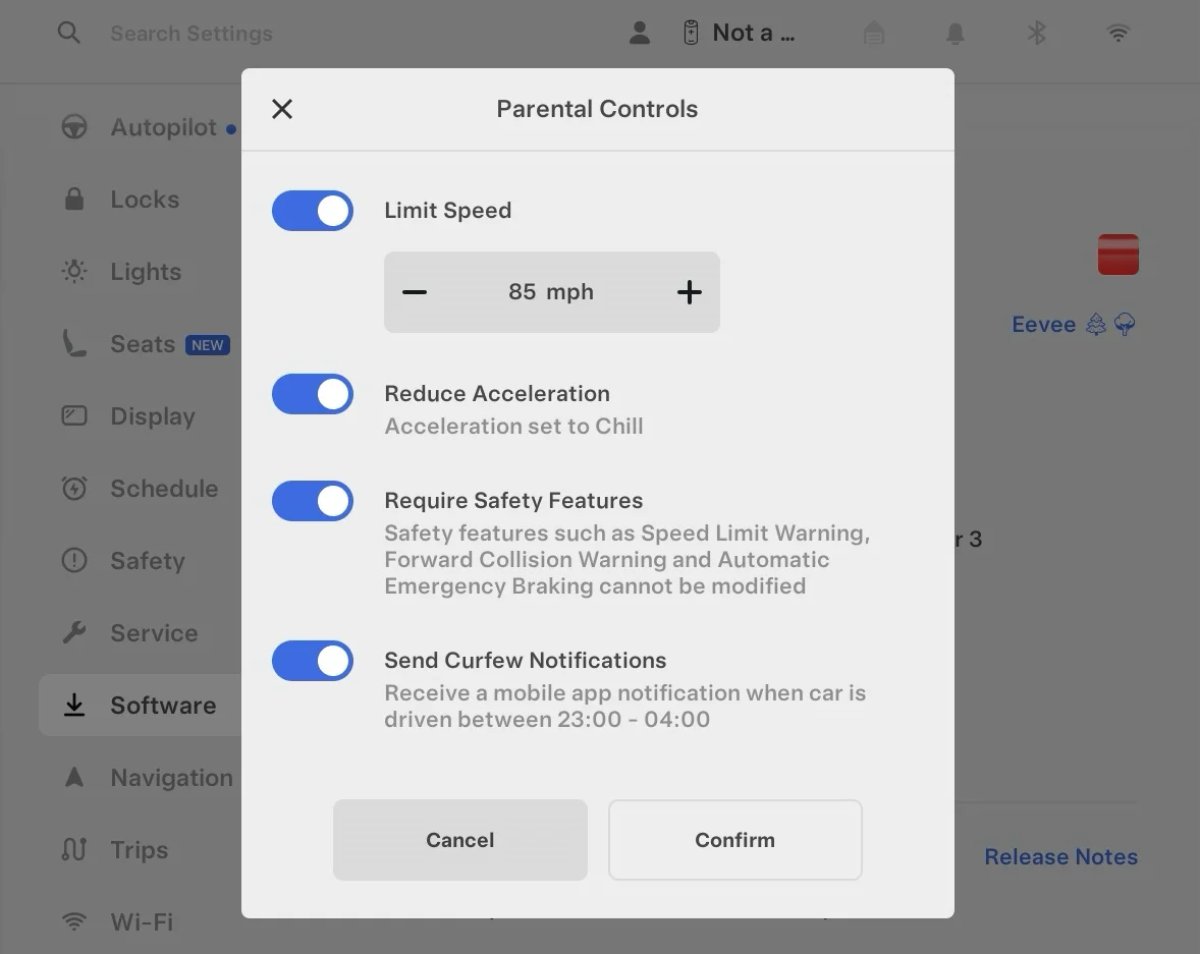
Tesla’s parental controls are designed to keep new drivers safe by limiting access to certain features. Parents can reduce the vehicle’s acceleration, limit the top speed, and prevent safety features from being turned off.
With this update, Tesla is adding another improvement to Parental Controls for Performance vehicles. Track Mode is now restricted when you enable Require Safety Features, preventing teens from manipulating the vehicle's handling, braking, and more.
Require Safety Features prevents these features from being turned off:
Automatic Emergency Braking
Obstacle-Aware Acceleration
Automatic Blind Spot Camera
Blind Spot Collision Warning Chime
Automatic 911 Call (US only)
Allow Mobile Access
Park Assist Chimes
It also prevents these settings from being changed:
Track Mode is disabled
Lane Departure Avoidance is set to Assist
Speed Limit Warning set to Chime
Speed Limit set to relative
Offset set to +5 mph (8 km/h)
Forward Collision Warning set to Early
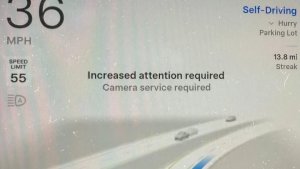
Increased Attention Monitoring Alert

Tesla has added a new camera visibility alert with this update. What’s most interesting about this alert is that Tesla states that the poor camera visibility is resulting in increased attention monitoring.
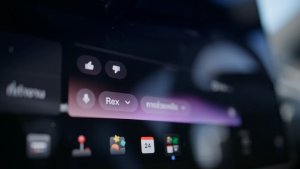
Grok Turns Off After Inactivity

With the introduction of the "Hey Grok" wake word, Tesla has changed the way Grok behaves. Previously, once Grok was triggered, it would remain active indefinitely, staying in a constant listening state.
Now, in order to turn off accidental activations and minimize background processing, Grok will automatically dismiss itself after approximately 15 seconds of inactivity.
This behavior applies regardless of whether you triggered the assistant using the new voice wake word or the physical steering wheel button. For those who prefer to close the interface manually, you can still use natural language dismissal commands; simply saying "goodbye" or "talk to you later" will instantly close Grok.
h/t: @Deandawiz
Grok Favorites

The integrated Grok assistant now has access to your vehicle’s saved favorites. Grok can now "see" and interpret the custom labels you have assigned to your saved locations.
For example, if you have an address saved as "Kim’s parents," you can simply say, "Hey Grok, navigate to “Kim’s parents," and the system will immediately pull the correct address from your list of favorites.
h/t: @NickScheber
Advanced Software Updates

Tesla has updated the Software Update Preference setting under the Software menu.
Previously, the software update preference was a toggle between "Standard" and "Advanced." This has now changed into a simpler on/off toggle for "Advanced" updates.
By switching this to "On," you are opting in to receive the latest software releases as soon as they become available for your specific vehicle configuration and region. This could result in receiving updates with minor bugs or receiving updates more often.
If left "Off," your vehicle will wait for a wider release before installing updates.
Re-Order Trip Meters

You can reorder the new trip meters however you’d like. Simply tap and hold one to get it to jiggle, and then move it to a new location.
Additionally, you can also tap on the energy graph in the top-right corner to view a larger, more detailed version of it.
Chromium Browser Updated

Tesla has upgraded the browser in the vehicle. Tesla’s browser is based on the open-source Chromium browser, the same browser that powers Google’s Chrome browser.
The browser was updated to version 140, up from version 136.
This update to Chromium increases compatibility with modern web standards, improves WebGPU performance, and resolves known issues.
Save Recent Dashcam Videos

Tesla continues to make it easier to browse and save recent Dashcam clips. In the last update, Tesla made it easier to browse recent, non-saved Dashcam clips by listing them at the top of the Dashcam Viewer.
With this update, they’re now letting you save recent clips that are still on the USB drive, but not saved from being deleted.
Volume Icons
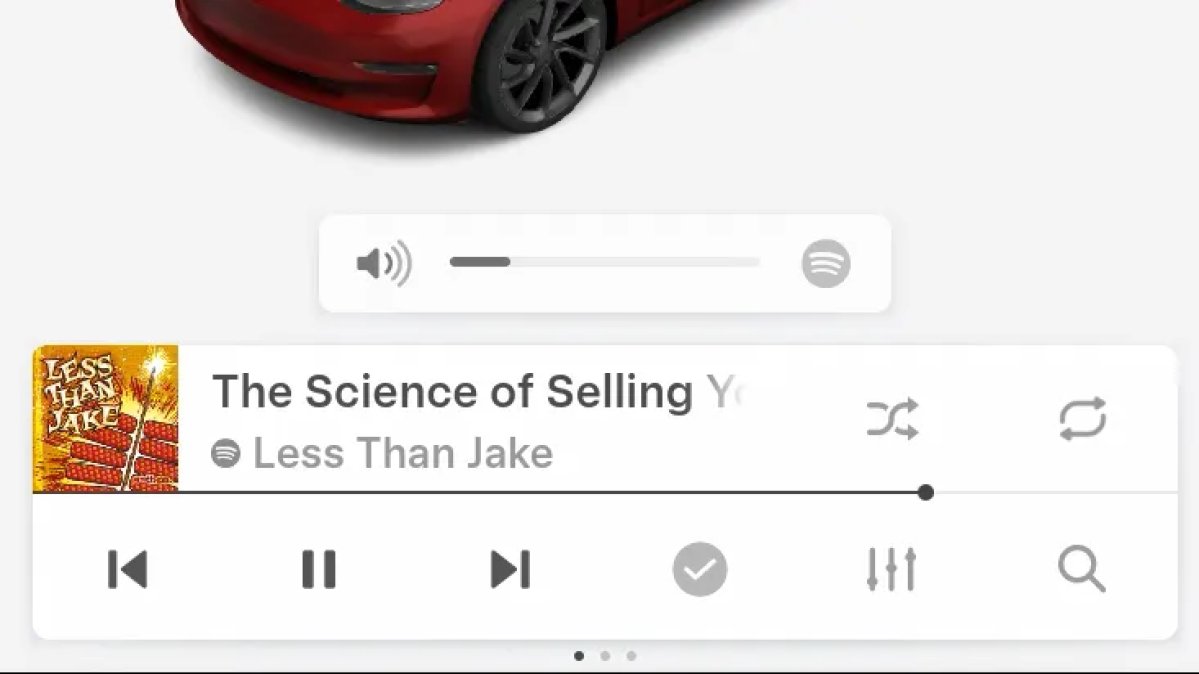
When adjusting the volume of an app, such as Spotify, the volume icon will now display the app's icon. While the navigation volume has always had its own icon and an independent volume setting, this change does not add app-dependent volume settings.
The same volume that’s used for Spotify will be used for YouTube and other apps. This icon simply makes it more obvious which volume is being changed.
Driver Profiles

Driver profiles are now also available in vehicle settings, rather than only in the Profiles icon in the status bar.
Users can navigate to Controls > Profiles to see the settings for all driver profiles.
Grok Settings

Grok settings are now also shown in the Audio section under Controls. These are the same settings available in the Grok app, but Tesla appears to be duplicating most of them under controls to make them easier to find.
Euro Semi Visualization

A new Autopilot/FSD visualization has been found in this update. The cab-over-engine style semi trucks often seen in Europe are now appearing in Autopilot visualizations with this update.
New 'All Apps' Icon

Tesla has updated the ‘All Apps’ icon displayed in the dock. Instead of an ellipsis inside of a rectangle, Tesla has now created a design that resembles iOS folders. The new design shows four apps inside the folder, but it’s not a static image.
The apps shown in the folder will change, presumably to show your most recent or most popular apps that aren't displayed in the dock.
Larger Dock Icons

To go along with the new ‘App Apps’ icon, Tesla has also increased the size of all icons in the dock. While the dock appears to remain the same size, the icons are now larger.
Animated Badges

Tesla models that have special badges, such as the Ludicrous badge on the Performance Model 3, are now animated in Software screen.
Upon navigating to the Software menu, the badge will play a short animation. You can also tap the badge to replay the animation.
New Creations Section

With the introduction of Photobooth, Tesla added a Photobooth section to the top level of the app that lets you view your saved photo sessions.
With the Spring Update and the update to the Sketchpad app for AMD Ryzen vehicles, Tesla is rebranding the Photobooth section to Creations, and it’ll now house Photobooth photos and sketches created in Sketchpad.
When you go into Creations, you’ll now have two tabs, one for Photobooth and one for Sketchpad, however, the features are similar. You’ll be able to view your saved creations and share them with others.
These creations are saved on your vehicle, not on Tesla’s servers, so when you open this section of the app, your vehicle will wake up and send the requested images.
Note: You’ll need vehicle update 2026.14 and an AMD Ryzen vehicle in order to see this new Creations section in the app.
Service Mode Improvements

New Service Mode Plus Authentication QR Code for Independent
Independent repairers can now quickly authenticate for Service Mode Plus by scanning a QR code displayed on the vehicle with a mobile device and logging in with their Toolbox credentials.
Models: All vehicles
Blinking DTC indicator added to the bottom banner
A Diagnostic Trouble Code (DTC) indicator has been added next to the Vehicle Identification Number (VIN) on the bottom Service Mode banner. The indicator is visible when DCs are present on the vehicle.
Models: All vehicles
Noise Recording Panel Updates (Service Mode Plus)
The Noise Recording panel now supports Active Noise Cancellation (ANC microphone recording. When ANC mode is enabled, the panel displays ANC microphone locations and extends the recording duration to 3 minutes.
Models: Model S (2021+), Model X (2021+), Cybertruck
Vehicle Functions Panel Added to Service Mode
The Vehicle Functions panel is now available on Service Mode. It shows an overview of degraded vehicle functions and their associated set alerts. Full functionality including more detailed functions, historical view and advanced controls are still only available on Service Mode Plus.
Models: Model 3, Model Y
New Bluetooth Panel
A new Bluetooth panel is available under Infotainment to support Bluetooth system diagnosis. The panel displays the status of both the main and rear Bluetooth modules (if rear Bluetooth is available on the vehicle), including connection states, signal strength with health indicators, and connected device information.
Models: Model S (2021+), Model 3, Model X (2021+), Model Y, Cybertruck