







![Tesla Driver in Mexico Makes His Model Y Fly [VIDEO]](/img/containers/article_images/2026/model-y-flying-accident-mexico.webp/c6f78372a6ed7ca93d8a0c61a905cd6b/model-y-flying-accident-mexico.jpg)

FSD (Supervised) v14.1.5

Full Self-Driving (Supervised) v14.1.5 omvat:
- Aankomstopties toegevoegd waarmee u kunt selecteren waar FSD moet parkeren: op een parkeerterrein, op straat, op een oprit, in een parkeergarage of aan de stoeprand.
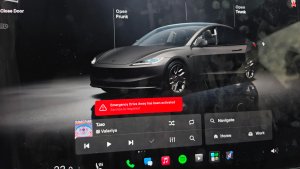
- Functie toegevoegd om te stoppen of voorrang te geven aan voertuigen van hulpdiensten (bijv. politieauto's, brandweerauto's, ambulances).
- Navigatie en routeplanning toegevoegd aan het visiegebaseerde neurale netwerk voor realtime verwerking van wegblokkeringen en omleidingen.
- Extra snelheidsprofiel toegevoegd om uw rijstijlvoorkeur verder aan te passen.
- Verbeterde omgang met statische en dynamische poorten.
- Verbeterde compensatie bij wegpuin (bijv. banden, takken, dozen).
- Verbeterde omgang met verschillende scenario's, waaronder onbeveiligde bochten, wisselen van rijstrook, invoegende voertuigen, en schoolbussen.
- Verbeterd vermogen van FSD om systeemfouten te beheren en soepel te herstellen van een verslechterde werking, wat de betrouwbaarheid verhoogt.
- Waarschuwing toegevoegd voor vuilafzetting op de voorruit die de zichtbaarheid van de camera aan de voorzijde kan beïnvloeden. Ga indien nodig naar Service voor reiniging!
Komende verbeteringen:
- Algehele soepelheid en gevoel
- Parkeerplaatsselectie en parkeerkwaliteit
Aankomstopties

- U kunt nu een aankomstoptie selecteren, zoals Parkeerterrein, Straat, Oprit, Parkeergarage en Aan de stoep om u af te zetten in Robotaxi-stijl.
- Uw voorkeuren voor aankomstopties en voorkeursparkeerposities worden bewaard voor elke bestemming.
- Ons redeneringsmodel beoordeelt de voor uw bestemming geschikte opties en kiest een intuïtieve standaardoptie.
Snelheidsprofielen

FSD (Supervised) bepaalt nu de juiste snelheid op basis van een combinatie van bestuurdersprofiel, de snelheidslimiet en het omringende verkeer.
- Nieuw snelheidsprofiel LUIAARD, met lagere snelheden en een meer behoudende rijstrookselectie dan CHILL.
- Introductie van nieuw snelheidsprofiel MAD MAX, met hogere snelheden en meer rijstrookwissels dan GEHAAST.
- Bestuurdersprofiel heeft nu sterkere invloed op het rijgedrag. Hoe assertiever het profiel, hoe hoger de maximumsnelheid.
- Met het rechter scrollwieltje omhoog/omlaag past u nu de instelling van het Snelheidsprofiel aan in plaats van de exacte marge maximale snelheid te selecteren in mph/km/u.
Verbeteringen van gebruikersinterface

- Start Self-Driving met een tik op het touchscreen vanuit P of op elk gewenst moment tijdens de rit.
- Pas instellingen zoals Snelheidsprofiel en Aankomstopties rechtstreeks aan vanuit de Autopilot-visualisatie op het middendisplay.
Rembevestiging

Rembevestiging voor de knop Self-Driving starten is nu standaard uitgeschakeld. Als deze functie is uitgeschakeld, hoeft u voor Self-Driving starten niet het rempedaal in te trappen en los te laten om het inschakelen te bevestigen.
U kunt Rembevestiging inschakelen in Autopilot > Rembevestiging.
Full Self-Driving (Supervised)

Onder uw toezicht kunt u met Full Self-Driving (Supervised) vrijwel overal met uw Tesla rijden. Het start de auto vanuit geparkeerde positie, verandert van rijstrook, selecteert splitsingen om uw navigatieroute te volgen, navigeert om andere voertuigen en objecten heen, slaat links en rechts af en parkeert op uw bestemming. U, en iedereen die u toestemming geeft, moet extra voorzichtig zijn en alert blijven. Het maakt uw auto niet zelfrijdend. Word niet te nonchalant.
Full Self-Driving (Supervised) is ingeschakeld voor uw auto. Druk op de knop Self-Driving starten in de gebruikersinterface of druk eenmaal op de rechter scrollwielknop om de functie te gebruiken. U kunt Full Self-Driving (Supervised) uitschakelen in de Autopilot-instellingen.
Santa Mode

Tesla has added Santa Mode to 2026 Model S and Model X vehicles. These cars use the Unreal Engine and did not include Santa Mode until this update. Santa Mode was noticeably absent from the Toybox, and when users tried to enable the feature through voice commands, the system would say that Santa Mode is not available and will be enabled in a future update.
New FSD Guide

When a user activates FSD from the Controls > Autopilot menu, Tesla will now present a one-screen guide that introduces the user to FSD.
The guide includes the same disclaimer as previous updates and now also includes an image of the steering wheel controls for FSD, letting the user know how to switch FSD Profiles and set the maximum speed (for FSD V13 and below).
The image used is specific to the vehicle and will either include steering wheel buttons or stalks, depending on the model.
More Charging Information

While a vehicle is charging, Tesla now includes a link for ‘Additional Charging Information’ in the Controls > Charging section. If the vehicle is charging, the link will appear in blue in the top-right corner.
Tapping the link displays a pop-up containing additional information, such as the maximum and current battery input power.
Maximum Battery Input Power is the total power the charger can deliver.
Battery Input Power is the amount of energy that is being actively put into the vehicle’s battery. The battery input power may be less than the maximum charger capability for several reasons, including a high vehicle charge level. The vehicle will also draw power directly from the charger rather than draining the battery if it needs to run the HVAC system, screen, or other components. This reduces battery wear by using energy from the battery, only to have to re-add it.
Keep Accessory Power On App Control
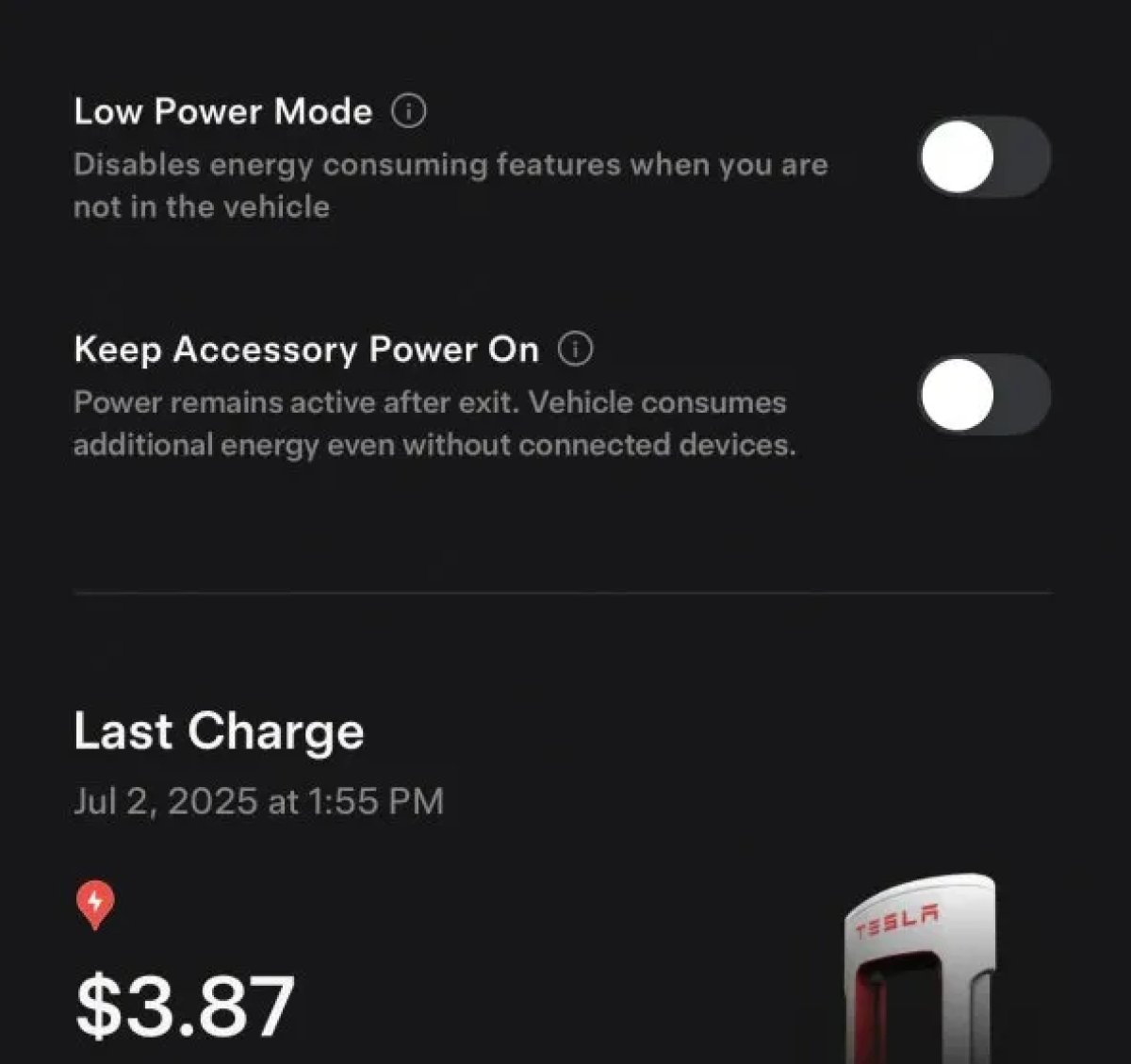
The 2025.38 vehicle update adds support for the ‘Keep Accessory Power On’ option in the latest Tesla app. This option is part of the latest Tesla app update, which adds the new Charging menu that consolidates most charging options under a single menu.
It also adds a button for Low Power Mode, instead of just being under Quick Actions.
Buy Parts

Tesla has added a Buy Parts button to Tesla’s Service Mode. Tapping the button displays a QR code that takes users to Tesla’s service site, where owners can buy parts directly from Tesla.
Parts can be shipped directly to the customer or to the nearest service center.
Charger Visualization

Tesla has added a visualization of a charger when the vehicle is parked and plugged in. In this photo, the owner is using a non-Tesla charger, so a generic charger is displayed. Tesla will presumably display a mobile charger, Wall Connector, or Supercharger if those are plugged into the vehicle.
Service Mode Improvements

New Trunk Panel
A new Trunk panel with an overview of the liftgate status, latch status, and calibration status for the trunk is now available. The panel also provides additional information, such as the request source, set liftgate height, and hands-free settings.
Models: ModelS (2021+), Model 3, Model X (2021+), Model Y
New Front Trunk Panel
A new Front Trunk (or frunk) panel with an overview of the liftgate status, latch status, and calibration status for the front trunk is now available. The panel also provides additional information, such as the request source, set liftgate height, and hands-free settings.
Models: Cybertruck
Cameras Panel Update - Mismatched Firmware Detection
In the Cameras panel, detection for when Driver Assistance System (DAS) Hardware 4 (HW4) cameras have mismatched firmware versions has been added.
If a DAS HW4 camera with mismatched firmware is detected, touch the Update Camera button to initiate a camera firmware update.
Models: ModelS (2021+), Model 3, Model X (2021+), Model Y, Cybertruck
Brakes Panel Update - ESP Stiffness Test Routine Changes
In the Electronic Stability Program (ESP) replacement panel, the routine TEST-BRAKE_CORNER_STIFFNESS-TEST has been replaced with TEST_BRAKE_X_STIFFNESS-TEST-SERVICE.
Models: Model 3(2017-2023), Model Y (2020-2024)

