











Grok con comandi di navigazione (Beta)

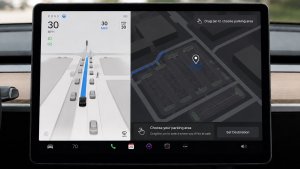
Grok può ora aggiungere e modificare le destinazioni di navigazione, diventando la tua guida personale. Puoi chiedere a Grok di raggiungere il miglior ristorante thailandese vicino a te, trovare una stazione Supercharger a pochi passi da un bar o persino programmare un romantico giro turistico. Richiede Premium Connectivity o una connessione WiFi. Le interazioni sono anonime e non sono associate al tuo veicolo.
Imposta la personalità di Grok su Assistente per utilizzare i comandi di navigazione. Per avviare Grok, vai su Utilità di avvio app > Grok o tieni premuto il pulsante vocale sul volante dopo aver effettuato l'accesso a Grok.
Tesla Photobooth

È possibile trasformare l'auto in una cabina per fototessere! Scatta dei selfie dall'interno della tua Tesla e cambia il look con filtri, sticker ed emoji divertenti. Condividi le tue foto alla moda con amici e familiari direttamente dall'app Tesla. Il veicolo deve essere in Park. Richiede l'app Tesla versione 4.51.5+.
Vai a Utilità di avvio app > Toybox > Photobooth.
Attività Modalità cane in tempo reale su iOS

Tieni sotto controllo il tuo animale domestico! Quando la Modalità cane è attiva, sul tuo iPhone viene visualizzata un'attività in tempo reale con temperatura e condizioni climatiche. Se disponi di Premium Connectivity, riceverai anche istantanee periodiche dell'abitacolo del veicolo. Richiede l'app Tesla versione 4.51.5+.
Aggiornamento del Visualizzatore dashcam

I video della dashcam ora includono dettagli aggiuntivi come velocità, angolazione del volante e stato di guida autonoma. Queste informazioni vengono visualizzate nel Visualizzatore dashcam durante la riproduzione sia sul display del veicolo che sull'app Tesla. È richiesta Premium Connectivity e la versione dell'app Tesla versione 4.51.5+.
Per abilitare la visualizzazione sul telefono, vai a Comandi > Sicurezza e attiva Visualizza telecamera tramite app mobile.
Aggiornamenti Modalità Babbo Natale

Diffondi l'allegria natalizia tutto l'anno e trasforma la tua esperienza in auto con effetti a tema natalizio. La Modalità Babbo Natale ora aggiunge pupazzi di neve, alberi, un segnale acustico di blocco ed effetti neve per un piacere visivo 3D.
Vai a Utilità di avvio app > Toybox > Babbo Natale.
Aggiornamento Spettacolo di luci

È tempo di festeggiare con l'ultimo spettacolo di luci: Jingle Rush. Puoi guardare lo spettacolo all'istante o programmarlo con un massimo di 10 minuti di anticipo, su un singolo veicolo o sincronizzato con gli amici. Gli appassionati di spettacoli di luci possono controllare l'illuminazione interna, aggiungere effetti di colore del display e creare spettacoli personalizzati più lunghi. Per riprodurre uno spettacolo personalizzato, salva i file dello spettacolo in una cartella "LightShow" sull'unità flash, collega e seleziona.
Avvia lo spettacolo dall'app Tesla o vai su Utilità di avvio app > Toybox > Spettacolo di luci sul touchscreen del veicolo.
Verniciatura

Personalizza il tuo avatar Tesla con tinte dei finestrini, rivestimenti personalizzati e targhe. Usa uno dei tanti design precaricati o crea e carica il tuo utilizzando un'unità flash USB per rendere unico il tuo veicolo.
Vai a Utilità di avvio app > Toybox > Verniciatura o tocca il pulsante della vernice o della targa in Comandi > Software.
Miglioramenti della navigazione

Ora puoi riordinare i preferiti di navigazione, impostare Casa o Lavoro lasciando un segnaposto in un punto qualsiasi della mappa e visualizzare le destinazioni suggerite in base ai tuoi viaggi e alle tue abitudini recenti.
Percorso automatico delle corsie preferenziali

La navigazione ora include un'opzione per utilizzare le corsie preferenziali di carpool. Il percorso selezionerà automaticamente la corsia di carpool, se idonea, in base a orario, posizione, numero di passeggeri e restrizioni stradali.
Vai a Comandi > Navigazione > Usa corsie preferenziali.
Mappe dei siti Supercharger

Ora puoi vedere una vista 3D di alcuni Supercharger Tesla toccando "Visualizza mappa del sito". Durante la navigazione verso una posizione pilota, all'arrivo verranno visualizzati il layout del sito e l'occupazione in tempo reale (Disponibile / Occupato / Inattivo).
Telefono lasciato sul caricatore wireless

Il veicolo emetterà un segnale acustico alcuni secondi dopo la chiusura delle portiere se viene lasciato un telefono sul caricatore wireless e non vengono rilevati occupanti.
Vai a Comandi > Blocchi > Segnale acustico telefono lasciato sul caricatore wireless.
Telefono dimenticato
Il veicolo emetterà un segnale acustico alcuni secondi dopo la chiusura delle portiere se una chiave sul telefono è all'interno dell'abitacolo o un telefono viene lasciato sul caricatore wireless e non vengono rilevati occupanti. Il rilevamento della chiave sul telefono richiede dispositivi che supportano UWB.
Vai a Comandi > Blocchi > Segnale telefono dimenticato.
Salva limite di carica per posizione

Ora puoi salvare un limite di carica per la tua posizione corrente quando il veicolo è parcheggiato e verrà applicato automaticamente alla prossima ricarica lì.
Vai a Comandi > Ricarica.
Simulatore di aggancio SpaceX

Diventa un astronauta e metti alla prova le tue abilità attraccando alla Stazione Spaziale Internazionale. Controlla e guida il razzo in questo gioco di simulazione di attracco in 3D utilizzando una serie di comandi basati sulle interfacce effettivamente utilizzate dagli astronauti della NASA.
Per giocare, metti in Park (P) e vai a Utilità di avvio app > Arcade > SpaceX.
Aggiornamenti minori

- Abilita o disabilita i tappetini di ricarica wireless per telefono in Comandi > Ricarica.
- Il veicolo invierà un avviso mobile se una portiera dell'abitacolo viene lasciata aperta mentre la Modalità cane è attiva.
- Aggiungi i brani di Spotify alla tua coda direttamente dalla schermata di ricerca.
- Scorri le grandi playlist, gli album, i podcast, gli audiolibri e la tua raccolta di Spotify senza interruzioni.
- Il suono di blocco ora include il ciclo luci dalla modalità Tron. Vai a Utilità di avvio app > Toybox > Boombox > Suono di blocco.
- Consenti al tuo veicolo di condividere i dati di ricarica con Tesla per supportare funzioni come le Statistiche di ricarica nell'app Tesla.
New Wheel Options

The new wheel designs that are available on the Standard Model 3 and Model Y are now available for all vehicles to equip in the vehicle visualization.
The new 18” Prismata for the Model 3 and the 18” Aperture wheels are available for all models in the tire section. To view or select the new wheels, go to Controls > Service and select tires and wheels.
Express Lanes

Tesla has added support for Express Lanes in some vehicles. Similar to HOV or toll roads, Express Lanes are faster lanes that may charge fees based on vehicle occupancy, vehicle type, and time of day.
With this update, Tesla is adding the ability for users to toggle the use of Express Lanes on or off in navigation settings. This feature is not available in all vehicles and Tesla may still be testing it.
Supercharger Live Maps Shows Exact Models

The new Supercharger Site Maps not only provide a real-time 3D rendering of a Supercharger site but also show the actual vehicle models being charged at each stall.
Tesla will show what kind of vehicle is charging at each stall, whether it’s the original Model Y, the new Model Y, a Cybertruck, or show whether it’s a non-Tesla being charged.
The Supercharger maps are useful to see which stalls are open, their location, which are handicap accessible or whether a location has pull-through stalls.
Dashcam Viewer Zoom Support

When you’re viewing a video in the Dashcam Viewer, you can now pinch the video to zoom in. In addition, you can also pan the video while zoomed to see other parts of the video.
Note: This feature is limited to vehicles with Tesla’s AMD Ryzen infotainment processor.
Camera Visibility Warning Improvement

When you receive a camera visibility warning, indicating that a camera has an obscured view, the camera's view will now be labeled. This lets you know exactly which camera needs to be cleaned.
The display is similar to the Dashcam Viewer, where the camera location is overlaid on top of a photo from the camera. Previously, the camera was unlabeled, making it unclear which camera was obscured and needed to be cleaned.
Tesla will display Front for one of the front cameras underneath the windshield and fascia for the front bumper camera.
V4 Supercharger Visualization

Tesla recently launched charging visualizations on the vehicle’s display. Tesla supports a wide variety of chargers and includes a different visualization for each type, including the mobile connector, Wall Connector, v2, and v3 Supercharger styles, as well as a generic type for third-party chargers.
However, surprisingly absent was a unique visualization for the newer style, V4 Superchargers. With this update, Tesla has added a proper visualization for the V4 Superchargers.
Wrap & License Plate Icons

You can easily access the vehicle wraps and license plate options by navigating to Controls > Software. Underneath the vehicle visualization, you’ll have a photo of the selected license plate for your vehicle, as well as a wrapping paper icon that will take you directly to the vehicle visualization options.
The wrapping paper icon replaces the old colored square that used to take you to the vehicle Colorizer feature.
Car Wash Mode Notification

Tesla will now show you a notification reminding you to use Car Wash Mode. Whenever you’re near a car wash, Tesla pops up a reminder that lets you easily enable Car Wash Mode.
This is part of Tesla’s Car Wash Mode improvements in this update.
Parking Brake

Tesla has removed the ability to enable the emergency brake (parking brake) from the vehicle’s display. Near the bottom of the Controls > Safety menu, users could manually enable the vehicle’s emergency brake. However, this option has now disappeared.
However, users can still enable the vehicle’s emergency brake by using the gear stalk or Park icon on the touch screen.
Car Wash Mode Redesign

Tesla has redesigned the Car Wash Mode feature with this update. It now includes a visualization of the vehicle on the right with the usual checklist items on the left.
For anyone not familiar with Car Wash Mode, it features a real-time checklist to help prepare your vehicle for a car wash. If any items are in the proper setting, such as a window or trunk being opened, the dot next to the item will turn red.
The ‘Enable Free Roll’ option at the bottom is now more obvious, making it easier for users to find how to put their vehicle into neutral.
Switch to Bluetooth

If your phone is connected via Bluetooth and the vehicle detects that your phone is playing audio, it will now prompt you to switch over to the Bluetooth audio source, so the audio comes out of your vehicle’s speakers instead.
Most users likely listen to a music streaming service such as Apple Music or Spotify, but when they listen to audio on their phone, there is often a second pause, leaving the driver wondering why the audio isn’t coming out of their vehicle’s speakers.
This solves that problem and also makes it easier to switch to Bluetooth instead of manually finding and tapping the Bluetooth app.
New Visualizations With Unreal Engine

The new visualizations that have been available on the 2026 Model S and Model X are now available on all 2021+ Model S and Model X vehicles.
Besides the improved visuals in the instrument cluster and in the menus, you can now freely rotate your vehicle’s visualization in the Controls menu, letting you view your vehicle from any angle.
In addition, the module that pops up when parked, which lets you open the doors and trunk, is also interactive, allowing you to pan and zoom in on the vehicle.
Air Suspension Controls

Air suspension controls for the Model S and Model X are now available in the main Controls section, rather than requiring users to go to the separate Suspension tab.
The 2026 models already include this feature. 2025 and older vehicles keep the older, more detailed Suspension menu, instead of the simplified version found in the 2026 models.
Boomerang Fu Game Removed

The game Boomerang Fu has been removed from vehicles and replaced with SpaceX Docking Simulator. The game's license likely expired this year, as it was released in last year’s holiday update.
Favorites On Map

Tesla has made several changes to favorites and home/work in this update. However, this change has gone undocumented in the release notes.
In addition to putting the home/work icons into the Navigate box and showing your top two suggestions underneath, Tesla is also pinning all of your favorites, home, and work locations directly on the map.
This makes it much easier to orient yourself as you move the map around and makes it obvious when you’re near one of your favorites, such as a friend’s home, restaurant, or other favorite location.
View Dashcam Storage

You can now view the storage space of your Dashcam USB drive. You can view the amount of space used by Dashcam and the total size of the drive.
To view Dashcam storage, go to Controls > Safety and scroll down to Dashcam.
Dashcam Filters

Tesla has made additional improvements to the Dashcam Viewer. In addition to having Dashcam and Sentry tabs in the Dashcam Viewer, Tesla now includes additional categories for Dashcam videos.
The system will automatically categorize videos taken with Dashcam and Sentry Mode and put them into appropriate categories that triggered the footage, such as Honk, Manual Save, Handle Pull, etc.
Hebrew Language Added

You can now choose Hebrew as your touchscreen language.
To change the language, shift into Park, and go to Controls > Display > Touchscreen Language.
Service Mode Improvements

Thermal Control Components Panel Added to Service Mode
The Thermal Control Components panel has been added to Service Mode to support thermal Noise, Vibration, and Harshness (NVH) diagnosis. It adds the ability to individually control thermal components, set specific targets, and sweep across operating ranges with real-time feedback. It also includes a 3D static view of the heat pump, including the radiator, blower motor, louver, and pumps.
Models: Model S (2021+), Model 3 (Heat Pump), Model X (2021+), Model Y, Cybertruck
Airbag Panel Update - New Disarm Airbag and Resistance Check Routines
In the Airbags panel, a routine has been added that allows users to disarm the airbags. With this routine, users no longer need to disconnect the Low Voltage (LV) battery when diagnosing the Safety and Restraints system. Once the airbags are disarmed, individual components, such as an airbag or pretensioner, can be tapped to view the resistance readings.
Models: Model S (2021+), Model 3, Model X (2021+), Model Y, Cybertruck

