



This update adds the Spring Update features to vehicles on FSD v14.3. It also increments the FSD version to 14.3.3 and adds several improvements.
Tesla Videos
Details
FSD Version
Release Date
FSD Beta Updates
Recent News
FSD (Supervised) v14.3.3
Full Self-Driving (Supervised) v14.3.3 includes:
- Upgraded the Reinforcement Learning (RL) stage of training the FSD neural network, resulting in improvements in a wide variety of driving scenarios.
- Upgraded the neural network vision encoder, improving understanding in rare and low-visibility scenarios, strengthening 3D geometry understanding, and expanding traffic sign understanding.
- Rewrote the AI compiler and runtime from the ground up with MLIR, resulting in 20% faster reaction time and improving model iteration speed.
- Mitigated unnecessary lane biasing and minor tailgating behaviors.
- Increased decisiveness of parking spot selection and maneuvering.
- Improved parking location pin prediction, now shown on a map with a P icon.
- Enhanced response to emergency vehicles, school buses, right-of-way violators, and other rare vehicles.
- Improved handling of small animals by focusing RL training on harder examples and adding rewards for better proactive safety.
- Improved traffic light handling at complex intersections with compound lights, curved roads, and yellow light stopping — driven by training on hard RL examples sourced from the Tesla fleet.
- Improved handling for rare and unusual objects extending, hanging, or leaning into the vehicle path by sourcing infrequent events from the fleet.
- Improved handling of temporary system degradations by maintaining control and automatically recovering without driver intervention, reducing unnecessary disengagements.
- Help Tesla improve Self-Driving by selecting an intervention reason on the main screen after taking over.
- You can now see distance traveled in FSD (Supervised) without an intervention. The Self-Driving App will also show your longest intervention-free streak.
Upcoming Improvements:
- Expand reasoning to all behaviors beyond destination handling.
- Add pothole avoidance.
- Improve driver monitoring system sensitivity with better eye gaze tracking, eye wear handling, and higher accuracy in variable lighting conditions.
Aplicação de Condução Automatizada
Com a nova aplicação de Condução Automatizada, subscreva com um único toque, saiba como ativar e utilizar a funcionalidade e consulte as estatísticas contínuas.
Para abrir, vá ao Iniciador de Aplicações > Condução Autónoma.
Taxas de portagem estimadas
A navegação mostra agora as taxas de portagem estimadas para cada rota, incluindo as tarifas com desconto para VE, onde disponíveis. Esta funcionalidade requer Reencaminhamento Online. Vá a Controlos > Navegação > Reencaminhamento Online para ativar.
Upgrade de Som Envolvente
O Som Envolvente Premium utiliza a extração de som para colocar o ouvinte em frente a um som de palco detalhado num espaço envolvente. Esta melhoria funciona com todas as fontes de reprodução de multimédia.
Vá para Definições > Áudio > Tom > Som Envolvente para ajustar.
Condução Autónoma Total (supervisionada)
Sob a sua supervisão, a Condução Autónoma Total (supervisionada) pode conduzir o seu Tesla para praticamente qualquer local. Inicia a partir de uma posição de estacionamento, efetua mudanças de faixa, seleciona forquilhas para seguir a sua rota de navegação, navega em torno de outros veículos e objetos, efetua curvas para a esquerda e direita e estaciona no seu destino. Você e qualquer pessoa que autorize devem ter cuidado adicional e permanecer atentos. Não torna o seu veículo autónomo. Não se acomode.
A Condução Autónoma Total (supervisionada) está ativada no seu veículo. Para utilizar a funcionalidade, prima o botão para Iniciar a Condução Autónoma na interface do utilizador ou prima o botão da roda de deslocação direita uma vez. Pode desativar a Condução Autónoma Total (Supervisionada) nas Definições do Autopilot.
Ecrã traseiro
Os passageiros do banco traseiro podem agora ver e interagir com mapas no ecrã traseiro enquanto o Tesla navega um percurso. Toque no ícone de mapas no ecrã traseiro para acompanhar.
"Hey Grok"
Inicie o Grok ao dizer "Hey Grok". Aceda a Grok > Definições para ativar. Também pode definir lembretes com base na localização, como "Lembrar-me de ir buscar leite quando estiver perto de casa." Diga "goodbye" para dispensar.
Modo Pet
Para escolher e dar um nome ao seu animal de estimação, vá a Controlos > Ecrã > Personalizar Modo Pet.
Oficina de pintura
Personalize o seu avatar Tesla com películas para os vidros, revestimentos personalizados e matrículas. Utilize um dos vários designs pré-carregados ou crie e carregue o seu próprio utilizando uma pen USB para tornar o seu veículo único. Vá ao Iniciador de Aplicações > Brinquedos > Oficina de Pintura ou toque no botão da pintura ou da matrícula em Controlos > Software.
Atualizações Visuais
O ecrã central apresenta agora imagens de maior qualidade do seu Tesla e um ambiente de estacionamento melhorado.
Viagens
As viagens encontram-se agora na aplicação de energia, onde pode criar e gerir várias viagens para monitorizar o consumo de energia em diferentes trajetos, rotas ou condições. Vá ao Iniciador de Aplicações > Energia > Viagens. Para aceder rapidamente ao Cartão de Viagens, deslize para a esquerda no Cartão de Multimédia.
Blind Spot Warning While Parked
If you attempt to open a door while an approaching object is detected in your blind spot (for example, a bicyclist approaching from behind) the blind spot indicator light flashes, a chime sounds, and your door will not open upon initial button press. Wait a short time and press the button a second time to override the warning.
SketchPad
Liberte o seu artista interior com o Sketchpad melhorado, que agora suporta autocolantes e emojis. Guarde os seus esboços para lhes aceder na app móvel e partilhá-los. Requer a versão 4.55.6 ou posterior da app móvel.
Iluminação de Destaque de Aviso de Ângulo Morto
Agora, as luzes de destaque ficam vermelhas quando um objeto se encontra no seu ângulo morto e o seu sinal de mudança de direção está ativado, ou quando é detetado um objeto em aproximação enquanto o veículo está estacionado. Para desativar, aceda a Controlos > Luzes > Iluminação de Destaque de Aviso de Ângulo Morto.
Aviso Sonoro Quando a Luz Estiver Verde
Será ouvido um sinal sonoro quando está parado num semáforo e acende a luz verde. Se está aguardar atrás de outro veículo, ouvirá o aviso sonoro quando o veículo avançar, exceto quando o Cruise Control Adaptativo ou a Autosteer estiverem ativos. Este aviso sonoro é apenas uma notificação. Para ativar, vá a Controlos > Condução Autónoma> Aviso Sonoro de Semáforo Verde.
Vista da Câmara em Direto
Agora pode verificar o Interior do seu Tesla enquanto estiver longe. Para ativar, aceda a Controlos > Segurança > Ver câmara em direto através da aplicação móvel. A Câmara em Direto é completamente encriptada e não pode ser acedida pela Tesla. Esta funcionalidade requer uma subscrição de Conetividade Premium e a aplicação Tesla para telemóvel, na versão 4.55.6 ou mais recente.
Fila da Aplicação de Música
Deslize para a direita em músicas da Apple Music ou do Spotify para adicioná-las à fila. Na Apple Music, toque e mantenha premido numa música para a adicionar ou remover dos Favoritos. No Spotify, deslize para a esquerda para adicionar ou remover das Músicas das Quais Gostou.
Atualizações de Software Automáticas
O seu Tesla pode agora instalar automaticamente as atualizações de software transferidas durante a noite. Quando ativado, as atualizações serão instaladas enquanto o seu Tesla estiver estacionado e sem utilização, garantindo que tem sempre as funcionalidades e melhorias mais recentes.
Para ativar, vá a Controlos > Software > Instalar Atualizações Automaticamente.
Atualizações do Visualizador da Dashcam
A gravação recente da dashcam pode agora ter uma duração de até 24 horas, e pode guardar qualquer clipe para armazenamento permanente no seu Tesla ou no seu telemóvel acedendo ao Iniciador de Aplicações > Visualizador de Dashcam. Para ativar a visualização no seu telemóvel, aceda a Controlos > Segurança e ative a opção Ver Câmara através da Aplicação para Telemóvel. Os clipes permanecem no veículo e nunca são partilhados com a Tesla.
Agora, os clipes descarregados para o seu telemóvel incluem detalhes como a velocidade, o ângulo do volante e o estado de Condução Automatizada. As transferências requerem Conetividade Premium e a aplicação para telemóvel na versão 4.55.6 ou mais recente.
Atualizações do Visualizador da Dashcam
Pode guardar qualquer clipe da gravação recente da dashcam para armazenamento permanente no seu Tesla ou no seu telemóvel acedendo ao Iniciador de Aplicações > Visualizador de Dashcam. Para ativar a visualização no seu telemóvel, aceda a Controlos > Segurança e ative a opção Ver Câmara através da Aplicação para Telemóvel. Os clipes permanecem no veículo e nunca são partilhados com a Tesla.
Agora, os clipes descarregados para o seu telemóvel incluem detalhes como a velocidade, o ângulo do volante e o estado de Condução Automatizada. As transferências requerem Conetividade Premium e a aplicação para telemóvel na versão 4.55.6 ou mais recente.
Melhorias nos Mapas Meteorológicos
Os mapas meteorológicos mostram agora neve e chuva com cores melhoradas que facilitam a distinção entre os tipos de precipitação. Também pode consultar os dados meteorológicos da última hora para ver como as condições se têm alterado ao longo da sua rota. Esta funcionalidade requer uma Conetividade Premium. Para ver, toque no ícone de condições meteorológicas no mapa.
Filtro de Preços de Supercharger
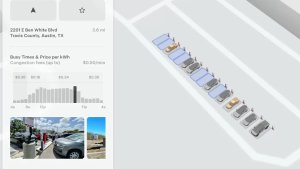
Agora pode escolher definir rotas apenas para Superchargers com preços da Tesla. Quando ativado, o Planeador de Viagem evitará locais onde a Tesla não define os preços de carregamento nem aceita créditos de Supercarregamento gratuito. Esta definição requer conectividade com o Reencaminhamento online ativado.
Para filtrar, vá a Controlos > Navegação > Definições do Planeador de Viagem.
Teclado
O idioma de teclado selecionado também selecionará o idioma utilizado para o ditado. Toque no botão do teclado internacional para alterar o idioma do teclado e de ditado, sem alterar o idioma de comando de voz. Toque no ícone do microfone no teclado para ditar.
Melhorias na segurança
Esta atualização inclui correções de segurança e melhorias importantes.
Updated Disengagement Menu
Tesla has updated the intervention menu to include new reasons for disengagement. Parking, possibly the most popular reason for disengaging behind navigation, has now been added as an option. Tesla has also brought back ‘Other.’ There are still only four reasons for intervening, so that means that ‘Preference’ and ‘Discomfort’ have been removed.
Cloud Profiles
Tesla cloud profiles now feature a new cloud icon to indicate they’re cloud profiles rather than local profiles stored only on the vehicle.
Amber Brake Lights
This update properly visualizes vehicles with amber brake lights. Some regions require turn signals to be orange/amber. Up until now, the visualization has only displayed turn signals in red, but with this update, Tesla now properly displays amber turn signals for the appropriate vehicles.
The Unreal Engine brings drastic improvements to lighting in the visualization, making the brake lights much more noticeable as they reflect on the ground.
Parental Controls Improvement
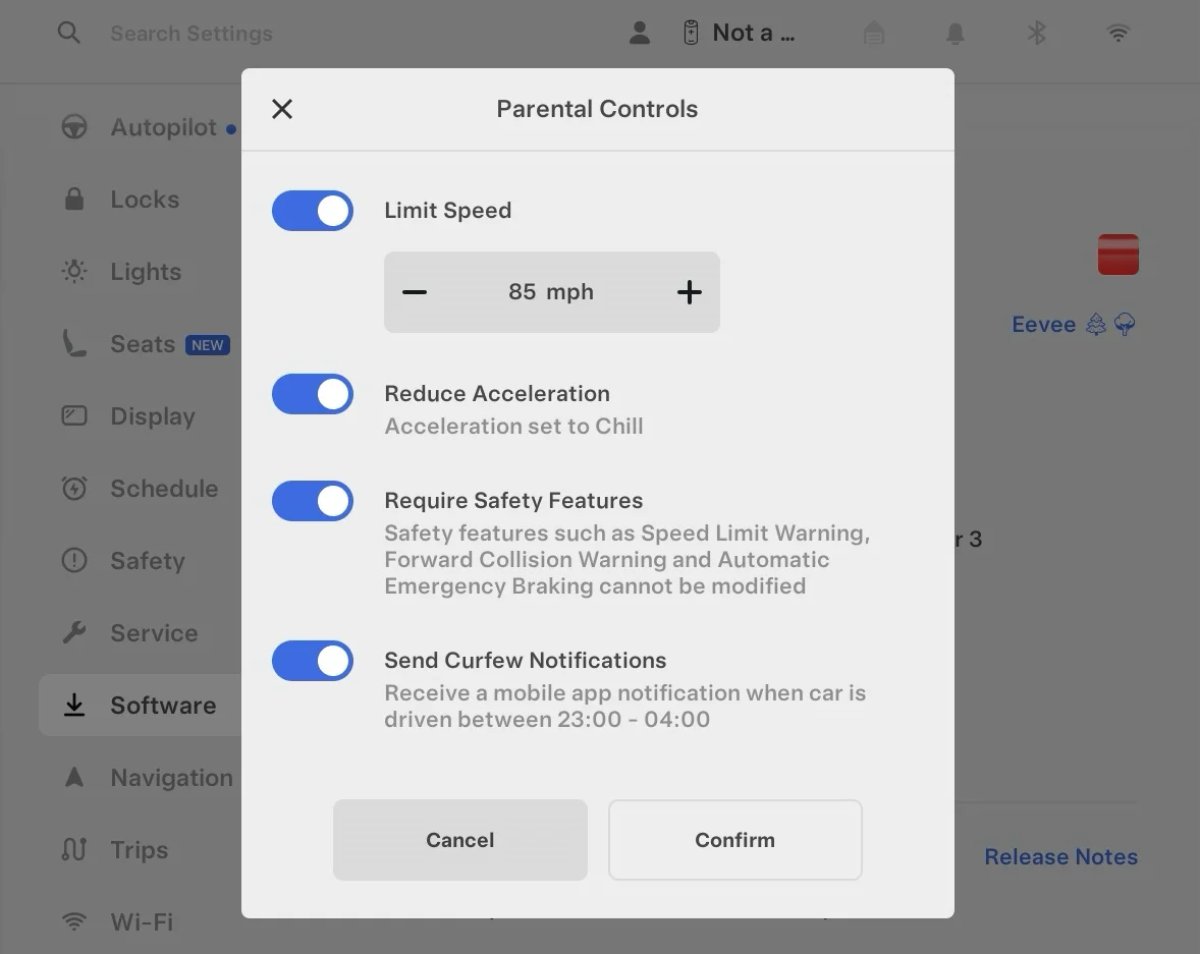
Tesla’s parental controls are designed to keep new drivers safe by limiting access to certain features. Parents can reduce the vehicle’s acceleration, limit the top speed, and prevent safety features from being turned off.
With this update, Tesla is adding another improvement to Parental Controls for Performance vehicles. Track Mode is now restricted when you enable Require Safety Features, preventing teens from manipulating the vehicle's handling, braking, and more.
Require Safety Features prevents these features from being turned off:
Automatic Emergency Braking
Obstacle-Aware Acceleration
Automatic Blind Spot Camera
Blind Spot Collision Warning Chime
Automatic 911 Call (US only)
Allow Mobile Access
Park Assist Chimes
It also prevents these settings from being changed:
Track Mode is disabled
Lane Departure Avoidance is set to Assist
Speed Limit Warning set to Chime
Speed Limit set to relative
Offset set to +5 mph (8 km/h)
Forward Collision Warning set to Early
Increased Attention Monitoring Alert
Tesla has added a new camera visibility alert with this update. What’s most interesting about this alert is that Tesla states that the poor camera visibility is resulting in increased attention monitoring.
Grok Turns Off After Inactivity
With the introduction of the "Hey Grok" wake word, Tesla has changed the way Grok behaves. Previously, once Grok was triggered, it would remain active indefinitely, staying in a constant listening state.
Now, in order to turn off accidental activations and minimize background processing, Grok will automatically dismiss itself after approximately 15 seconds of inactivity.
This behavior applies regardless of whether you triggered the assistant using the new voice wake word or the physical steering wheel button. For those who prefer to close the interface manually, you can still use natural language dismissal commands; simply saying "goodbye" or "talk to you later" will instantly close Grok.
h/t: @Deandawiz
Grok Favorites
The integrated Grok assistant now has access to your vehicle’s saved favorites. Grok can now "see" and interpret the custom labels you have assigned to your saved locations.
For example, if you have an address saved as "Kim’s parents," you can simply say, "Hey Grok, navigate to “Kim’s parents," and the system will immediately pull the correct address from your list of favorites.
h/t: @NickScheber
Advanced Software Updates
Tesla has updated the Software Update Preference setting under the Software menu.
Previously, the software update preference was a toggle between "Standard" and "Advanced." This has now changed into a simpler on/off toggle for "Advanced" updates.
By switching this to "On," you are opting in to receive the latest software releases as soon as they become available for your specific vehicle configuration and region. This could result in receiving updates with minor bugs or receiving updates more often.
If left "Off," your vehicle will wait for a wider release before installing updates.
Re-Order Trip Meters
You can reorder the new trip meters however you’d like. Simply tap and hold one to get it to jiggle, and then move it to a new location.
Additionally, you can also tap on the energy graph in the top-right corner to view a larger, more detailed version of it.
Chromium Browser Updated
Tesla has upgraded the browser in the vehicle. Tesla’s browser is based on the open-source Chromium browser, the same browser that powers Google’s Chrome browser.
The browser was updated to version 140, up from version 136.
This update to Chromium increases compatibility with modern web standards, improves WebGPU performance, and resolves known issues.
Save Recent Dashcam Videos
Tesla continues to make it easier to browse and save recent Dashcam clips. In the last update, Tesla made it easier to browse recent, non-saved Dashcam clips by listing them at the top of the Dashcam Viewer.
With this update, they’re now letting you save recent clips that are still on the USB drive, but not saved from being deleted.
Volume Icons
When adjusting the volume of an app, such as Spotify, the volume icon will now display the app's icon. While the navigation volume has always had its own icon and an independent volume setting, this change does not add app-dependent volume settings.
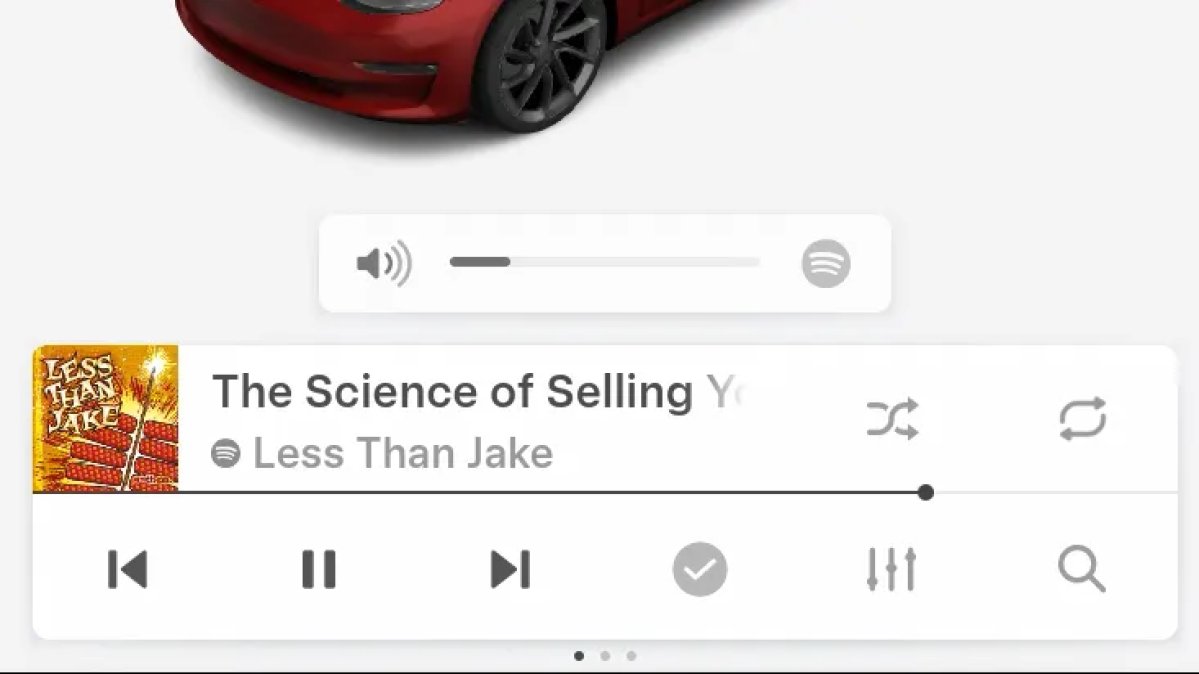
The same volume that’s used for Spotify will be used for YouTube and other apps. This icon simply makes it more obvious which volume is being changed.
Driver Profiles
Driver profiles are now also available in vehicle settings, rather than only in the Profiles icon in the status bar.
Users can navigate to Controls > Profiles to see the settings for all driver profiles.
Grok Settings
Grok settings are now also shown in the Audio section under Controls. These are the same settings available in the Grok app, but Tesla appears to be duplicating most of them under controls to make them easier to find.
Euro Semi Visualization
A new Autopilot/FSD visualization has been found in this update. The cab-over-engine style semi trucks often seen in Europe are now appearing in Autopilot visualizations with this update.
New 'All Apps' Icon
Tesla has updated the ‘All Apps’ icon displayed in the dock. Instead of an ellipsis inside of a rectangle, Tesla has now created a design that resembles iOS folders. The new design shows four apps inside the folder, but it’s not a static image.
The apps shown in the folder will change, presumably to show your most recent or most popular apps that aren't displayed in the dock.
Larger Dock Icons
To go along with the new ‘App Apps’ icon, Tesla has also increased the size of all icons in the dock. While the dock appears to remain the same size, the icons are now larger.
Animated Badges
Tesla models that have special badges, such as the Ludicrous badge on the Performance Model 3, are now animated in Software screen.
Upon navigating to the Software menu, the badge will play a short animation. You can also tap the badge to replay the animation.
New Creations Section
With the introduction of Photobooth, Tesla added a Photobooth section to the top level of the app that lets you view your saved photo sessions.
With the Spring Update and the update to the Sketchpad app for AMD Ryzen vehicles, Tesla is rebranding the Photobooth section to Creations, and it’ll now house Photobooth photos and sketches created in Sketchpad.
When you go into Creations, you’ll now have two tabs, one for Photobooth and one for Sketchpad, however, the features are similar. You’ll be able to view your saved creations and share them with others.
These creations are saved on your vehicle, not on Tesla’s servers, so when you open this section of the app, your vehicle will wake up and send the requested images.
Note: You’ll need vehicle update 2026.14 and an AMD Ryzen vehicle in order to see this new Creations section in the app.
Service Mode Improvements
New Service Mode Plus Authentication QR Code for Independent
Independent repairers can now quickly authenticate for Service Mode Plus by scanning a QR code displayed on the vehicle with a mobile device and logging in with their Toolbox credentials.
Models: All vehicles
Blinking DTC indicator added to the bottom banner
A Diagnostic Trouble Code (DTC) indicator has been added next to the Vehicle Identification Number (VIN) on the bottom Service Mode banner. The indicator is visible when DCs are present on the vehicle.
Models: All vehicles
Noise Recording Panel Updates (Service Mode Plus)
The Noise Recording panel now supports Active Noise Cancellation (ANC microphone recording. When ANC mode is enabled, the panel displays ANC microphone locations and extends the recording duration to 3 minutes.
Models: Model S (2021+), Model X (2021+), Cybertruck
Vehicle Functions Panel Added to Service Mode
The Vehicle Functions panel is now available on Service Mode. It shows an overview of degraded vehicle functions and their associated set alerts. Full functionality including more detailed functions, historical view and advanced controls are still only available on Service Mode Plus.
Models: Model 3, Model Y
New Bluetooth Panel
A new Bluetooth panel is available under Infotainment to support Bluetooth system diagnosis. The panel displays the status of both the main and rear Bluetooth modules (if rear Bluetooth is available on the vehicle), including connection states, signal strength with health indicators, and connected device information.
Models: Model S (2021+), Model 3, Model X (2021+), Model Y, Cybertruck