







FSD (Supervised) v14 Lite

FSD (Supervised) v14 Lite includes:
- Distilled the intelligence from HW4 V14 into HW3. This allows HW3 to directly learn how to handle scenarios using HW4 V14 as a guide. This process unlocks the improvements that have been made to HW4 including Reinforcement Learning (RL) and offline models for HW3.
- Improved both proactive and reactive responsiveness across a wide variety of categories including navigation handling, merges and forks, pedestrian interactions, traffic lights, and vehicle cut-in scenarios.
- Improved general comfort in nominal scenarios through fewer false slowdowns, smoother steering and more consistent lane centering.
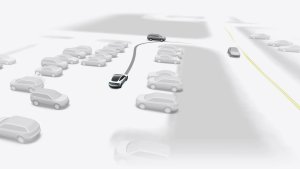
- Introduced parking, unparking, and reversing capabilities.
- Added Arrival Options for you to select where FSD should pull over or park: in a Parking Lot, on the Street, in a Driveway.
- Speed Profiles are now available at all times, to further customize driving style preference.
Self-Driving-app

Met de nieuwe Self-Driving-app kunt u zich met één tik abonneren, leren hoe u de functie activeert en gebruikt en doorlopende statistieken bekijken.
Ga om te openen naar App Launcher > Self-Driving.
Self-Driving starten vanuit stand P

Er verschijnt een knop op het scherm wanneer aan de bestuurdersvereisten is voldaan. Bestuurdersvereisten omvatten (maar zijn niet beperkt tot):
- De bestuurder zit op de bestuurdersstoel
- De bestuurder heeft de gordel om
- De Interieurcamera is niet geblokkeerd
Rembevestiging vereist dat de bestuurder het rempedaal indrukt en loslaat voordat FSD (Supervised) kan worden geactiveerd. Als Rembevestiging is uitgeschakeld, kunt u door op de knop te drukken Self-Driving laten remmen en FSD (Supervised) inschakelen. Als niet aan de vereisten voor bestuurdersdetectie wordt voldaan of als FSD (Supervised) geen bestuurder detecteert, moet u het rempedaal intrappen en loslaten om te bevestigen. U kunt Rembevestiging inschakelen in Self-Driving > Rembevestiging.
Deze functie maakt uw voertuig niet zelfrijdend. U moet blijven opletten en op elk moment klaar zijn om de besturing over te nemen. Alleen een geautoriseerde bestuurder met rijbewijs mag toestemming krijgen om achter het stuur plaats te nemen wanneer het voertuig niet in de Theater- of Arcade-modus staat.
Aankomstopties

- U kunt nu een aankomstoptie selecteren, zoals Parkeerterrein, Straat, Oprit en Verlaat de weg om u af te zetten in Robotaxi-stijl.
- Uw voorkeuren voor aankomstopties en voorkeursparkeerposities worden bewaard voor elke bestemming.
Snelheidsprofielen

FSD (Supervised) bepaalt nu de juiste snelheid op basis van een combinatie van bestuurdersprofiel, de snelheidslimiet en het omringende verkeer.
- Nieuw snelheidsprofiel LUIAARD, met lagere snelheden en een meer behoudende rijstrookselectie dan CHILL.
- Bestuurdersprofiel heeft nu sterkere invloed op het rijgedrag. Hoe assertiever het profiel, hoe hoger de maximumsnelheid.
- Met het rechter scrollwieltje omhoog/omlaag past u nu de instelling van het Snelheidsprofiel aan in plaats van de exacte marge maximale snelheid te selecteren in mph/km/u.
Verbeteringen van gebruikersinterface

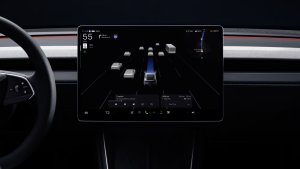
Pas instellingen zoals Snelheidsprofiel en Aankomstopties rechtstreeks aan vanuit de Self-Driving-visualisatie op het middendisplay.
Full Self-Driving (Supervised)

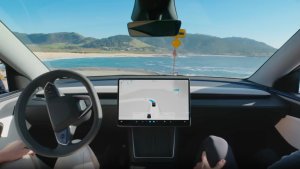
Under your supervision, Full Self-Driving (Supervised) can drive your Tesla almost anywhere. It will start from a parked position, make lane changes, select forks to follow your navigation route, navigate around other vehicles and objects, make left and right turns and park at your destination.
You and anyone you authorize must use additional caution and remain attentive. It does not make your vehicle autonomous. Do not become complacent. Full Self-Driving (Supervised) is enabled on your vehicle. To use the feature, press the Start Self-Driving button on the UI, or press the right scroll wheel button once. You can disable Full Self-Driving (Supervised) in Self-Driving Settings.
Rijstrookaanwijzingen bij navigatie
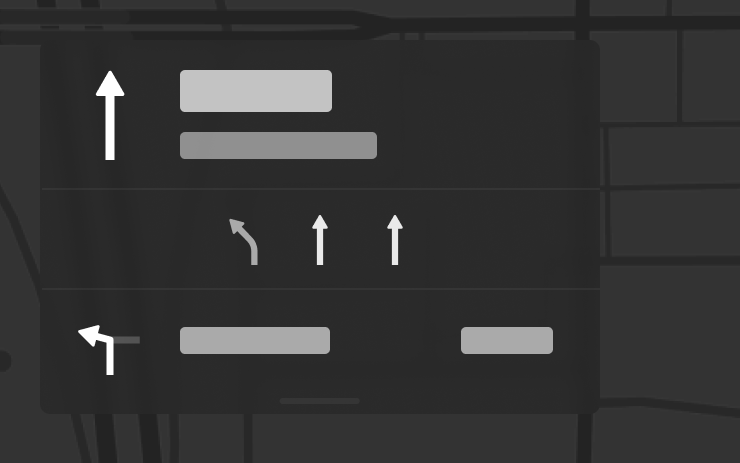
Navigatie geeft nu aan welke rijstroken u moet nemen om uw route te volgen. Voor deze functie zijn Actuele verkeersinformatie en Kaarten versie 2026.20 of hoger vereist. Om dit in te schakelen, gaat u naar Bediening > Navigatie > Actuele verkeersinformatie.
Bestemming naar auto verzenden
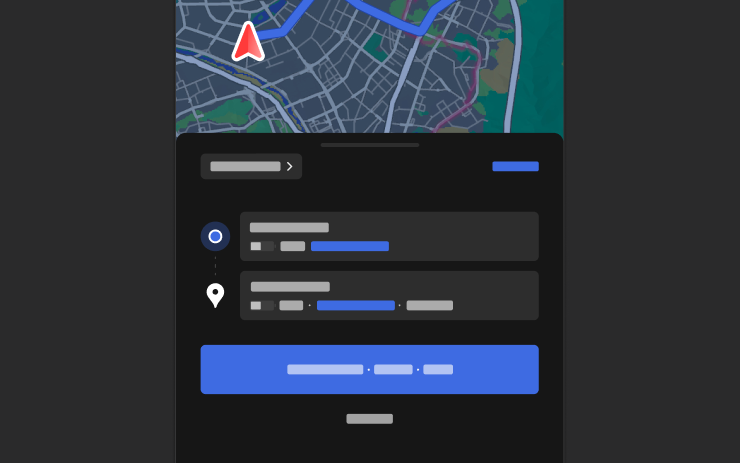
U kunt nu navigatiebestemmingen rechtstreeks naar uw Tesla verzenden. Om vanaf de mobiele app te versturen, ga naar Locatie > Navigeren, voeg een bestemming toe en tik op Verzenden naar auto. Vereist versie 4.57.0 of hoger van de mobiele app.
Om te verzenden vanaf NAVER Maps of TMAP, voegt u een bestemming toe en gaat u naar Delen > Tesla. Om vanaf KakaoMap te verzenden, voegt u een bestemming toe en gaat u naar Delen > Adres delen > Tesla.
Weerkaarten

Kaarten tonen nu weergegevens, inclusief verschillende soorten neerslag zoals regen en sneeuw. U kunt ook de weergegevens van het afgelopen uur bekijken om te zien hoe de omstandigheden langs uw route zijn veranderd. Voor deze functie is Premium Connectivity vereist. Om te bekijken, tikt u op het weerpictogram op de kaart.
Nuttige punten
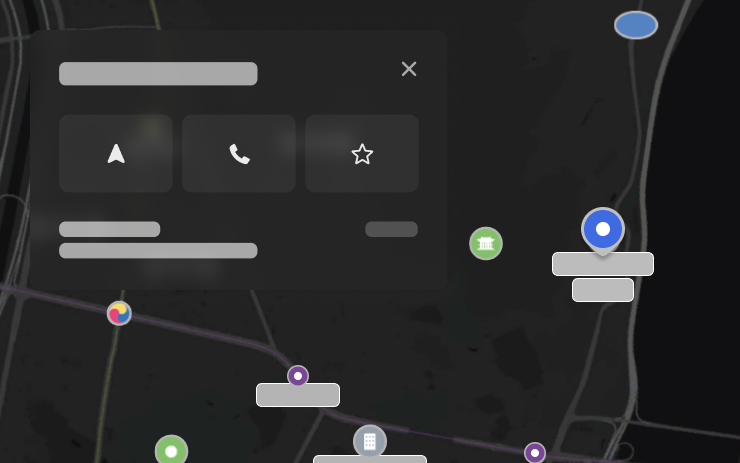
U kunt nu op nuttige plaatsen op de kaart tikken om bestemmingen te verkennen of de navigatie te starten.
Tesla App FSD

Tesla will now display whether a vehicle has FSD enabled in the Tesla app. In addition, the app will now also display the blue FSD path and even the rainbow road easter egg if it’s enabled in the vehicle.
This requires Tesla app update 4.58.5 or higher and vehicle update 2026.20.6.1 or higher.
License Plate Frame
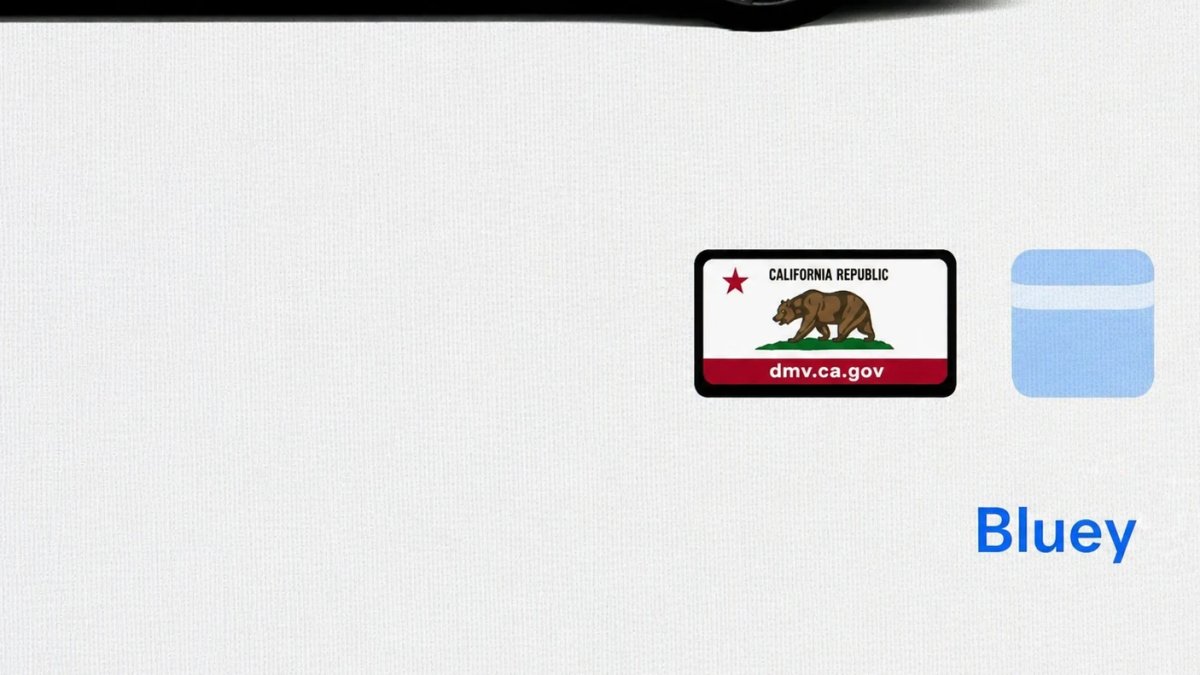
With Tesla’s recent addition of license plate customization, they also added a shortcut for it under Controls > Software.
With this update, Tesla tweaked the icon slightly by adding a license plate frame around the license plate image being used for a cleaner look.
Decrypt Dashcam Video
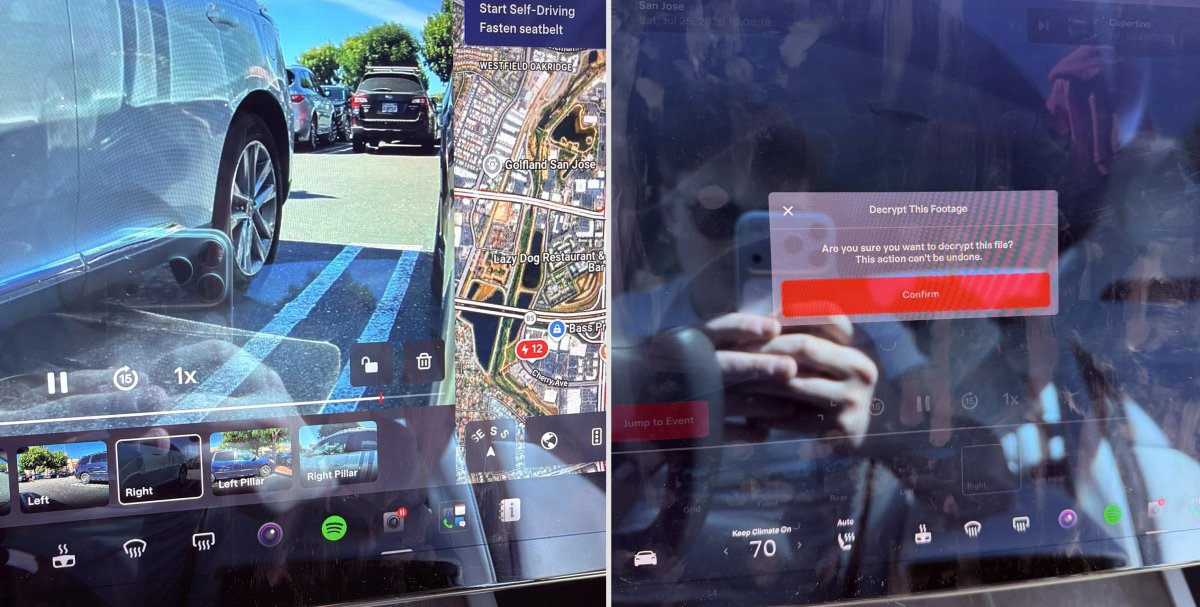
In update 2026.20, Tesla started encrypting Dashcam footage. This came at the same time as Tesla expanded recent video footage from 1 hour to up to 24 hours under certain requirements.
Encrypting the videos is an important privacy change, since if your USB drive is pulled from your vehicle, thieves can now have access to up to 24 hours of your driving, potentially revealing your workplace, home, and other important locations.
With this update, Tesla also added a button to the Dashcam Viewer that lets owners easily decrypt a specific clip, making it easier to see the footage if they mount the USB drive to their computer.
Tesla also introduced a tool that lets you decrypt any videos on your computer, as long as you log in to your Tesla account to prove that you own the video footage.
Bus Lanes
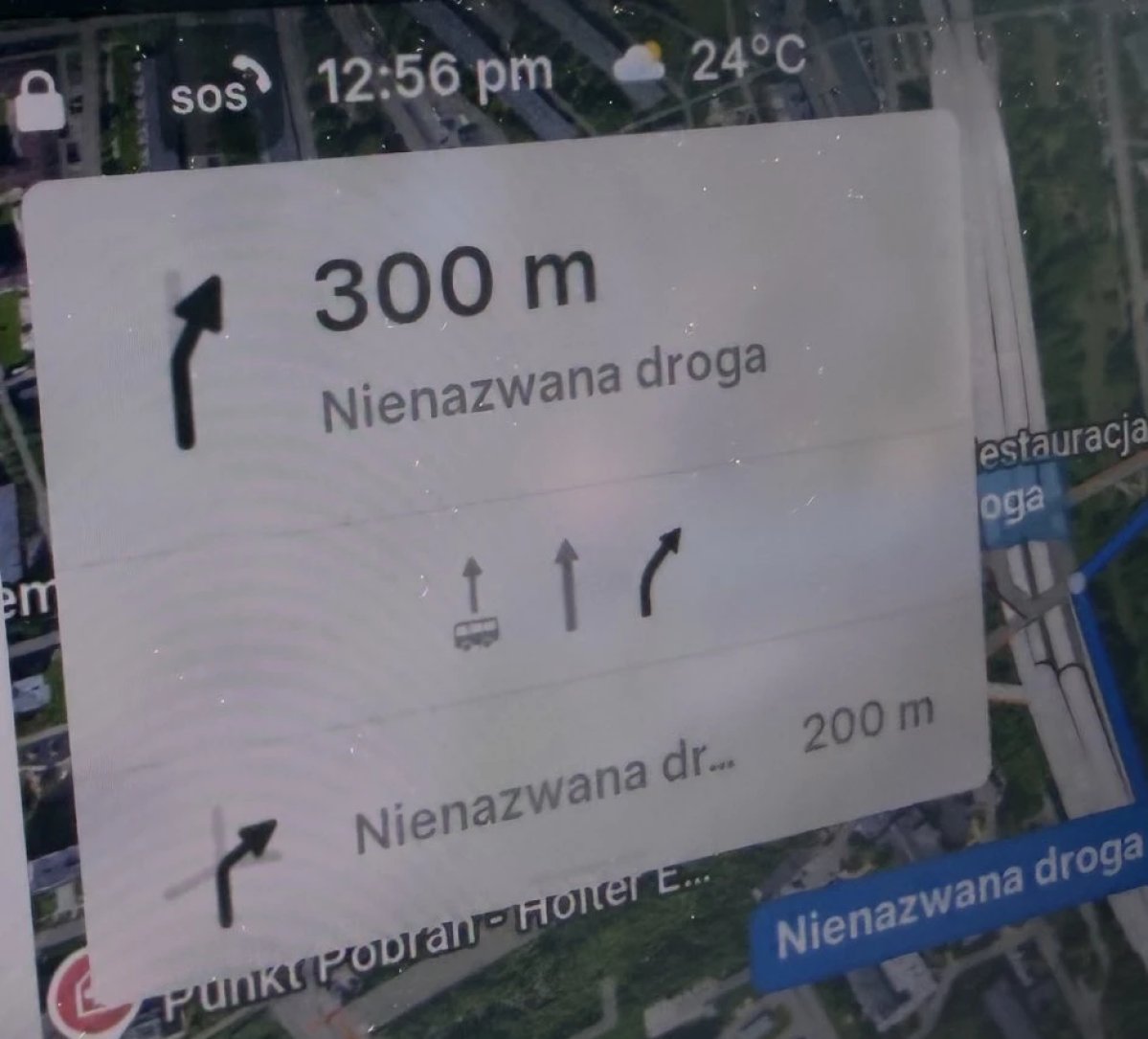
Tesla’s navigation now supports bus lanes, helping drivers be more aware of which lanes they can use.
This is even more important for FSD, so the vehicle can know which lanes are appropriate to drive in without having to read or potentially miss signs.
Service Mode Improvements

Forward Camera View Cleaning Panel
A new Forward Camera View Cleaning panel is available under Driver Assist to support cleaning the surface of the windshield in front of the cameras. The panel displays a live camera stream with the ability to zoom into the camera stream.
Models: Model 3, Model Y, Model S (2021+), Model X (2021+) with DAS AI4 and Cybertruck
Drive Unit Panel Update - Signal Chart Popups (Service Mode Plus)
The Drive Unit panel now supports interactive signal chart popups. Signals with a chart icon can be tapped to open a draggable, resizable popup window for real-time signal monitoring.
Models: Model 3, Model Y, Model S (2021+), Model X (2021+), Cybertruck

