



This update adds the Spring Update features to vehicles on FSD v14.3. It also increments the FSD version to 14.3.3 and adds several improvements.
Tesla Videos
Details
FSD Version
Release Date
FSD Beta Updates
Recent News
FSD (Supervised) v14.3.3
Full Self-Driving (Supervised) v14.3.3 includes:
- Upgraded the Reinforcement Learning (RL) stage of training the FSD neural network, resulting in improvements in a wide variety of driving scenarios.
- Upgraded the neural network vision encoder, improving understanding in rare and low-visibility scenarios, strengthening 3D geometry understanding, and expanding traffic sign understanding.
- Rewrote the AI compiler and runtime from the ground up with MLIR, resulting in 20% faster reaction time and improving model iteration speed.
- Mitigated unnecessary lane biasing and minor tailgating behaviors.
- Increased decisiveness of parking spot selection and maneuvering.
- Improved parking location pin prediction, now shown on a map with a P icon.
- Enhanced response to emergency vehicles, school buses, right-of-way violators, and other rare vehicles.
- Improved handling of small animals by focusing RL training on harder examples and adding rewards for better proactive safety.
- Improved traffic light handling at complex intersections with compound lights, curved roads, and yellow light stopping — driven by training on hard RL examples sourced from the Tesla fleet.
- Improved handling for rare and unusual objects extending, hanging, or leaning into the vehicle path by sourcing infrequent events from the fleet.
- Improved handling of temporary system degradations by maintaining control and automatically recovering without driver intervention, reducing unnecessary disengagements.
- Help Tesla improve Self-Driving by selecting an intervention reason on the main screen after taking over.
- You can now see distance traveled in FSD (Supervised) without an intervention. The Self-Driving App will also show your longest intervention-free streak.
Upcoming Improvements:
- Expand reasoning to all behaviors beyond destination handling.
- Add pothole avoidance.
- Improve driver monitoring system sensitivity with better eye gaze tracking, eye wear handling, and higher accuracy in variable lighting conditions.
App Guida automatizzata
Con la nuova app Guida automatizzata, è possibile abbonarsi con un solo tocco, ottenere informazioni sull'attivazione e l'uso della funzione e visualizzare le statistiche in corso.
Per aprire, vai a Utilità di avvio app > Guida automatizzata.
Stima dei pedaggi
La Navigazione ora mostra le tariffe di pedaggio stimate per ogni percorso, incluse le tariffe scontate per i veicoli elettrici ove disponibili. Questa funzione richiede il Calcolo percorso in tempo reale. Vai a Comandi > Navigazione > Calcolo percorso in tempo reale per abilitare.
Upgrade al suono immersivo
Il suono immersivo Premium utilizza l'estrazione avanzata del suono per posizionare l'ascoltatore davanti a un palcoscenico sonoro ricco di dettagli all'interno di uno spazio immersivo. Questo miglioramento funziona con tutte le sorgenti di streaming.
Vai a Impostazioni > Audio > Tono > Suono immersivo per regolare.
Guida autonoma al massimo potenziale (sorvegliata)
Sotto la tua supervisione, la guida autonoma al massimo potenziale (sorvegliata) può guidare la tua Tesla quasi ovunque. Partirà da una posizione parcheggiata, cambierà corsia, sceglierà la direzione corretta agli incroci per seguire il percorso di navigazione, sorpasserà altri veicoli e ostacoli e svolterà a destra e a sinistra e parcheggerà alla destinazione. Tu e qualunque altra persona che autorizzerai dovrete prestare ancora più attenzione e restare vigili. Non rende il veicolo autonomo. Non perdere la concentrazione.
La guida autonoma al massimo potenziale (sorvegliata) è abilitata sul veicolo. Per utilizzare la funzione, premere il pulsante Avvia Guida autonoma sull'interfaccia utente o premere una volta la rotellina destra. È possibile disattivare la Guida autonoma al massimo potenziale (sorvegliata) in basso nelle impostazioni Autopilot.
Display posteriore
I passeggeri sui sedili posteriori ora possono visualizzare e interagire con le mappe sul display posteriore mentre la Tesla è in navigazione. Tocca l'icona delle mappe sul display posteriore per seguire.
"Hey Grok"
Avvia Grok dicendo “Hey Grok”. Vai su Grok > Impostazioni per abilitare. Puoi anche impostare promemoria basati sulla posizione, come "ricordami di prendere il latte quando sono vicino a casa". Dì "goodbye" per ignorare.
Modalità Animali
Per scegliere e dare un nome al tuo animale domestico, vai a Comandi > Display > Personalizza modalità Animali.
Verniciatura
Personalizza il tuo avatar Tesla con tinte dei finestrini, rivestimenti personalizzati e targhe. Usa uno dei tanti design precaricati o crea e carica il tuo utilizzando un'unità flash USB per rendere unico il tuo veicolo. Vai a Utilità di avvio app > Toybox > Verniciatura o tocca il pulsante della vernice o della targa in Comandi > Software.
Aggiornamenti visivi
Il display centrale ora presenta immagini di qualità superiore della tua Tesla, e una visualizzazione del parcheggio migliorata.
Viaggi
I viaggi si trovano ora nell'app Energia, dove è possibile creare e gestire più viaggi per monitorare il consumo energetico tra diverse sessioni di guida, percorsi o condizioni. Vai a Utilità di avvio app > Energia > Viaggi. Per accedere rapidamente alla scheda Viaggi, scorri a sinistra sulla scheda Contenuti multimediali.
Blind Spot Warning While Parked
If you attempt to open a door while an approaching object is detected in your blind spot (for example, a bicyclist approaching from behind) the blind spot indicator light flashes, a chime sounds, and your door will not open upon initial button press. Wait a short time and press the button a second time to override the warning.
SketchPad
Libera l'artista che è in te con Sketchpad migliorato, che ora supporta adesivi ed emoji. Salva i tuoi disegni per accedervi dall'app mobile e condividerli. Richiede l'app mobile versione 4.55.6 o successiva.
Luci decorative per avvertimento punto cieco
Le luci decorative ora si illuminano di rosso quando è presente un oggetto nel punto cieco e l'indicatore di direzione è attivato o quando viene rilevato un oggetto in avvicinamento a veicolo parcheggiato. Per disabilitare, andare su Comandi > Luci > Luci decorative per avvertimento punto cieco.
Suona quando il semaforo è verde
Quando il semaforo al quale si sta aspettando diventa verde, verrà emesso un segnale acustico. Se sei in attesa dietro un altro veicolo, sentirai un segnale quando il veicolo avanza, a meno che Cruise Control adattivo o Sistema di Autosterzatura non siano attivi. Il segnale è solo una notifica. Per abilitare, vai a Comandi > Guida automatizzata > Segnale acustico semaforo verde.
Vista webcam live
Ora puoi controllare gli interni della tua Tesla quando sei lontano. Per abilitare, vai a Comandi > Sicurezza > Visualizza webcam live tramite app mobile. La webcam live è dotata di crittografia end-to-end e Tesla non può accedervi. Sono richieste Premium Connectivity e la versione dell'app mobile Tesla 4.55.6 o successiva.
Messa in coda per app musicale
Scorri verso destra sui brani in Apple Music o Spotify per aggiungerli alla coda. In Apple Music, tocca e tieni premuto un brano per aggiungerlo ai Preferiti o rimuoverlo. In Spotify, scorri verso sinistra per aggiungere o rimuovere dalle Canzoni preferite.
Aggiornamenti software automatici
La tua Tesla ora può installare automaticamente di notte gli aggiornamenti software scaricati. Se abilitato, gli aggiornamenti verranno installati quando la Tesla è parcheggiata e non in uso, in modo da avere sempre le ultime funzionalità e i miglioramenti.
Per abilitare, vai a Comandi > Software > Installa aggiornamenti automaticamente.
Aggiornamenti del Visualizzatore dashcam
I filmati recenti della dashcam possono ora estendersi fino a 24 ore, e puoi salvare qualsiasi video per l'archiviazione permanente sulla tua Tesla o sul tuo telefono andando a Utilità di avvio app > Visualizzatore Dashcam. Per abilitare la visualizzazione sul telefono, vai a Comandi > Sicurezza e attiva Visualizza telecamera tramite app mobile. I video restano sul veicolo e non vengono mai condivisi con Tesla.
I video scaricati sul telefono ora includono dettagli come velocità, angolazione del volante e stato di guida automatizzata. I download richiedono Premium Connectivity e la versione dell'app mobile 4.55.6 o successiva.
Aggiornamenti del Visualizzatore dashcam
Puoi salvare qualsiasi video dai filmati recenti della dashcam per l'archiviazione permanente sulla tua Tesla o sul tuo telefono andando a Utilità di avvio app > Visualizzatore Dashcam. Per abilitare la visualizzazione sul telefono, vai a Comandi > Sicurezza e attiva Visualizza telecamera tramite app mobile. I video restano sul veicolo e non vengono mai condivisi con Tesla.
I video scaricati sul telefono ora includono dettagli come velocità, angolazione del volante e stato di guida automatizzata. I download richiedono Premium Connectivity e la versione dell'app mobile 4.55.6 o successiva.
Miglioramenti alle mappe meteorologiche
Le mappe meteorologiche ora mostrano neve e pioggia con colori migliorati che rendono più facile distinguere tra i tipi di precipitazioni. Puoi anche visualizzare i dati meteorologici dell'ultima ora per vedere come sono cambiate le condizioni lungo il percorso. Questa funzione richiede Premium Connectivity. Per visualizzare, tocca l'icona del meteo sulla mappa.
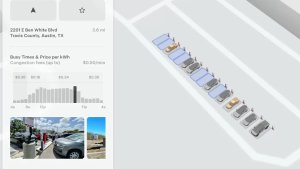
Filtro prezzi Supercharger
Puoi ora scegliere di instradare solo verso i Supercharger con prezzi Tesla. Quando attivato, il Pianificatore viaggio eviterà le località dove Tesla non imposta i prezzi della ricarica o non accetta i crediti per le ricariche gratuite alle stazioni Supercharger. Questa impostazione richiede la connettività e che il Calcolo percorso in tempo reale sia abilitato.
Per abilitare, vai a Comandi > Navigazione > Impostazioni Pianificatore viaggio.
Tastiere
La lingua della tastiera selezionata imposterà anche la lingua per la dettatura. Tocca il pulsante della tastiera internazionale per modificare la lingua della tastiera e della dettatura, senza modificare la lingua per i comandi vocali. Tocca l'icona del microfono nella tastiera per dettare.
Miglioramenti della sicurezza
Questo aggiornamento include importanti correzioni di sicurezza e miglioramenti.
Updated Disengagement Menu
Tesla has updated the intervention menu to include new reasons for disengagement. Parking, possibly the most popular reason for disengaging behind navigation, has now been added as an option. Tesla has also brought back ‘Other.’ There are still only four reasons for intervening, so that means that ‘Preference’ and ‘Discomfort’ have been removed.
Cloud Profiles
Tesla cloud profiles now feature a new cloud icon to indicate they’re cloud profiles rather than local profiles stored only on the vehicle.
Amber Brake Lights
This update properly visualizes vehicles with amber brake lights. Some regions require turn signals to be orange/amber. Up until now, the visualization has only displayed turn signals in red, but with this update, Tesla now properly displays amber turn signals for the appropriate vehicles.
The Unreal Engine brings drastic improvements to lighting in the visualization, making the brake lights much more noticeable as they reflect on the ground.
Parental Controls Improvement
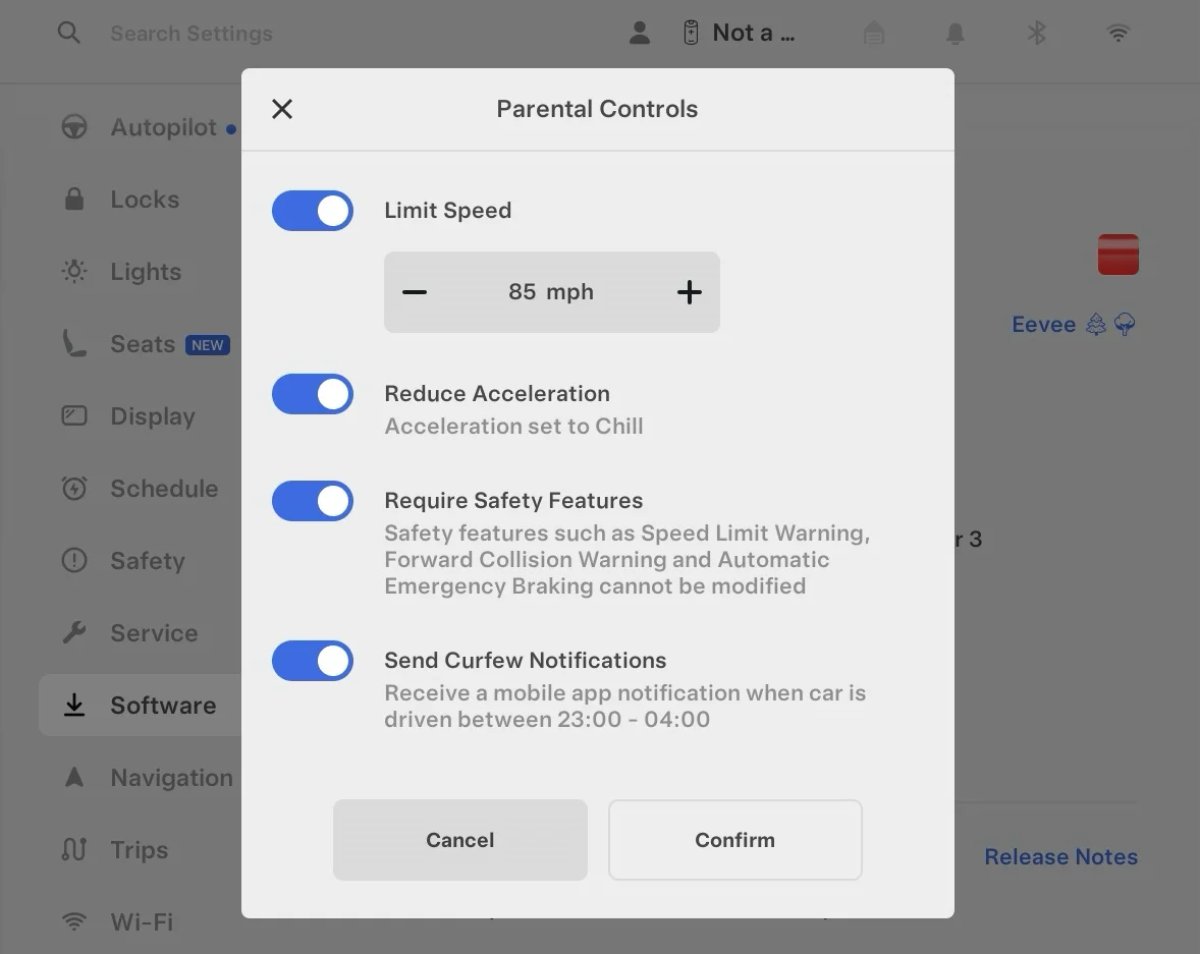
Tesla’s parental controls are designed to keep new drivers safe by limiting access to certain features. Parents can reduce the vehicle’s acceleration, limit the top speed, and prevent safety features from being turned off.
With this update, Tesla is adding another improvement to Parental Controls for Performance vehicles. Track Mode is now restricted when you enable Require Safety Features, preventing teens from manipulating the vehicle's handling, braking, and more.
Require Safety Features prevents these features from being turned off:
Automatic Emergency Braking
Obstacle-Aware Acceleration
Automatic Blind Spot Camera
Blind Spot Collision Warning Chime
Automatic 911 Call (US only)
Allow Mobile Access
Park Assist Chimes
It also prevents these settings from being changed:
Track Mode is disabled
Lane Departure Avoidance is set to Assist
Speed Limit Warning set to Chime
Speed Limit set to relative
Offset set to +5 mph (8 km/h)
Forward Collision Warning set to Early
Increased Attention Monitoring Alert
Tesla has added a new camera visibility alert with this update. What’s most interesting about this alert is that Tesla states that the poor camera visibility is resulting in increased attention monitoring.
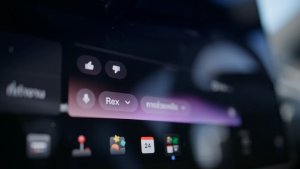
Grok Turns Off After Inactivity
With the introduction of the "Hey Grok" wake word, Tesla has changed the way Grok behaves. Previously, once Grok was triggered, it would remain active indefinitely, staying in a constant listening state.
Now, in order to turn off accidental activations and minimize background processing, Grok will automatically dismiss itself after approximately 15 seconds of inactivity.
This behavior applies regardless of whether you triggered the assistant using the new voice wake word or the physical steering wheel button. For those who prefer to close the interface manually, you can still use natural language dismissal commands; simply saying "goodbye" or "talk to you later" will instantly close Grok.
h/t: @Deandawiz
Grok Favorites
The integrated Grok assistant now has access to your vehicle’s saved favorites. Grok can now "see" and interpret the custom labels you have assigned to your saved locations.
For example, if you have an address saved as "Kim’s parents," you can simply say, "Hey Grok, navigate to “Kim’s parents," and the system will immediately pull the correct address from your list of favorites.
h/t: @NickScheber
Advanced Software Updates
Tesla has updated the Software Update Preference setting under the Software menu.
Previously, the software update preference was a toggle between "Standard" and "Advanced." This has now changed into a simpler on/off toggle for "Advanced" updates.
By switching this to "On," you are opting in to receive the latest software releases as soon as they become available for your specific vehicle configuration and region. This could result in receiving updates with minor bugs or receiving updates more often.
If left "Off," your vehicle will wait for a wider release before installing updates.
Re-Order Trip Meters
You can reorder the new trip meters however you’d like. Simply tap and hold one to get it to jiggle, and then move it to a new location.
Additionally, you can also tap on the energy graph in the top-right corner to view a larger, more detailed version of it.
Chromium Browser Updated
Tesla has upgraded the browser in the vehicle. Tesla’s browser is based on the open-source Chromium browser, the same browser that powers Google’s Chrome browser.
The browser was updated to version 140, up from version 136.
This update to Chromium increases compatibility with modern web standards, improves WebGPU performance, and resolves known issues.
Save Recent Dashcam Videos
Tesla continues to make it easier to browse and save recent Dashcam clips. In the last update, Tesla made it easier to browse recent, non-saved Dashcam clips by listing them at the top of the Dashcam Viewer.
With this update, they’re now letting you save recent clips that are still on the USB drive, but not saved from being deleted.
Volume Icons
When adjusting the volume of an app, such as Spotify, the volume icon will now display the app's icon. While the navigation volume has always had its own icon and an independent volume setting, this change does not add app-dependent volume settings.
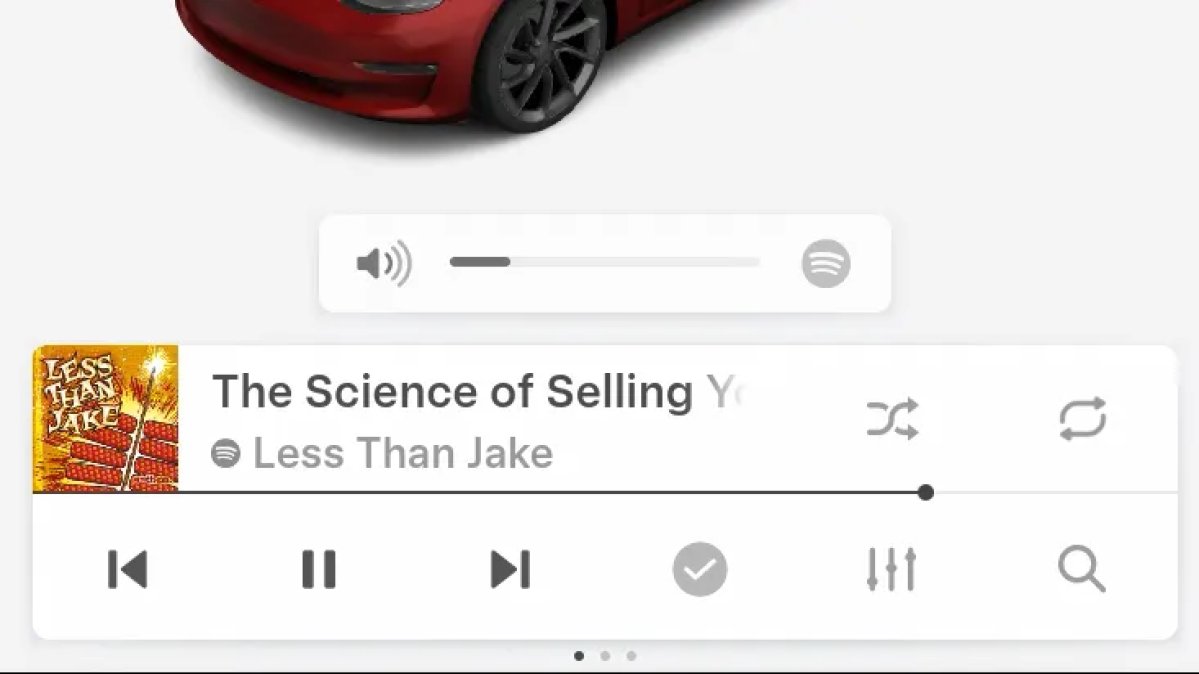
The same volume that’s used for Spotify will be used for YouTube and other apps. This icon simply makes it more obvious which volume is being changed.
Driver Profiles
Driver profiles are now also available in vehicle settings, rather than only in the Profiles icon in the status bar.
Users can navigate to Controls > Profiles to see the settings for all driver profiles.
Grok Settings
Grok settings are now also shown in the Audio section under Controls. These are the same settings available in the Grok app, but Tesla appears to be duplicating most of them under controls to make them easier to find.
Euro Semi Visualization
A new Autopilot/FSD visualization has been found in this update. The cab-over-engine style semi trucks often seen in Europe are now appearing in Autopilot visualizations with this update.
New 'All Apps' Icon
Tesla has updated the ‘All Apps’ icon displayed in the dock. Instead of an ellipsis inside of a rectangle, Tesla has now created a design that resembles iOS folders. The new design shows four apps inside the folder, but it’s not a static image.
The apps shown in the folder will change, presumably to show your most recent or most popular apps that aren't displayed in the dock.
Larger Dock Icons
To go along with the new ‘App Apps’ icon, Tesla has also increased the size of all icons in the dock. While the dock appears to remain the same size, the icons are now larger.
Animated Badges
Tesla models that have special badges, such as the Ludicrous badge on the Performance Model 3, are now animated in Software screen.
Upon navigating to the Software menu, the badge will play a short animation. You can also tap the badge to replay the animation.
New Creations Section
With the introduction of Photobooth, Tesla added a Photobooth section to the top level of the app that lets you view your saved photo sessions.
With the Spring Update and the update to the Sketchpad app for AMD Ryzen vehicles, Tesla is rebranding the Photobooth section to Creations, and it’ll now house Photobooth photos and sketches created in Sketchpad.
When you go into Creations, you’ll now have two tabs, one for Photobooth and one for Sketchpad, however, the features are similar. You’ll be able to view your saved creations and share them with others.
These creations are saved on your vehicle, not on Tesla’s servers, so when you open this section of the app, your vehicle will wake up and send the requested images.
Note: You’ll need vehicle update 2026.14 and an AMD Ryzen vehicle in order to see this new Creations section in the app.
Service Mode Improvements
New Service Mode Plus Authentication QR Code for Independent
Independent repairers can now quickly authenticate for Service Mode Plus by scanning a QR code displayed on the vehicle with a mobile device and logging in with their Toolbox credentials.
Models: All vehicles
Blinking DTC indicator added to the bottom banner
A Diagnostic Trouble Code (DTC) indicator has been added next to the Vehicle Identification Number (VIN) on the bottom Service Mode banner. The indicator is visible when DCs are present on the vehicle.
Models: All vehicles
Noise Recording Panel Updates (Service Mode Plus)
The Noise Recording panel now supports Active Noise Cancellation (ANC microphone recording. When ANC mode is enabled, the panel displays ANC microphone locations and extends the recording duration to 3 minutes.
Models: Model S (2021+), Model X (2021+), Cybertruck
Vehicle Functions Panel Added to Service Mode
The Vehicle Functions panel is now available on Service Mode. It shows an overview of degraded vehicle functions and their associated set alerts. Full functionality including more detailed functions, historical view and advanced controls are still only available on Service Mode Plus.
Models: Model 3, Model Y
New Bluetooth Panel
A new Bluetooth panel is available under Infotainment to support Bluetooth system diagnosis. The panel displays the status of both the main and rear Bluetooth modules (if rear Bluetooth is available on the vehicle), including connection states, signal strength with health indicators, and connected device information.
Models: Model S (2021+), Model 3, Model X (2021+), Model Y, Cybertruck