


Itsestään ajava -sovellus

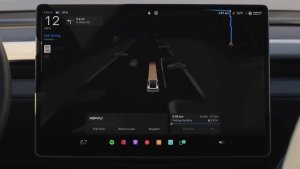
Uudella Itsestään ajava -sovelluksella voit tilata yhdellä napautuksella, tutustua ominaisuuden aktivointiin ja käyttöön sekä seurata tilastoja.
Avaa sovellus kohdassa App Launcher (Sovellusvalikko) > Self-Driving (Itsestään ajava).
Arvioidut tiemaksut

Navigointi näyttää nyt arvioidut tiemaksut kullekin reitille, mukaan lukien sähköautojen alennetut hinnat, jos sellaisia on. Tämä ominaisuus vaatii Online-reitin valinnan. Ota käyttöön valikossa Hallintalaitteet > Navigointi > Online reitin valinta.
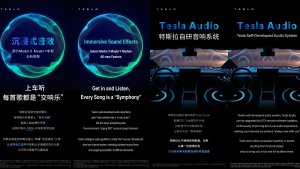
Immersiivisen äänen päivitys

Premium Immersive Sound hyödyntää edistynyttä äänenerottelua ja sijoittaa kuuntelijan yksityiskohtaisen äänikentän eteen immersiiviseen tilaan. Tämä parannus toimii kaikkien suoratoistolähteiden kanssa.
Säädä kohdassa Settings (Asetukset) > Audio > Tone (Äänensävy) > Immersive Sound (Immersiivinen ääni).
Takanäyttö

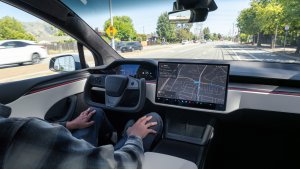
Takaistuinten matkustajat voivat nyt katsella ja käyttää karttoja takanäytöllä Teslasi navigoidessa reittiä. Napauta takanäytön karttakuvaketta ja seuraa mukana.
”Hey Grok”

Käynnistä Grok sanomalla "Hey Grok". Ota käyttöön kohdasta Grok > Settings (Asetukset). Voit myös asettaa sijaintiin perustuvia muistutuksia, kuten "muistuta minua ostamaan maitoa, kun olen lähellä kotia." Hylkää sanomalla "goodbye".
Pet Mode

Valitse ja nimeä lemmikkisi kohdassa Controls (Hallintalaitteet) > Display (Näyttö) > Customize Pet Mode (Mukauta Pet Mode).
Maalaamo

Personoi Tesla-avatarisi ikkunoiden sävytyksillä, mukautetuilla teippauksilla ja rekisterikilvillä. Tee ajoneuvostasi uniikki käyttämällä jotakin monista valmiiksi ladatuista malleista, tai luomalla ja lähettämällä omia mallejasi USB-muistitikulla. Valitse App Launcher > Toybox > Maalaamo tai napauta maali- tai rekisterikilven painiketta valikossa Hallintalaitteet > Ohjelmisto.
Visuaaliset päivitykset

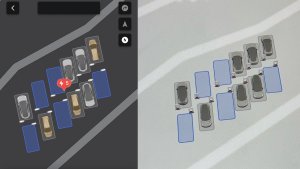
Keskinäytössä on nyt korkealaatuisempia kuvia Teslastasi sekä parannettu pysäköintinäkymä.
Matkat

Matkat ovat nyt Energy (Energia) -sovelluksessa, jossa voit luoda ja hallita useita matkoja ja seurata energiankulutusta eri ajokerroilla, reiteillä ja eri olosuhteissa. Valitse App Launcher (Sovellusvalikko) > Energy (Energia) > Trips (Matkat). Pyyhkäise mediakortin kohdalla vasemmalle, niin pääset nopeasti Trips Card -korttiin.
Lehtiö

Vapauta sisäinen taiteilijasi parannetulla Lehtiöllä (Sketchpad), joka tukee nyt tarroja ja emojeita. Tallenna luonnoksesi, niin voit tarkastella ja jakaa niitä mobiilisovelluksessa. Edellyttää mobiilisovelluksen versiota 4.55.6 tai uudempaa.
Kuolleen kulman varoituksen korostusvalot

Korostusvalot muuttuvat nyt punaisiksi, kun kuolleessa kulmassa havaitaan kohde suuntavilkun ollessa päällä tai kun lähestyvä kohde havaitaan pysäköitynä ollessa. Poista käytöstä kohdassa Controls (Hallintalaitteet) > Lights (Valot) > Blind Spot Warning Accent Lights (Kuolleen kulman varoituksen korostusvalot).
Merkkiääni, kun valo on vihreä

Merkkiääni kuuluu, kun odottamasi liikennevalo vaihtuu vihreäksi. Jos odotat toisen ajoneuvon takana, kuulet merkkiäänen ajoneuvon lähtiessä liikkeelle, ellei liikennettä havainnoiva vakionopeudensäädin tai automaattiohjaus ole käytössä. Tämä merkkiääni on vain ilmoitus. Ota käyttöön kohdassa Controls (Hallintalaitteet) > Self-Driving (Itsestään ajava) > Green Traffic Light Chime (Vihreän liikennevalon merkkiääni).
Live-kameranäkymä

Voit nyt tarkistaa Teslasi sisätilat poissa ollessasi. Ota käyttöön kohdassa Controls (Hallintalaitteet) > Safety (Turvallisuus) > View Live Camera via Mobile App (Katsele live-kameraa mobiilisovelluksella). Live-kamera on päästä päähän salattu, eikä Tesla voi käyttää sitä. Tämä toiminto edellyttää Premium Connectivity -yhteyttä ja Tesla-mobiilisovelluksen versiota 4.55.6 tai uudempaa.
Musiikkisovelluksen jonotoiminto

Lisää kappaleita jonoon pyyhkäisemällä oikealle Apple Musicissa tai Spotifyssa. Apple Musicissa voit lisätä kappaleen suosikkeihin tai poistaa sen napauttamalla ja pitämällä kappaletta pohjassa. Spotifyssa voit lisätä kappaleen tykättyihin kappaleisiin tai poistaa sen pyyhkäisemällä vasemmalle.
Automaattiset ohjelmistopäivitykset

Teslasi voi nyt asentaa ladatut ohjelmistopäivitykset automaattisesti yöllä. Kun toiminto on käytössä, päivitykset asentuvat Teslasi ollessa pysäköitynä ja poissa käytöstä, joten sinulla on aina uusimmat ominaisuudet ja parannukset.
Ota käyttöön kohdassa Controls (Hallintalaitteet) > Software (Ohjelmisto) > Automatically Install Updates (Asenna päivitykset automaattisesti).
Kojelautakameran katseluohjelman päivitykset

Kojelautakamera säilyttää nyt viimeaikaista kuvamateriaalia jopa 24 tuntia, ja voit tallentaa minkä tahansa leikkeen pysyvästi Teslaasi tai puhelimeesi valitsemalla App Launcher (Sovellusvalikko) > Dashcam Viewer (Kojelautakameran katseluohjelma). Ota puhelimen katselu käyttöön valitsemalla Controls (Hallintalaitteet) > Safety (Turvallisuus) ja kytkemällä View Camera via Mobile App (Katsele kameraa mobiilisovelluksella) -sovelluksen päälle. Leikkeet pysyvät ajoneuvossa, eikä niitä jaeta koskaan Teslalle.
Puhelimeen ladatut leikkeet sisältävät nyt tietoja, kuten nopeuden, ohjauspyörän kulman ja Itsestään ajava -toiminnon tilan. Lataaminen edellyttää Premium Connectivity -yhteyttä ja mobiilisovelluksen versiota 4.55.6 tai uudempaa.
Kojelautakameran katseluohjelman päivitykset
Voit tallentaa minkä tahansa leikkeen viimeaikaisesta kojelautakameran kuvamateriaalista pysyvästi Teslaasi tai puhelimeesi valitsemalla App Launcher (Sovellusvalikko) > Dashcam Viewer (Kojelautakameran katseluohjelma). Ota puhelimen katselu käyttöön valitsemalla Controls (Hallintalaitteet) > Safety (Turvallisuus) ja kytkemällä View Camera via Mobile App (Katsele kameraa mobiilisovelluksella) -sovelluksen päälle. Leikkeet pysyvät ajoneuvossa, eikä niitä jaeta koskaan Teslalle.
Puhelimeen ladatut leikkeet sisältävät nyt tietoja, kuten nopeuden, ohjauspyörän kulman ja Itsestään ajava -toiminnon tilan. Lataaminen edellyttää Premium Connectivity -yhteyttä ja mobiilisovelluksen versiota 4.55.6 tai uudempaa.
Sääkarttojen parannukset

Sääkartoissa näkyvät nyt lumi ja sade parannetuin värein, mikä helpottaa sadetyyppien erottamista toisistaan. Voit myös tarkastella edellisen tunnin säätietoja ja nähdä, miten olosuhteet ovat muuttuneet reitilläsi. Tämä toiminto edellyttää Premium Connectivity -yhteyttä. Katso napauttamalla kartan sääkuvaketta.
Supercharger-hinnoittelusuodatin

Voit nyt valita reitille vain Supercharger-asemia, joilla on Tesla-hinnoittelu. Kun toiminto on käytössä, Matkasuunnittelija välttää paikkoja, joissa Tesla ei määritä lataushintoja eikä hyväksy ilmaisen Supercharger-latauksen hyvityksiä. Tämä asetus edellyttää verkkoyhteyttä, jossa Online reitin valinta on käytössä.
Ota käyttöön kohdassa Hallintalaitteet > Navigointi > Matkasuunnittelija-asetukset.
Näppäimistö

Valitsemasi näppäimistökieli määrittää myös sanelussa käytettävän kielen. Vaihda näppäimistön ja sanelun kieli napauttamalla kansainvälisen näppäimistön painiketta. Puhekomennon kieli ei muutu. Aloita sanelu napauttamalla näppäimistön mikrofonikuvaketta.
Turvallisuuden parannukset

Tämä päivitys sisältää tärkeitä tietoturvakorjauksia ja -parannuksia.
Cloud Profiles

Tesla cloud profiles now feature a new cloud icon to indicate they’re cloud profiles rather than local profiles stored only on the vehicle.
Amber Brake Lights

This update properly visualizes vehicles with amber brake lights. Some regions require turn signals to be orange/amber. Up until now, the visualization has only displayed turn signals in red, but with this update, Tesla now properly displays amber turn signals for the appropriate vehicles.
The Unreal Engine brings drastic improvements to lighting in the visualization, making the brake lights much more noticeable as they reflect on the ground.
Parental Controls Improvement
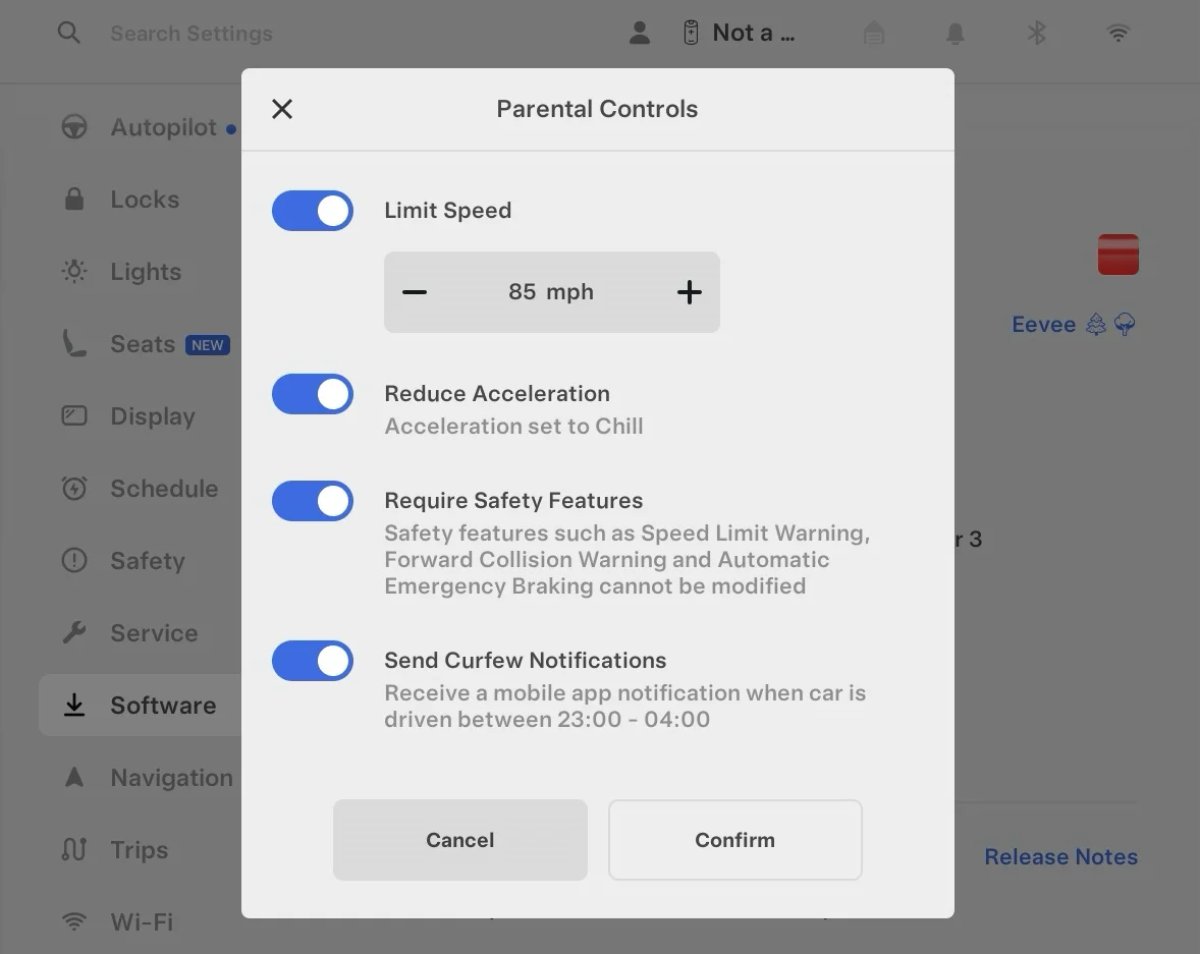
Tesla’s parental controls are designed to keep new drivers safe by limiting access to certain features. Parents can reduce the vehicle’s acceleration, limit the top speed, and prevent safety features from being turned off.
With this update, Tesla is adding another improvement to Parental Controls for Performance vehicles. Track Mode is now restricted when you enable Require Safety Features, preventing teens from manipulating the vehicle's handling, braking, and more.
Require Safety Features prevents these features from being turned off:
Automatic Emergency Braking
Obstacle-Aware Acceleration
Automatic Blind Spot Camera
Blind Spot Collision Warning Chime
Automatic 911 Call (US only)
Allow Mobile Access
Park Assist Chimes
It also prevents these settings from being changed:
Track Mode is disabled
Lane Departure Avoidance is set to Assist
Speed Limit Warning set to Chime
Speed Limit set to relative
Offset set to +5 mph (8 km/h)
Forward Collision Warning set to Early
Increased Attention Monitoring Alert

Tesla has added a new camera visibility alert with this update. What’s most interesting about this alert is that Tesla states that the poor camera visibility is resulting in increased attention monitoring.
Grok Turns Off After Inactivity

With the introduction of the "Hey Grok" wake word, Tesla has changed the way Grok behaves. Previously, once Grok was triggered, it would remain active indefinitely, staying in a constant listening state.
Now, in order to turn off accidental activations and minimize background processing, Grok will automatically dismiss itself after approximately 15 seconds of inactivity.
This behavior applies regardless of whether you triggered the assistant using the new voice wake word or the physical steering wheel button. For those who prefer to close the interface manually, you can still use natural language dismissal commands; simply saying "goodbye" or "talk to you later" will instantly close Grok.
h/t: @Deandawiz
Grok Favorites

The integrated Grok assistant now has access to your vehicle’s saved favorites. Grok can now "see" and interpret the custom labels you have assigned to your saved locations.
For example, if you have an address saved as "Kim’s parents," you can simply say, "Hey Grok, navigate to “Kim’s parents," and the system will immediately pull the correct address from your list of favorites.
h/t: @NickScheber
Advanced Software Updates

Tesla has updated the Software Update Preference setting under the Software menu.
Previously, the software update preference was a toggle between "Standard" and "Advanced." This has now changed into a simpler on/off toggle for "Advanced" updates.
By switching this to "On," you are opting in to receive the latest software releases as soon as they become available for your specific vehicle configuration and region. This could result in receiving updates with minor bugs or receiving updates more often.
If left "Off," your vehicle will wait for a wider release before installing updates.
Re-Order Trip Meters

You can reorder the new trip meters however you’d like. Simply tap and hold one to get it to jiggle, and then move it to a new location.
Additionally, you can also tap on the energy graph in the top-right corner to view a larger, more detailed version of it.
Chromium Browser Updated

Tesla has upgraded the browser in the vehicle. Tesla’s browser is based on the open-source Chromium browser, the same browser that powers Google’s Chrome browser.
The browser was updated to version 140, up from version 136.
This update to Chromium increases compatibility with modern web standards, improves WebGPU performance, and resolves known issues.
Save Recent Dashcam Videos

Tesla continues to make it easier to browse and save recent Dashcam clips. In the last update, Tesla made it easier to browse recent, non-saved Dashcam clips by listing them at the top of the Dashcam Viewer.
With this update, they’re now letting you save recent clips that are still on the USB drive, but not saved from being deleted.
Volume Icons
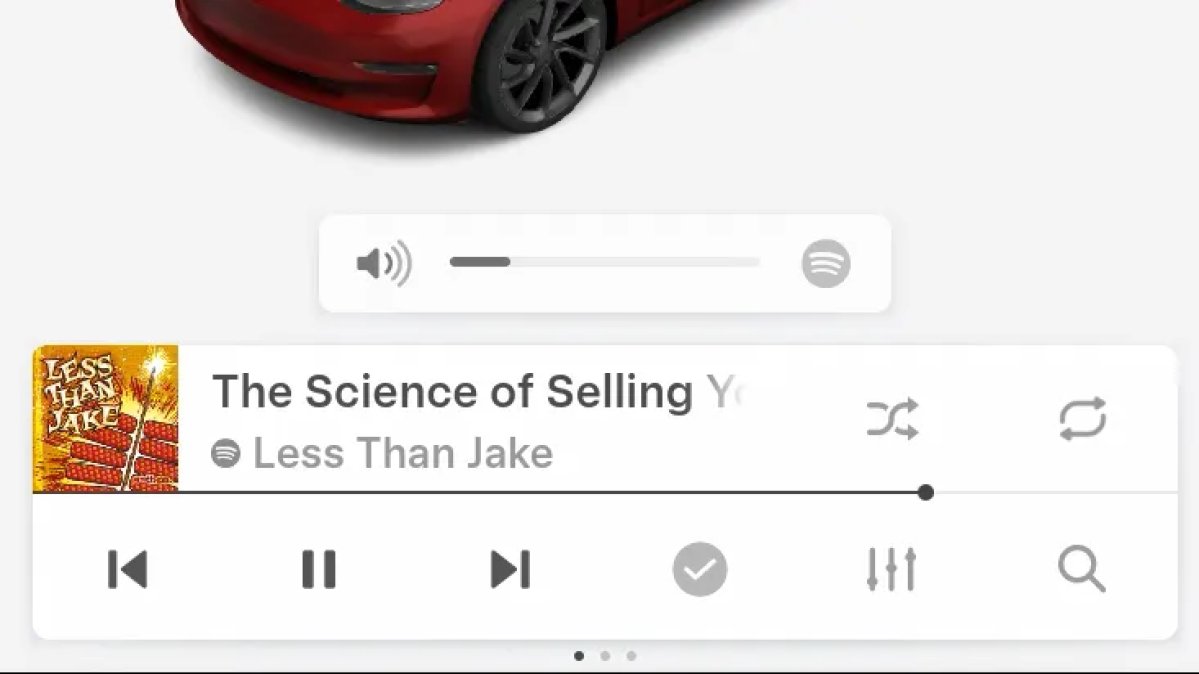
When adjusting the volume of an app, such as Spotify, the volume icon will now display the app's icon. While the navigation volume has always had its own icon and an independent volume setting, this change does not add app-dependent volume settings.
The same volume that’s used for Spotify will be used for YouTube and other apps. This icon simply makes it more obvious which volume is being changed.
Driver Profiles

Driver profiles are now also available in vehicle settings, rather than only in the Profiles icon in the status bar.
Users can navigate to Controls > Profiles to see the settings for all driver profiles.
Grok Settings

Grok settings are now also shown in the Audio section under Controls. These are the same settings available in the Grok app, but Tesla appears to be duplicating most of them under controls to make them easier to find.
Euro Semi Visualization

A new Autopilot/FSD visualization has been found in this update. The cab-over-engine style semi trucks often seen in Europe are now appearing in Autopilot visualizations with this update.
New 'All Apps' Icon

Tesla has updated the ‘All Apps’ icon displayed in the dock. Instead of an ellipsis inside of a rectangle, Tesla has now created a design that resembles iOS folders. The new design shows four apps inside the folder, but it’s not a static image.
The apps shown in the folder will change, presumably to show your most recent or most popular apps that aren't displayed in the dock.
Larger Dock Icons

To go along with the new ‘App Apps’ icon, Tesla has also increased the size of all icons in the dock. While the dock appears to remain the same size, the icons are now larger.
Animated Badges

Tesla models that have special badges, such as the Ludicrous badge on the Performance Model 3, are now animated in Software screen.
Upon navigating to the Software menu, the badge will play a short animation. You can also tap the badge to replay the animation.
New Creations Section

With the introduction of Photobooth, Tesla added a Photobooth section to the top level of the app that lets you view your saved photo sessions.
With the Spring Update and the update to the Sketchpad app for AMD Ryzen vehicles, Tesla is rebranding the Photobooth section to Creations, and it’ll now house Photobooth photos and sketches created in Sketchpad.
When you go into Creations, you’ll now have two tabs, one for Photobooth and one for Sketchpad, however, the features are similar. You’ll be able to view your saved creations and share them with others.
These creations are saved on your vehicle, not on Tesla’s servers, so when you open this section of the app, your vehicle will wake up and send the requested images.
Note: You’ll need vehicle update 2026.14 and an AMD Ryzen vehicle in order to see this new Creations section in the app.
Service Mode Improvements

New Service Mode Plus Authentication QR Code for Independent
Independent repairers can now quickly authenticate for Service Mode Plus by scanning a QR code displayed on the vehicle with a mobile device and logging in with their Toolbox credentials.
Models: All vehicles
Blinking DTC indicator added to the bottom banner
A Diagnostic Trouble Code (DTC) indicator has been added next to the Vehicle Identification Number (VIN) on the bottom Service Mode banner. The indicator is visible when DCs are present on the vehicle.
Models: All vehicles
Noise Recording Panel Updates (Service Mode Plus)
The Noise Recording panel now supports Active Noise Cancellation (ANC microphone recording. When ANC mode is enabled, the panel displays ANC microphone locations and extends the recording duration to 3 minutes.
Models: Model S (2021+), Model X (2021+), Cybertruck
Vehicle Functions Panel Added to Service Mode
The Vehicle Functions panel is now available on Service Mode. It shows an overview of degraded vehicle functions and their associated set alerts. Full functionality including more detailed functions, historical view and advanced controls are still only available on Service Mode Plus.
Models: Model 3, Model Y
New Bluetooth Panel
A new Bluetooth panel is available under Infotainment to support Bluetooth system diagnosis. The panel displays the status of both the main and rear Bluetooth modules (if rear Bluetooth is available on the vehicle), including connection states, signal strength with health indicators, and connected device information.
Models: Model S (2021+), Model 3, Model X (2021+), Model Y, Cybertruck