
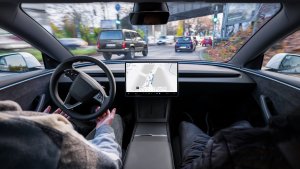


This update adds the Spring Update features to vehicles on FSD v14.3. It also increments the FSD version to 14.3.3 and adds several improvements.
Tesla Videos
Details
FSD Version
Release Date
FSD Beta Updates
Recent News
FSD (supervisada) v14.3.3
Conducción automatizada total (supervisada) v14.3.3 incluye:
- Se mejoró la fase de aprendizaje por refuerzo (RL) del entrenamiento de la red neuronal de FSD, lo que se traduce en mejoras en una amplia variedad de situaciones de conducción.
- Se actualizó el codificador de visión de la red neuronal, lo que mejora la comprensión en situaciones poco frecuentes y de baja visibilidad, refuerza la comprensión de la geometría 3D y amplía la comprensión de las señales de tráfico.
- Se reescribió desde cero el compilador y el entorno de ejecución de IA con MLIR, lo que resultó en un tiempo de reacción un 20 % más rápido y mejoró la velocidad de iteración de los modelos.
- Se redujo el sesgo innecesario de carril y los seguimientos excesivamente cercanos al vehículo precedente.
- Se mejoró la determinación en la selección de plaza de estacionamiento y en la ejecución de maniobras.
- Se mejoró la predicción del marcador de ubicación de estacionamiento, que ahora se muestra en un mapa con un icono P.
- Se mejoró la respuesta ante vehículos de emergencia, autobuses escolares, vehículos que incumplen el derecho de paso y otros vehículos poco comunes.
- Se mejoró la gestión de animales pequeños al centrar el entrenamiento de aprendizaje por refuerzo (RL) en ejemplos de mayor dificultad e incorporar recompensas para una mejor seguridad proactiva.
- Se mejoró la gestión de semáforos en intersecciones complejas con semáforos compuestos, tramos curvos y detención ante luz ámbar, impulsada por el entrenamiento con ejemplos de alta dificultad de aprendizaje por refuerzo (RL) obtenidos de la flota de Tesla.
- Se mejoró la gestión de objetos poco frecuentes o inusuales que sobresalen, cuelgan o se inclinan hacia la trayectoria del vehículo, extrayendo eventos poco frecuentes de la flota.
- Se mejoró la gestión de las degradaciones temporales del sistema al mantener el control del vehículo y recuperarse automáticamente sin intervención del conductor, lo que reduce las desconexiones innecesarias.
- Ayudar a Tesla a mejorar la conducción automatizada seleccionando un motivo de intervención en la pantalla principal después del cambio.
- Ahora puede ver la distancia recorrida en FSD (supervisada) sin ninguna intervención. La App de conducción automatizada también le mostrará su racha más larga sin intervención.
Próximas mejoras:
- Ampliar el razonamiento a todos los comportamientos más allá de la gestión de destinos.
- Agregar la evitación de baches.
- Mayor sensibilidad del sistema de monitorización del conductor, con un seguimiento de la mirada más preciso, una mejor compatibilidad con gafas, y una mayor precisión en condiciones lumínicas variables.
App de conducción automatizada
Con la nueva app de conducción automatizada, suscríbase con un solo toque, aprenda a activar y utilizar la funcionalidad y consulte las estadísticas en curso.
Para abrir, vaya a Iniciador de aplicaciones > Conducción automatizada.
Tarifas de peaje estimadas
La navegación ahora muestra las tarifas de peaje estimadas para cada ruta, incluyendo tarifas con descuento para vehículos eléctricos donde estén disponibles. Esta función requiere Navegación en línea. Para habilitarla, vaya a Controles > Navegación > Navegación en línea.
Mejora de sonido envolvente
El sistema Premium Immersive Sound utiliza tecnología avanzada de procesamiento de audio para situar al oyente frente a una escena sonora detallada dentro de un espacio inmersivo. Esta mejora funciona con todas las fuentes de streaming.
Vaya a Configuración > Audio > Tono > Sonido envolvente para ajustar.
Conducción autónoma total (Supervisada)
Bajo su supervisión, Conducción autónoma total (supervisada) puede llevar su Tesla a casi cualquier lugar. Empezará desde una posición de estacionamiento, hará cambios de carril, seleccionará las bifurcaciones para seguir su ruta de navegación, sorteará otros vehículos y objetos, realizará giros a izquierda y derecha y estacionará en su destino. Usted y cualquier persona a la que usted autorice deben extremar las precauciones y mantener la atención. No convierte su vehículo en autónomo. No se confíe.
Conducción autónoma total (supervisada) está habilitada en su vehículo. Para usar esta función, pulse el botón Iniciar conducción autónoma en la interfaz de usuario o pulse una vez el botón derecho de la rueda de desplazamiento. Puede deshabilitar Conducción autónoma total (supervisada) en los ajustes de Piloto automático.
Pantalla trasera
Los pasajeros de los asientos traseros ahora pueden ver e interactuar con los mapas en la pantalla trasera mientras su Tesla navega por una ruta. Toque el icono de mapas en la pantalla trasera para seguir el recorrido.
"Hey Grok"
Inicie Grok diciendo "Hey Grok". Para habilitarlo, vaya a Grok > Ajustes. También puede configurar recordatorios basados en la ubicación, como "recuérdeme comprar leche cuando esté cerca de casa". Diga "goodbye" para descartar.
Modo mascota
Elija y asigne un nombre a su mascota accediendo a Controles > Pantalla > Personalizar modo Mascota.
Taller de pintura
Personalice su avatar Tesla con tintados en las ventanillas, vinilos personalizados y matrículas. Utilice uno de los muchos diseños precargados o cree y cargue el suyo propio desde una unidad de almacenamiento USB para hacer que su vehículo sea único. Vaya a Iniciador de aplicaciones > Toybox > Taller de pintura o toque el botón de pintura o de matrícula en Controles > Software.
Actualizaciones visuales
La pantalla central ahora muestra imágenes de mayor calidad de su Tesla y un entorno de estacionamiento mejorado.
Trayectos
Los trayectos ahora están en la app Energy, donde puede crear y administrar múltiples trayectos para hacer un seguimiento del consumo de energía en diferentes recorridos, rutas o condiciones. Vaya a Iniciador de aplicaciones > Energy > Trayectos. Para acceder rápidamente a la tarjeta Trayectos, deslice hacia la izquierda en la tarjeta Multimedia.
Alerta de punto ciego mientras esté estacionado
Si intenta abrir una puerta mientras se detecta un objeto acercándose por su punto ciego o ángulo muerto (por ejemplo, un ciclista se aproxima por detrás), la luz indicadora de punto ciego parpadea, suena un aviso acústico y la puerta no se abrirá al pulsar el botón una primera vez. Espere unos instantes y pulse el botón por segunda vez para anular la advertencia.
Bloc de dibujo
Dé rienda suelta a su artista interior con el Bloc de dibujo mejorado, ahora compatible con pegatinas y emojis. Guarde sus bocetos para acceder a ellos en la app móvil y compartirlos. Requiere la versión 4.55.6 o posterior de la app móvil.
Luces de ambientación de aviso de ángulo muerto
Las luces de ambientación ahora se encienden en rojo cuando se detecta un objeto en el ángulo muerto y el intermitente está activado, o cuando se detecta un objeto que se aproxima mientras está estacionado. Para deshabilitar, vaya a Controles > Luces > Luces de ambientación de aviso de ángulo muerto.
Sonido cuando la luz está verde
Sonará un aviso acústico cuando la luz del semáforo que está esperando se ponga en verde. Si está esperando detrás de otro vehículo, oirá un aviso acústico cuando el vehículo avance, a menos que estén activados Control de crucero adaptado al tráfico o Autogiro. Ese aviso acústico solo es una notificación. Para habilitarlo, vaya a Controles > Conducción automatizada > Sonido de alerta de semáforo en verde.
Vista de cámara en tiempo real
Ahora puede comprobar el interior del Tesla mientras está fuera. Para habilitarlo, vaya a Controles > Seguridad > Ver cámara en tiempo real a través de la app móvil. La cámara en tiempo real está cifrada de extremo a extremo y Tesla no puede acceder a ella. Esta funcionalidad requiere Conectividad premium y la versión 4.55.6 o posterior de la app móvil de Tesla.
Cola de reproducción en la app de música
Deslice a la derecha las pistas de Apple Music para agregarlas a la cola. En Apple Music, mantenga pulsada una pista para agregarla o quitarla de Favoritos. En Spotify, deslice hacia la izquierda para agregar o eliminar de la lista de Canciones que me gustan.
Actualizaciones de software automáticas
Su Tesla ahora puede instalar automáticamente las actualizaciones de software descargadas por la noche. Cuando esté habilitado, las actualizaciones se instalarán mientras su Tesla esté aparcado y no esté en uso, lo que garantiza que siempre disponga de las últimas funcionalidades y mejoras.
Para habilitarlo, vaya a Controles > Software > Instalación automática de actualizaciones.
Actualizaciones del Visor de Dashcam
Las grabaciones recientes de la dashcam ahora pueden durar hasta 24 horas, y puede guardar cualquier clip para almacenamiento permanente en el Tesla o en el teléfono accediendo al Iniciador de aplicaciones > Visor de dashcam. Para habilitar la visualización en el teléfono, vaya a Controles > Seguridad y active Ver cámara a través de la app móvil. Los clips permanecen en el vehículo y nunca se comparten con Tesla.
Los clips descargados en el teléfono ahora incluyen detalles como la velocidad, el ángulo del volante y el estado de la conducción automatizada. Las descargas requieren Conectividad premium y la versión 4.55.6 o una posterior de la app móvil.
Actualizaciones del Visor de Dashcam
Puedes guardar cualquier clip de las grabaciones recientes de la dashcam para almacenamiento permanente en tu Tesla o en tu teléfono accediendo al Iniciador de aplicaciones > Visor de dashcam. Para habilitar la visualización en el teléfono, vaya a Controles > Seguridad y active Ver cámara a través de la app móvil. Los clips permanecen en el vehículo y nunca se comparten con Tesla.
Los clips descargados en el teléfono ahora incluyen detalles como la velocidad, el ángulo del volante y el estado de la conducción automatizada. Las descargas requieren Conectividad premium y la versión 4.55.6 o una posterior de la app móvil.
Mejoras de los mapas meteorológicos
Los mapas meteorológicos ahora muestran la nieve y la lluvia con colores mejorados que facilitan la distinción entre los tipos de precipitación. También puede ver los datos meteorológicos de la última hora para ver cómo han cambiado las condiciones a lo largo de su ruta. Esta funcionalidad requiere Conectividad premium. Para ver, toque el icono del tiempo en el mapa.
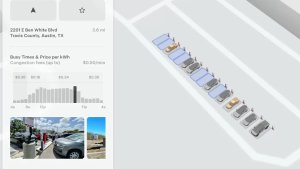
Filtro de precios de Supercargador
Ahora puede elegir que la ruta sea solo a Supercargadores con precios de Tesla. Cuando esté habilitado, el Planificador de ruta evitará las ubicaciones donde Tesla no establece los precios de la carga ni acepta créditos de Supercarga gratuita. Este ajuste requiere conectividad y que la Navegación en línea esté habilitada.
Para habilitarlo, vaya a Controles > Navegación > Ajustes del Planificador de ruta.
Teclado
El idioma del teclado que haya seleccionado determinará también el idioma que se empleará para el dictado. Toque el botón de teclado internacional para cambiar el idioma del teclado y del dictado, sin cambiar el idioma para comandos de voz. Para dictar, toque el icono del micrófono en el teclado.
Mejoras de seguridad
Esta actualización incluye mejoras y correcciones de seguridad importantes.
Updated Disengagement Menu
Tesla has updated the intervention menu to include new reasons for disengagement. Parking, possibly the most popular reason for disengaging behind navigation, has now been added as an option. Tesla has also brought back ‘Other.’ There are still only four reasons for intervening, so that means that ‘Preference’ and ‘Discomfort’ have been removed.
Cloud Profiles
Tesla cloud profiles now feature a new cloud icon to indicate they’re cloud profiles rather than local profiles stored only on the vehicle.
Amber Brake Lights
This update properly visualizes vehicles with amber brake lights. Some regions require turn signals to be orange/amber. Up until now, the visualization has only displayed turn signals in red, but with this update, Tesla now properly displays amber turn signals for the appropriate vehicles.
The Unreal Engine brings drastic improvements to lighting in the visualization, making the brake lights much more noticeable as they reflect on the ground.
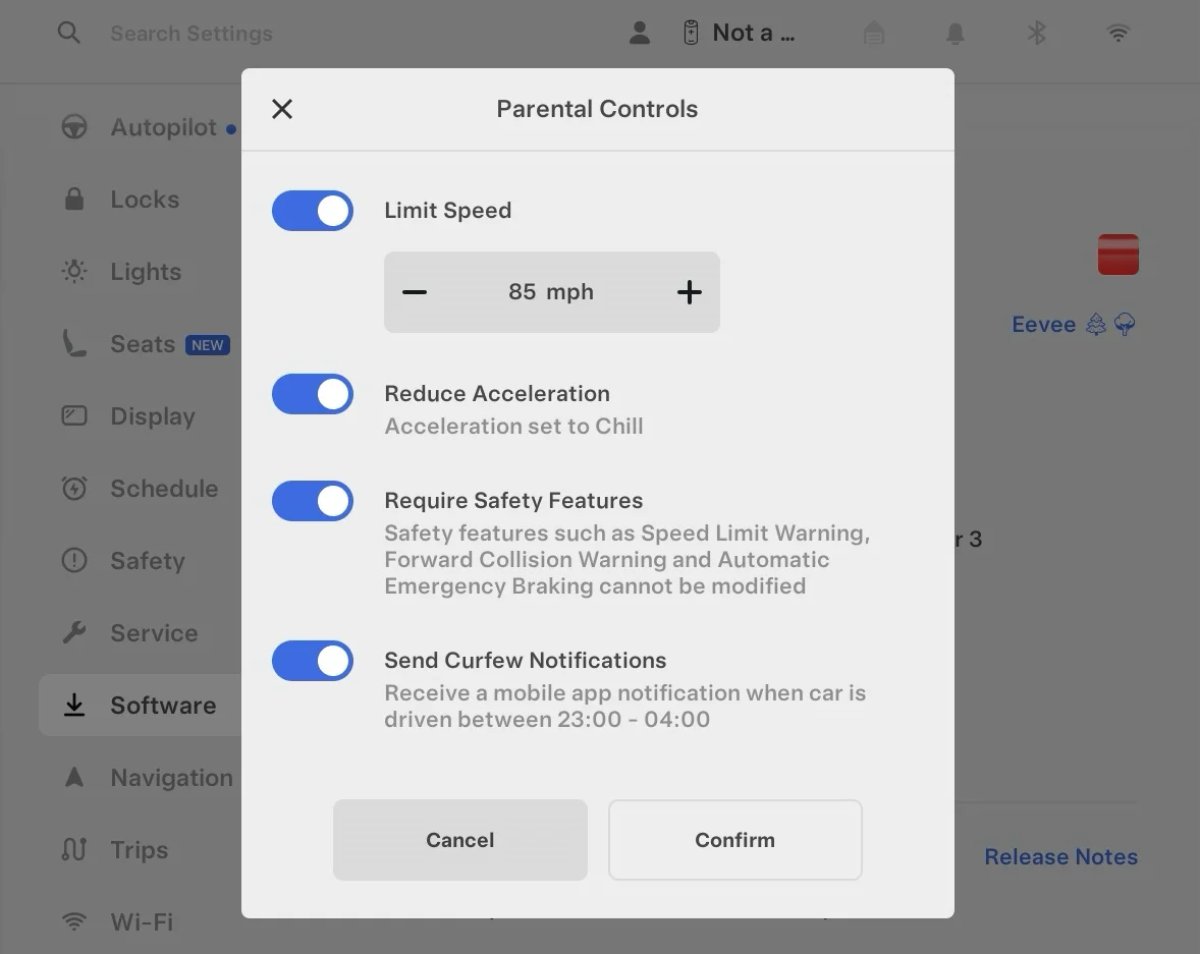
Parental Controls Improvement
Tesla’s parental controls are designed to keep new drivers safe by limiting access to certain features. Parents can reduce the vehicle’s acceleration, limit the top speed, and prevent safety features from being turned off.
With this update, Tesla is adding another improvement to Parental Controls for Performance vehicles. Track Mode is now restricted when you enable Require Safety Features, preventing teens from manipulating the vehicle's handling, braking, and more.
Require Safety Features prevents these features from being turned off:
Automatic Emergency Braking
Obstacle-Aware Acceleration
Automatic Blind Spot Camera
Blind Spot Collision Warning Chime
Automatic 911 Call (US only)
Allow Mobile Access
Park Assist Chimes
It also prevents these settings from being changed:
Track Mode is disabled
Lane Departure Avoidance is set to Assist
Speed Limit Warning set to Chime
Speed Limit set to relative
Offset set to +5 mph (8 km/h)
Forward Collision Warning set to Early
Increased Attention Monitoring Alert
Tesla has added a new camera visibility alert with this update. What’s most interesting about this alert is that Tesla states that the poor camera visibility is resulting in increased attention monitoring.
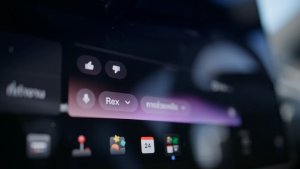
Grok Turns Off After Inactivity
With the introduction of the "Hey Grok" wake word, Tesla has changed the way Grok behaves. Previously, once Grok was triggered, it would remain active indefinitely, staying in a constant listening state.
Now, in order to turn off accidental activations and minimize background processing, Grok will automatically dismiss itself after approximately 15 seconds of inactivity.
This behavior applies regardless of whether you triggered the assistant using the new voice wake word or the physical steering wheel button. For those who prefer to close the interface manually, you can still use natural language dismissal commands; simply saying "goodbye" or "talk to you later" will instantly close Grok.
h/t: @Deandawiz
Grok Favorites
The integrated Grok assistant now has access to your vehicle’s saved favorites. Grok can now "see" and interpret the custom labels you have assigned to your saved locations.
For example, if you have an address saved as "Kim’s parents," you can simply say, "Hey Grok, navigate to “Kim’s parents," and the system will immediately pull the correct address from your list of favorites.
h/t: @NickScheber
Advanced Software Updates
Tesla has updated the Software Update Preference setting under the Software menu.
Previously, the software update preference was a toggle between "Standard" and "Advanced." This has now changed into a simpler on/off toggle for "Advanced" updates.
By switching this to "On," you are opting in to receive the latest software releases as soon as they become available for your specific vehicle configuration and region. This could result in receiving updates with minor bugs or receiving updates more often.
If left "Off," your vehicle will wait for a wider release before installing updates.
Re-Order Trip Meters
You can reorder the new trip meters however you’d like. Simply tap and hold one to get it to jiggle, and then move it to a new location.
Additionally, you can also tap on the energy graph in the top-right corner to view a larger, more detailed version of it.
Chromium Browser Updated
Tesla has upgraded the browser in the vehicle. Tesla’s browser is based on the open-source Chromium browser, the same browser that powers Google’s Chrome browser.
The browser was updated to version 140, up from version 136.
This update to Chromium increases compatibility with modern web standards, improves WebGPU performance, and resolves known issues.
Save Recent Dashcam Videos
Tesla continues to make it easier to browse and save recent Dashcam clips. In the last update, Tesla made it easier to browse recent, non-saved Dashcam clips by listing them at the top of the Dashcam Viewer.
With this update, they’re now letting you save recent clips that are still on the USB drive, but not saved from being deleted.
Volume Icons
When adjusting the volume of an app, such as Spotify, the volume icon will now display the app's icon. While the navigation volume has always had its own icon and an independent volume setting, this change does not add app-dependent volume settings.
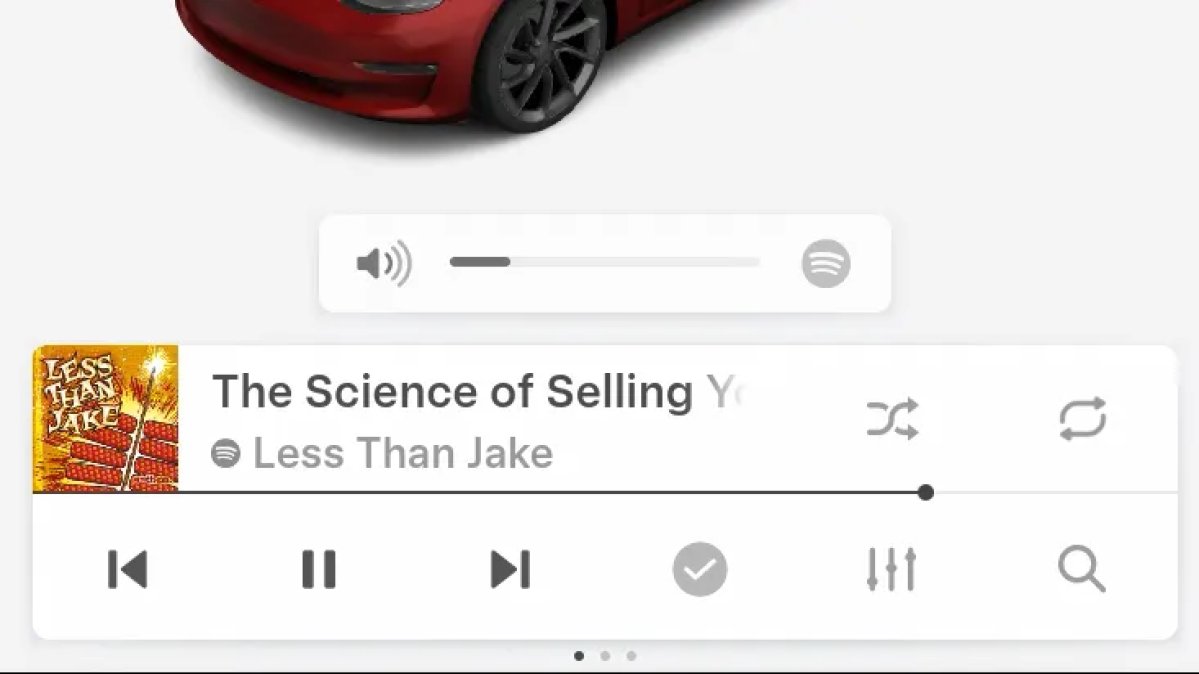
The same volume that’s used for Spotify will be used for YouTube and other apps. This icon simply makes it more obvious which volume is being changed.
Driver Profiles
Driver profiles are now also available in vehicle settings, rather than only in the Profiles icon in the status bar.
Users can navigate to Controls > Profiles to see the settings for all driver profiles.
Grok Settings
Grok settings are now also shown in the Audio section under Controls. These are the same settings available in the Grok app, but Tesla appears to be duplicating most of them under controls to make them easier to find.
Euro Semi Visualization
A new Autopilot/FSD visualization has been found in this update. The cab-over-engine style semi trucks often seen in Europe are now appearing in Autopilot visualizations with this update.
New 'All Apps' Icon
Tesla has updated the ‘All Apps’ icon displayed in the dock. Instead of an ellipsis inside of a rectangle, Tesla has now created a design that resembles iOS folders. The new design shows four apps inside the folder, but it’s not a static image.
The apps shown in the folder will change, presumably to show your most recent or most popular apps that aren't displayed in the dock.
Larger Dock Icons
To go along with the new ‘App Apps’ icon, Tesla has also increased the size of all icons in the dock. While the dock appears to remain the same size, the icons are now larger.
Animated Badges
Tesla models that have special badges, such as the Ludicrous badge on the Performance Model 3, are now animated in Software screen.
Upon navigating to the Software menu, the badge will play a short animation. You can also tap the badge to replay the animation.
New Creations Section
With the introduction of Photobooth, Tesla added a Photobooth section to the top level of the app that lets you view your saved photo sessions.
With the Spring Update and the update to the Sketchpad app for AMD Ryzen vehicles, Tesla is rebranding the Photobooth section to Creations, and it’ll now house Photobooth photos and sketches created in Sketchpad.
When you go into Creations, you’ll now have two tabs, one for Photobooth and one for Sketchpad, however, the features are similar. You’ll be able to view your saved creations and share them with others.
These creations are saved on your vehicle, not on Tesla’s servers, so when you open this section of the app, your vehicle will wake up and send the requested images.
Note: You’ll need vehicle update 2026.14 and an AMD Ryzen vehicle in order to see this new Creations section in the app.
Service Mode Improvements
New Service Mode Plus Authentication QR Code for Independent
Independent repairers can now quickly authenticate for Service Mode Plus by scanning a QR code displayed on the vehicle with a mobile device and logging in with their Toolbox credentials.
Models: All vehicles
Blinking DTC indicator added to the bottom banner
A Diagnostic Trouble Code (DTC) indicator has been added next to the Vehicle Identification Number (VIN) on the bottom Service Mode banner. The indicator is visible when DCs are present on the vehicle.
Models: All vehicles
Noise Recording Panel Updates (Service Mode Plus)
The Noise Recording panel now supports Active Noise Cancellation (ANC microphone recording. When ANC mode is enabled, the panel displays ANC microphone locations and extends the recording duration to 3 minutes.
Models: Model S (2021+), Model X (2021+), Cybertruck
Vehicle Functions Panel Added to Service Mode
The Vehicle Functions panel is now available on Service Mode. It shows an overview of degraded vehicle functions and their associated set alerts. Full functionality including more detailed functions, historical view and advanced controls are still only available on Service Mode Plus.
Models: Model 3, Model Y
New Bluetooth Panel
A new Bluetooth panel is available under Infotainment to support Bluetooth system diagnosis. The panel displays the status of both the main and rear Bluetooth modules (if rear Bluetooth is available on the vehicle), including connection states, signal strength with health indicators, and connected device information.
Models: Model S (2021+), Model 3, Model X (2021+), Model Y, Cybertruck