![Tesla's Dashcam Clears Driver Arrested at Gunpoint [VIDEO]](https://www.notateslaapp.com/img/containers/article_images/2026/tesla-dashcam-footage-driving-stop-acquittal.png/7f610401d1bb748d6a1bbedfc4da621c/tesla-dashcam-footage-driving-stop-acquittal.jpg)

Sommeropdatering

Stryg op for at se dine nye funktioner i sommeropdateringen for 2026.
Anslået rækkevidde
Dit batteris estimerede rækkevidde omfatter nu ekstra egenskaber i forhold til batteriets aldring over tid.
Foretrukne ruter
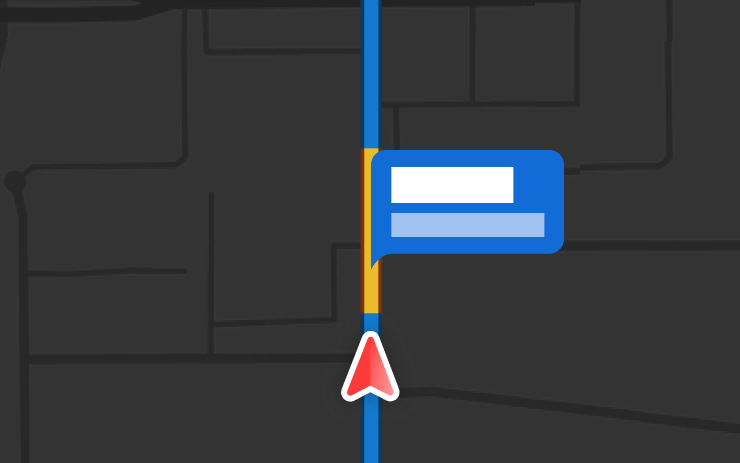
Navigation prioriterer nu ruter, som du har fulgt før. Online ruteplanlægning skal være aktiveret under Betjening > Navigation > Online ruteplanlægning. Lokationsdata er anonymt for Tesla og ikke knyttet til Deres bil.
Automatisk navigation
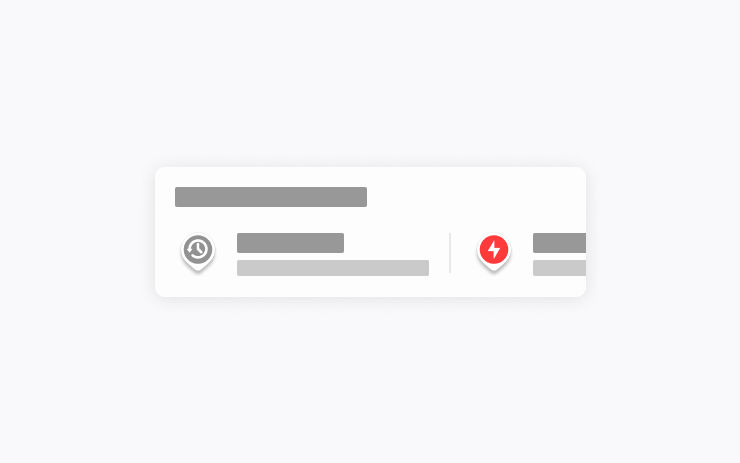
Automatisk navigation tilpasser sig nu din rutine. Ud over Hjem, Arbejde og kommende kalenderbegivenheder kan din bil nu foreslå og oprette ruter til de steder, du besøger regelmæssigt, f.eks. aflevering i skole på vej til arbejde eller fitnesscenteret på vej hjem.
For at aktivere skal du gå til Betjening > Navigation > Automatisk navigation. Samtaler er anonyme for Tesla og ikke forbundet med dit køretøj.
Grok-kommandoer

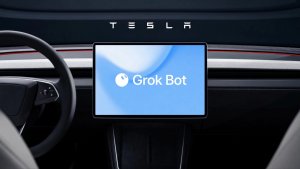
Grok kan nu foretage telefonopkald, afspille musik, justere klimaanlægget og søge i panelet Betjening. Spørg Grok om din Tesla, eller hvad der var inkluderet i den seneste softwareopdatering.
Gå til Grok > Indstillinger for at aktivere eller deaktivere "Hey Grok" og lokationsbaserede påmindelser. Kræver Premium Connectivity eller en aktiv WiFi-forbindelse. Samtaler er anonyme for Tesla og ikke forbundet med dit køretøj.
Antislip-tilstande
Vælg mellem tre opdaterede antislip-tilstande: Auto til normale køreforhold, Glat underlag til isede eller våde veje, eller Assistance ved fastkørsel, når du sidder fast i sne, mudder eller sand. Tilstanden nulstilles til Auto ved starten af hver køretur. For at vælge skal du gå til Betjening > Dynamik > Antislip-tilstand.
Caraoke med pointgivning
Caraoke bedømmer nu dine sangtalenter, mens bilen er i Parkering. Optjen stjerner og hold styr på dine høje scorer i fanen My Karaoke. På den bageste skærm skal du trykke på køknappen for at vise en QR-kode, som passagerer kan scanne for at føje sange til køen fra deres telefoner. Kræver Premium Connectivity.
Kørselsvisualisering

Tilpas din zoom-præference for Self-Driving. Vælg det ønskede zoomniveau under Betjening > Self-Driving > Kamerazoom ved visualisering.
Fotofælder undervejs
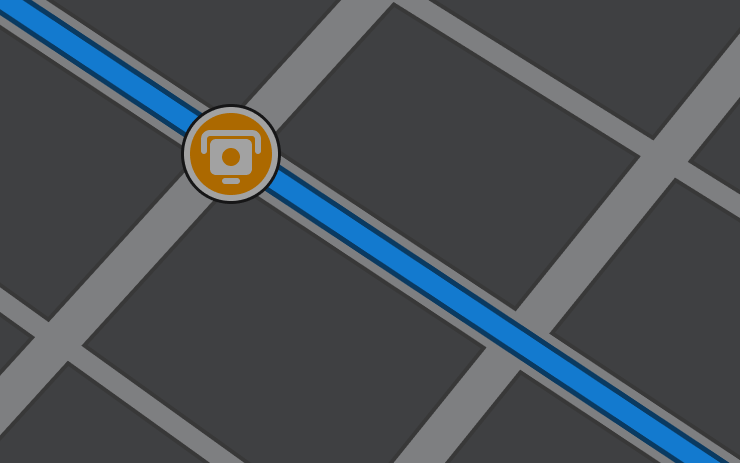
Navigation indeholder nu symboler langs din rute for at vise fartkameraer.
Online ruteplanlægning skal være aktiveret under Betjening > Navigation > Online ruteplanlægning. Kræver Premium Connectivity.
Brugerdefineret film
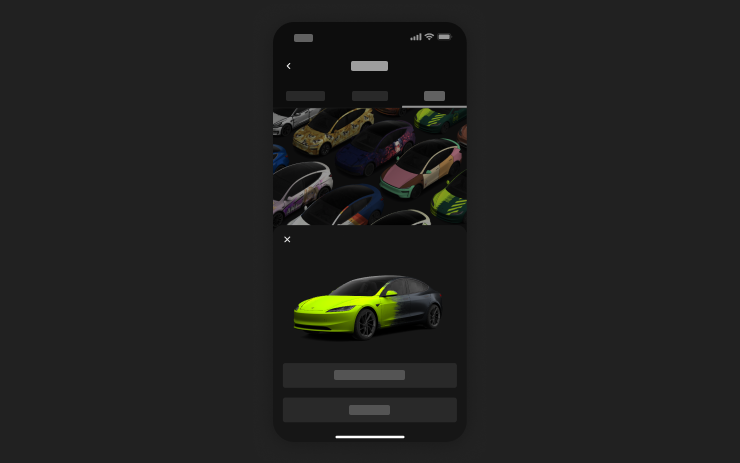
Brug mobilappen til at uploade brugerdefinerede filmdesign fra billeder på din telefon og sende dem direkte til din Tesla. Gå til Kreationer > Wrap > Upload. Kræver version 4.59.0 eller nyere af mobilappen.
For at få adgang i bilen skal du gå til Appstarter > Legetøjskasse > Malerværksted.
Kameraeksempel

Du kan nu åbne Kameraeksempel når som helst, selvom din Tesla ikke er i Parkering.
Gå til Betjening > Service > Kameraeksempel og tryk på en kameravisning for at se den individuelt. Tryk på gitterknappen for at skifte tilbage til alle kameraer.
Angiv energi v. ankomst
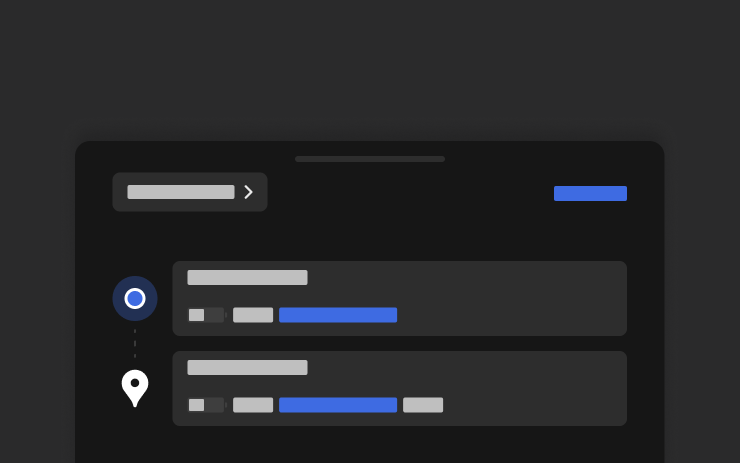
Indstil din ønskede energi ved ankomst for enhver tur fra din telefon. På fanen Lokation i Teslas mobilapp skal du indtaste din destination og trykke på Angiv energi ved ankomst. Kræver version 4.58.0 eller nyere af mobilappen.
Apple Music
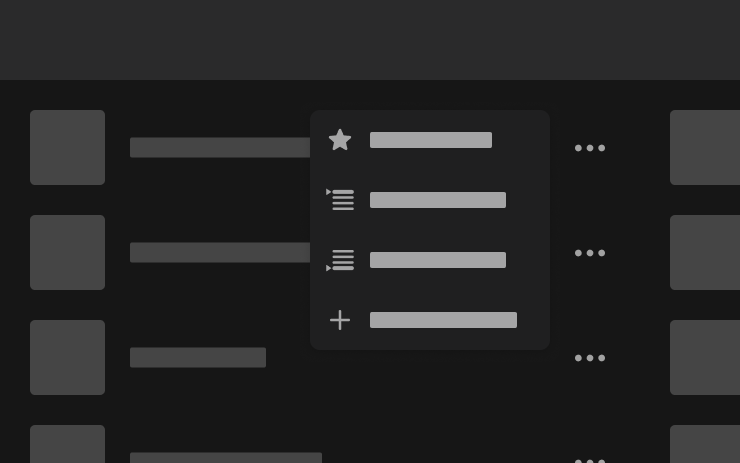
Føj sange til din Apple Music-kø direkte fra søgeresultater og kunstnersider. Tryk på en sang og hold den nede, eller tryk på menuen med tre prikker for at afspille som næste, føje til køen, gemme i dit bibliotek eller markere som favorit. Kræver et aktivt Apple Music-abonnement.
Webbrowser
Du kan nu bruge din Teslas indvendige kamera og kabinemikrofon i Webbrowser. Tryk for at give tilladelse, når en hjemmeside anmoder om adgang. Kamera er kun tilgængeligt under parkering.
Supercharger-søgning
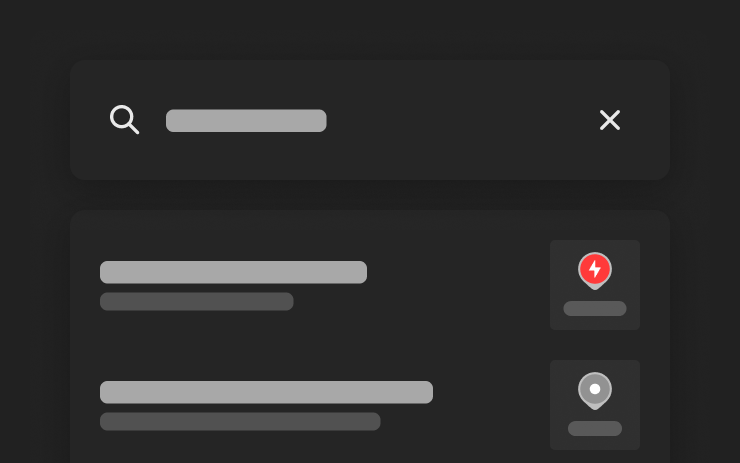
Du kan nu finde Superchargers efter navn, når du søger efter en destination.
Velkomstanimation
Din Tesla byder dig nu velkommen med animationer, når den tændes. For at deaktivere skal du gå til Betjening > Skærm > Velkomstanimation.
Skærm til bagsæderne
Deaktiver betjeningen af den bageste touchskærm fra midterdisplayet ved at gå til Appstarter > Bag > Lås bageste display. Indhold valgt fra midterdisplayet afspilles fortsat bagi.
"Hey Grok"

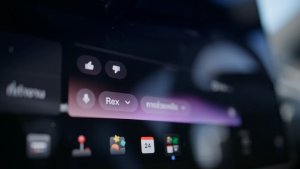
You can now talk to Grok, an intelligent assistant built by xAI. To launch Grok, go to App Launcher > Grok, long-press the voice button on your steering wheel, or say "Hey Grok." Say "goodbye" to dismiss.
Choose Grok's voice and personality, ranging from Storyteller to Unhinged, or set it to Assistant to add and edit navigation destinations, make phone calls, play music, adjust climate, and search the Controls panel. Ask Grok about your Tesla or what was included in your latest software update. You can also set location-based reminders, like "remind me to pick up milk when I'm near home."
Go to Grok > Settings to enable or disable "Hey Grok" and location-based reminders.
Requires Premium Connectivity or a WiFi connection. Conversations are anonymous to Tesla and not associated with your vehicle.
Forbedringer af sikkerheden

Denne opdatering indeholder vigtige sikkerhedsrettelser og forbedringer.
New Tesla Wraps

Tesla has added a couple new wraps to its digital vehicle wrap feature in this update. This includes the Summer Camp wrap that Tesla advertised with the 2026 Summer Update.
Shift Icon on Instrument Cluster
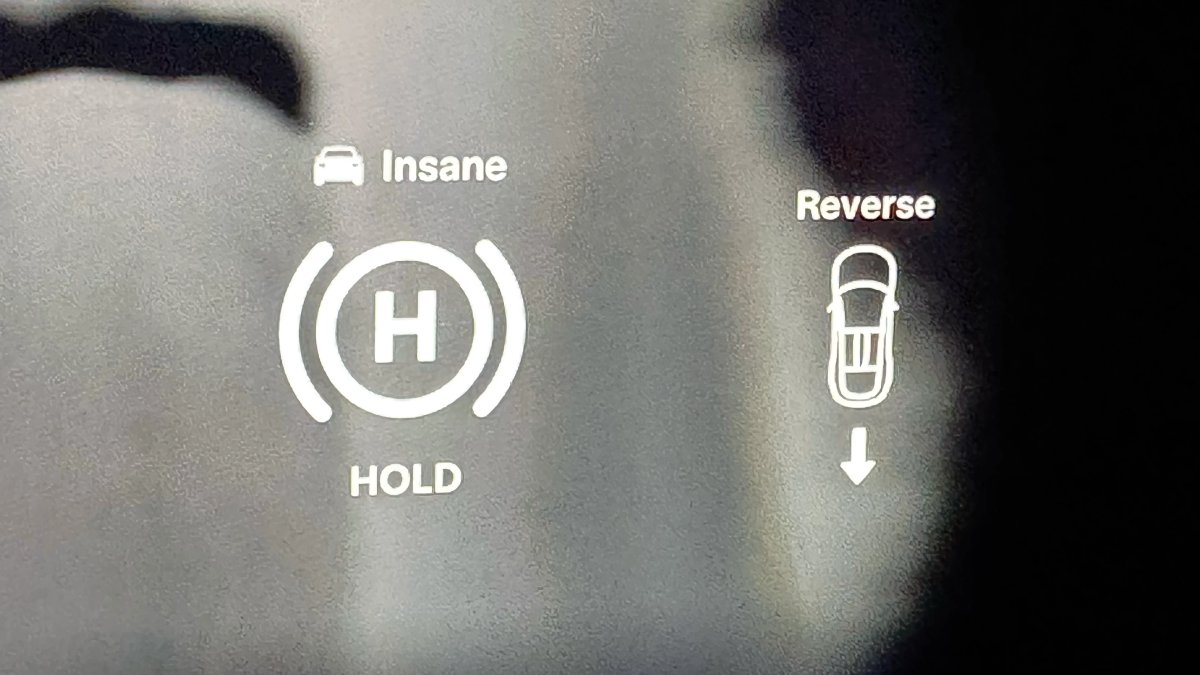
The instrument cluster on the Model S and Model X will now show an icon when you shift into drive or reverse, making it more obvious that the vehicle has shifted.
Destination Icons
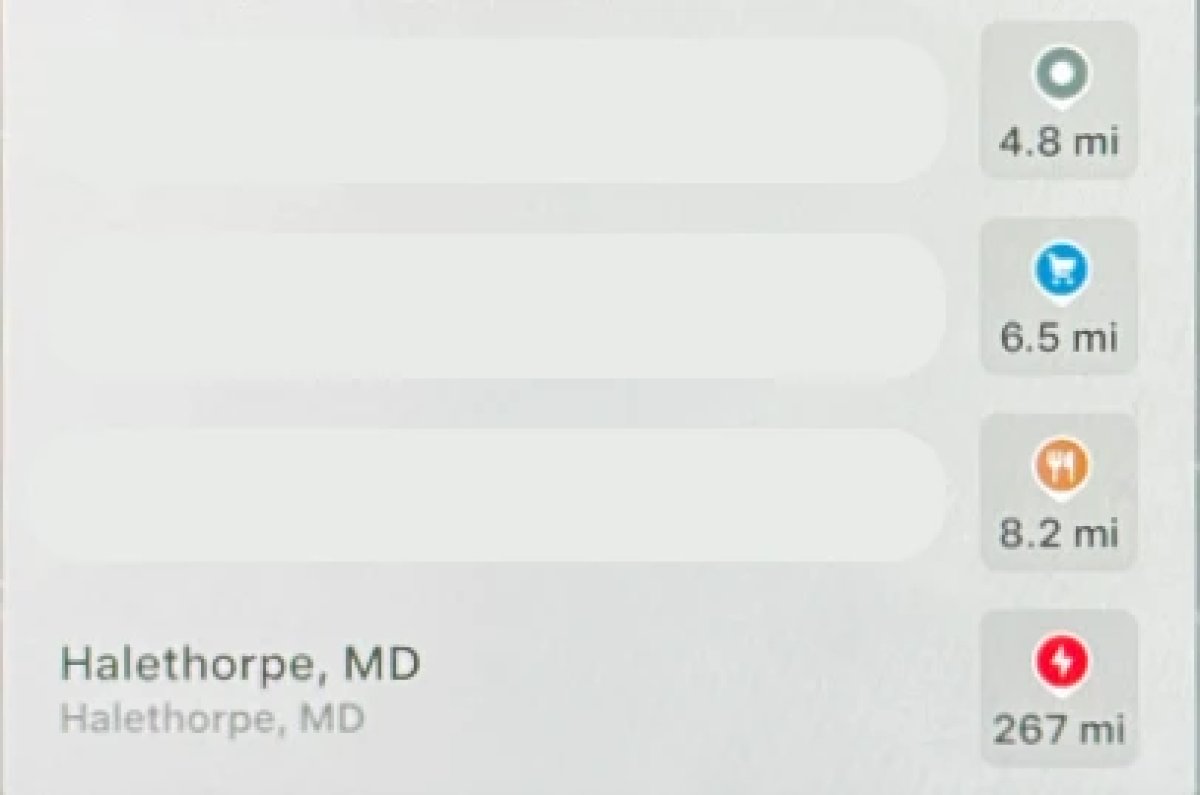
With the exception of Superchargers, destination icones used to all be the same color. With this update, destination icons will now appear in their own unique category color category points of interest now have their own colored icon. For example, parks will be green, restaurants will be orange and stores will be blue
Rear Screen Lyrics Removed

Tesla’s Caraoke feature, which lets passengers sing along to popular songs has been updated in this update. However, one popular feature has been removed. The rear screen in supported vehicles no longer shows lyrics when a user is using Caraoke.
Instead users will now now have to use their mobile devices to see lyrics on their phone, which was a feature added in this update.
Browser Bookmark Sync

Your web browser bookmarks are now synced along with your Tesla data, meaning that they’re now available across all of your vehicles.
Web Browser Zoom

The browser zoom level has been increased to make content appear larger. On some sites, such as X, or YouTube, this could trigger a different viewport, causing the site to look more like the tablet or mobile version.
While the Tesla browser is based on Chromium, you can't manually adjust the zoom level.
Visualization Zoom Shortcut

You can change the new visualization zoom level while driving. A small magnifying glass icon appears near the top-right of the visualization and can be tapped to change the zoom level to 0.5x, 1x, or 2x.
If you’re using full-screen visualizations, then the magnifying glass icon appears in the bottom-left corner.
Grok Voice Improvements

Grok now uses Grok Voice Think Fast 2.0. Grok Voice is Grok’s speech-to-speech engine that helps it better understand an individual’s voice and tone, rather than just converting their voice to text.
This engine also improves Grok’s speech output as well, making it behave more like a human’s voice.
Grok Highlights Menus

When you use Grok to bring up a feature or option in settings, Grok will now highlight the area in pulsating blue.
Improved Lighting in Visualization

In update 2026.14, Tesla improved vehicle visualizations by switching to Unreal Engine to render vehicle models. However, some of the colors and lighting looked off.
With this update, Tesla has tweaked the lighting effects, making the vehicle colors more accurate.
Rear Spoiler Visualization

On the Model Y Performance, Tesla has added the vehicle’s spoiler back to the in-car visualization.
Service Mode Improvements

Service Mode Update - Customer Profile Isolation
Entering Service Mode now activates a default profile to isolate customer data, helping to prevent technicians from inadvertently accessing customer media accounts or modifying customer settings during service.
Models: All
Signal Viewer Panel Updates (Service Mode Plus)
The Signal Viewer panel now supports viewing multiple CAN signals on the same chart for easier comparison and analysis. Signals can be dragged between charts to group related data, moved to an empty space to create a new chart, or reordered by dragging chart cards. Charts can also be paused to inspect specific values and resumed to continue live streaming.
Models: Model 3 and Model Y with AMD Ryzen infotainment processor, Model S (2021+), Model X (2021+), Cybertruck