

Self-Driving-app

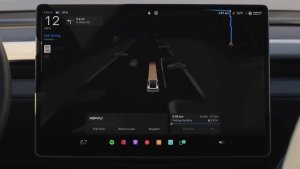
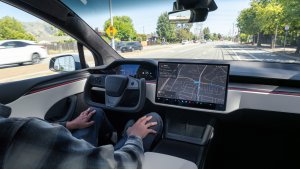
Med den nye Self-Driving-app kan du abonnere med et enkelt tryk, lære at aktivere og bruge funktionen og se løbende statistik.
For at åbne, gå til Appstarter > Self-Driving.
Anslåede vejafgifter

Navigation viser nu anslåede vejafgifter for hver rute, herunder rabatpriser for elbiler, hvor det er tilgængeligt. Denne funktion kræver Online ruteplanlægning. Gå til Betjening > Navigation > Online ruteplanlægning for at aktivere.
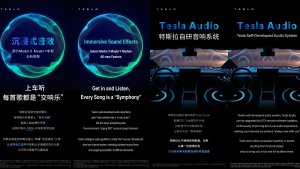
Medrivende lyd-opgradering

Premium Medrivende lyd bruger avanceret lydudtræk til at placere lytteren foran et detaljeret lydbillede i et livagtigt lydrum. Denne forbedring virker med alle streamingkilder.
Gå til Indstillinger > Lyd > Tone > Medrivende lyd for at justere.
Skærm til bagsæderne

Passagerer på bagsædet kan nu se og interagere med kort på den bageste skærm, mens din Tesla navigerer på en rute. Tryk på kortikonet for skærm til bagsæderne for at følge med.
"Hey Grok"

Sig "Hey Grok" for at starte Grok. Gå til Grok > Indstillinger for at aktivere. Du kan også indstille lokationsbaserede påmindelser, såsom "mind mig om at hente mælk, når jeg er tæt på mit hjem". Sig "goodbye" for at afvise.
Pet Mode

For at vælge og navngive dit kæledyr skal du gå til Betjening > Skærm > Tilpas Pet Mode.
Malerværksted

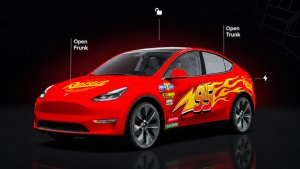
Tilpas din Tesla-avatar med tonede ruder, specialfolier og nummerplader. Brug et af de mange forudindlæste designs, eller opret og upload dit eget ved hjælp af et USB-stik for at gøre din bil unik. Gå til Appstarter > Legetøjskasse > Paintshop, eller tryk på knappen til farve eller nummerplade under Betjening > Software.
Visuelle opdateringer

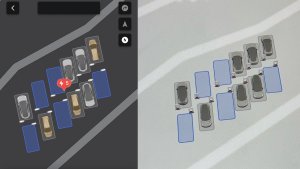
Midterdisplayet viser nu billeder i højere kvalitet af din Tesla og et forbedret parkeringsmiljø.
Ture

Ture findes nu i Energy-appen, hvor du kan oprette og administrere flere ture for at følge energiforbruget på tværs af forskellige kørsler, ruter eller forhold. Gå til Appstarter > Energi > Ture. For at få hurtig adgang til turkortet, skal du stryge til venstre på mediekortet.
Skitseblok

Slip din indre kunstner løs med den forbedrede Skitseblok, som nu understøtter klistermærker og emojier. Gem dine skitser, så du kan tilgå dem i mobil-appen og dele dem. Kræver mobilappversion 4.55.6 eller nyere.
Accentlys for advarsel om blind vinkel

Accentlys bliver nu røde, når der er et objekt i den blinde vinkel, og blinklyset er aktiveret, eller når der registreres et objekt, der nærmer sig, mens bilen er parkeret. For at deaktivere skal du gå til Betjening > Lys > Accentlys for advarsel om blind vinkel.
Lyd for grønt lys

Der høres en lyd, når det trafiklys, du venter ved, bliver grønt. Hvis du venter bag et andet køretøj, vil du høre lyden, når køretøjet rykker frem, medmindre adaptiv fartpilot eller autostyring er slået til. Denne lyd er kun en meddelelse. For at aktivere skal du gå til Betjening > Self-Driving > Lyd for grønt trafiklys.
Livekamera-visning

Nu kan du tjekke interiøret i din Tesla, mens du er væk. For at aktivere, gå til Betjening > Sikkerhed > Se livekamera via mobilapp. Livekameraet er ende-til-ende-krypteret, og Tesla har ikke adgang til det. Denne funktion kræver Premium Connectivity og Tesla mobilappversion 4.55.6 eller nyere.
Kø til musikapps

Stryg til højre på numre i Apple Music eller Spotify for at føje dem til køen. I Apple Musik skal du trykke og holde nede på et nummer for at tilføje eller fjerne det fra Favoritter. I Spotify skal du stryge til venstre for at tilføje eller fjerne fra sange du synes om.
Automatiske softwareopdateringer

Din Tesla kan nu automatisk installere downloadede softwareopdateringer i løbet af natten. Når den er aktiveret, installeres opdateringer, mens din Tesla er parkeret og ikke er i brug, så du altid har de nyeste funktioner og forbedringer.
For at aktivere det skal du gå til Betjening > Software > Installer opdateringer automatisk.
Opdateringer til Dashcam Viewer

De seneste Dashcam-optagelser kan nu vare op til 24 timer, og du kan gemme ethvert klip til permanent opbevaring på din Tesla eller på din telefon ved at gå til Appstarter > Dashcam Viewer. For at aktivere visning på din telefon skal du gå til Betjening > Sikkerhed og aktivere Se kamera via mobilapp. Klip forbliver på køretøjet og deles aldrig med Tesla.
Klip, der downloades til din telefon, indeholder nu detaljer som hastighed, rattets vinkel og Self-Driving-tilstand. Downloads kræver Premium Connectivity og mobilappversion 4.55.6 eller senere.
Opdateringer til Dashcam Viewer
Du kan gemme ethvert klip fra de seneste Dashcam-optagelser til permanent opbevaring på din Tesla eller på din telefon ved at gå til Appstarter > Dashcam Viewer. For at aktivere visning på din telefon skal du gå til Betjening > Sikkerhed og aktivere Se kamera via mobilapp. Klip forbliver på køretøjet og deles aldrig med Tesla.
Klip, der downloades til din telefon, indeholder nu detaljer som hastighed, rattets vinkel og Self-Driving-tilstand. Downloads kræver Premium Connectivity og mobilappversion 4.55.6 eller senere.
Forbedringer af vejrkort

Vejrkort viser nu sne og regn med forbedrede farver, der gør det lettere at skelne mellem nedbørstyper. Du kan også få vist vejrdata fra den seneste time for at se, hvordan forholdene har ændret sig langs din rute. Denne funktion kræver Premium Connectivity. Tryk på vejrikonet på kortet for at se det.
Prisfilter for Supercharger

Du kan nu vælge kun at køre til Superchargers med Tesla-priser. Når den er aktiveret, vil Turplanlægger undgå steder, hvor Tesla ikke fastsætter opladningspriser eller accepterer Gratis Supercharging-kreditter. Denne indstilling kræver en forbindelse, og at Online ruteplanlægning er aktiveret.
For at aktivere skal du gå til Betjening > Navigation > Indstillinger for Turplanlægger.
Tastatur

Det valgte tastatursprog vil også vælge det sprog, der bruges til diktering. Tryk på den internationale tastaturknap for at ændre tastatur- og dikteringssprog uden at ændre sprog for stemmekommando. Tryk på mikrofonikonet på tastaturet for at diktere.
Forbedringer af sikkerheden

Denne opdatering indeholder vigtige sikkerhedsrettelser og forbedringer.
Cloud Profiles

Tesla cloud profiles now feature a new cloud icon to indicate they’re cloud profiles rather than local profiles stored only on the vehicle.
Amber Brake Lights

This update properly visualizes vehicles with amber brake lights. Some regions require turn signals to be orange/amber. Up until now, the visualization has only displayed turn signals in red, but with this update, Tesla now properly displays amber turn signals for the appropriate vehicles.
The Unreal Engine brings drastic improvements to lighting in the visualization, making the brake lights much more noticeable as they reflect on the ground.
Parental Controls Improvement
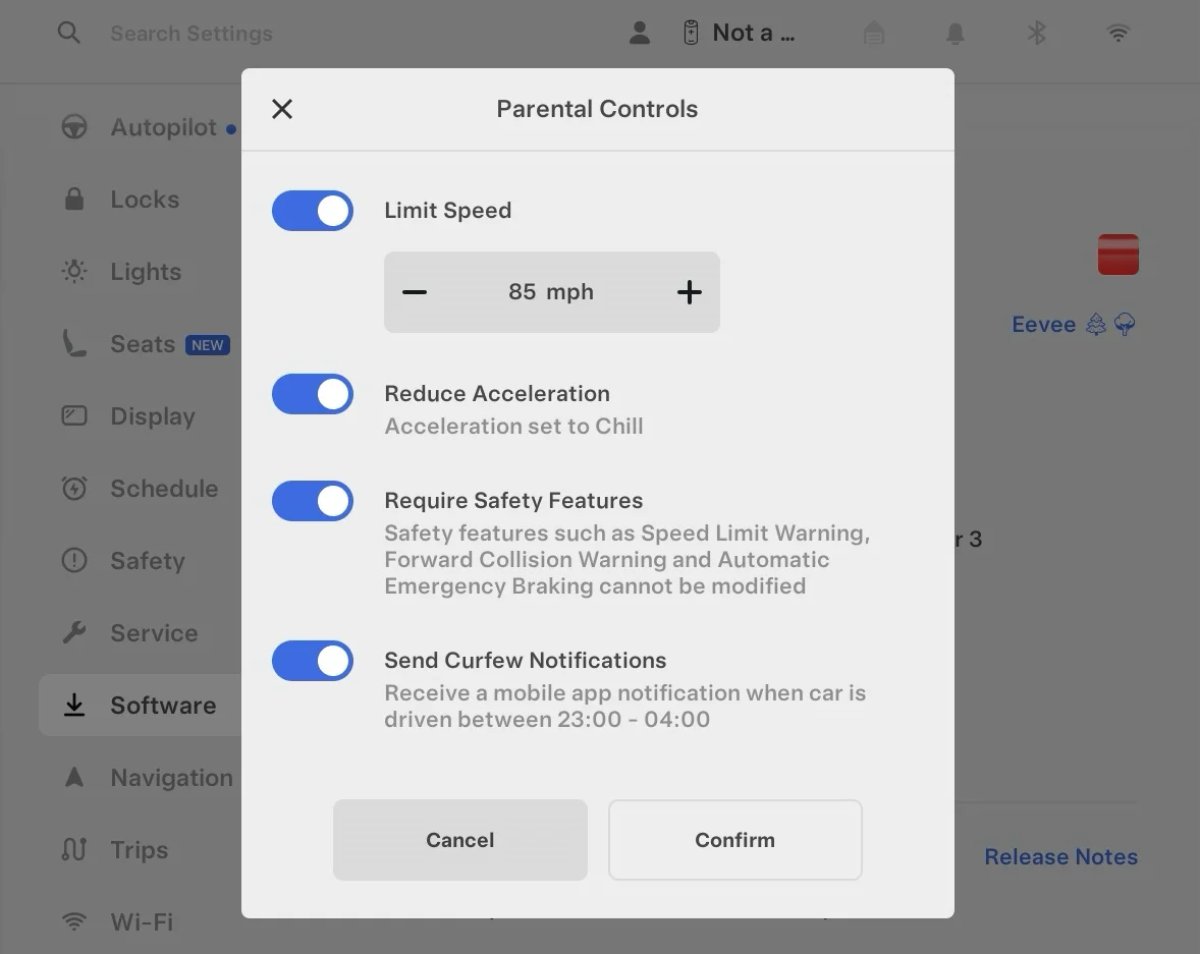
Tesla’s parental controls are designed to keep new drivers safe by limiting access to certain features. Parents can reduce the vehicle’s acceleration, limit the top speed, and prevent safety features from being turned off.
With this update, Tesla is adding another improvement to Parental Controls for Performance vehicles. Track Mode is now restricted when you enable Require Safety Features, preventing teens from manipulating the vehicle's handling, braking, and more.
Require Safety Features prevents these features from being turned off:
Automatic Emergency Braking
Obstacle-Aware Acceleration
Automatic Blind Spot Camera
Blind Spot Collision Warning Chime
Automatic 911 Call (US only)
Allow Mobile Access
Park Assist Chimes
It also prevents these settings from being changed:
Track Mode is disabled
Lane Departure Avoidance is set to Assist
Speed Limit Warning set to Chime
Speed Limit set to relative
Offset set to +5 mph (8 km/h)
Forward Collision Warning set to Early
Increased Attention Monitoring Alert

Tesla has added a new camera visibility alert with this update. What’s most interesting about this alert is that Tesla states that the poor camera visibility is resulting in increased attention monitoring.
Grok Turns Off After Inactivity

With the introduction of the "Hey Grok" wake word, Tesla has changed the way Grok behaves. Previously, once Grok was triggered, it would remain active indefinitely, staying in a constant listening state.
Now, in order to turn off accidental activations and minimize background processing, Grok will automatically dismiss itself after approximately 15 seconds of inactivity.
This behavior applies regardless of whether you triggered the assistant using the new voice wake word or the physical steering wheel button. For those who prefer to close the interface manually, you can still use natural language dismissal commands; simply saying "goodbye" or "talk to you later" will instantly close Grok.
h/t: @Deandawiz
Grok Favorites

The integrated Grok assistant now has access to your vehicle’s saved favorites. Grok can now "see" and interpret the custom labels you have assigned to your saved locations.
For example, if you have an address saved as "Kim’s parents," you can simply say, "Hey Grok, navigate to “Kim’s parents," and the system will immediately pull the correct address from your list of favorites.
h/t: @NickScheber
Advanced Software Updates

Tesla has updated the Software Update Preference setting under the Software menu.
Previously, the software update preference was a toggle between "Standard" and "Advanced." This has now changed into a simpler on/off toggle for "Advanced" updates.
By switching this to "On," you are opting in to receive the latest software releases as soon as they become available for your specific vehicle configuration and region. This could result in receiving updates with minor bugs or receiving updates more often.
If left "Off," your vehicle will wait for a wider release before installing updates.
Re-Order Trip Meters

You can reorder the new trip meters however you’d like. Simply tap and hold one to get it to jiggle, and then move it to a new location.
Additionally, you can also tap on the energy graph in the top-right corner to view a larger, more detailed version of it.
Chromium Browser Updated

Tesla has upgraded the browser in the vehicle. Tesla’s browser is based on the open-source Chromium browser, the same browser that powers Google’s Chrome browser.
The browser was updated to version 140, up from version 136.
This update to Chromium increases compatibility with modern web standards, improves WebGPU performance, and resolves known issues.
Save Recent Dashcam Videos

Tesla continues to make it easier to browse and save recent Dashcam clips. In the last update, Tesla made it easier to browse recent, non-saved Dashcam clips by listing them at the top of the Dashcam Viewer.
With this update, they’re now letting you save recent clips that are still on the USB drive, but not saved from being deleted.
Volume Icons
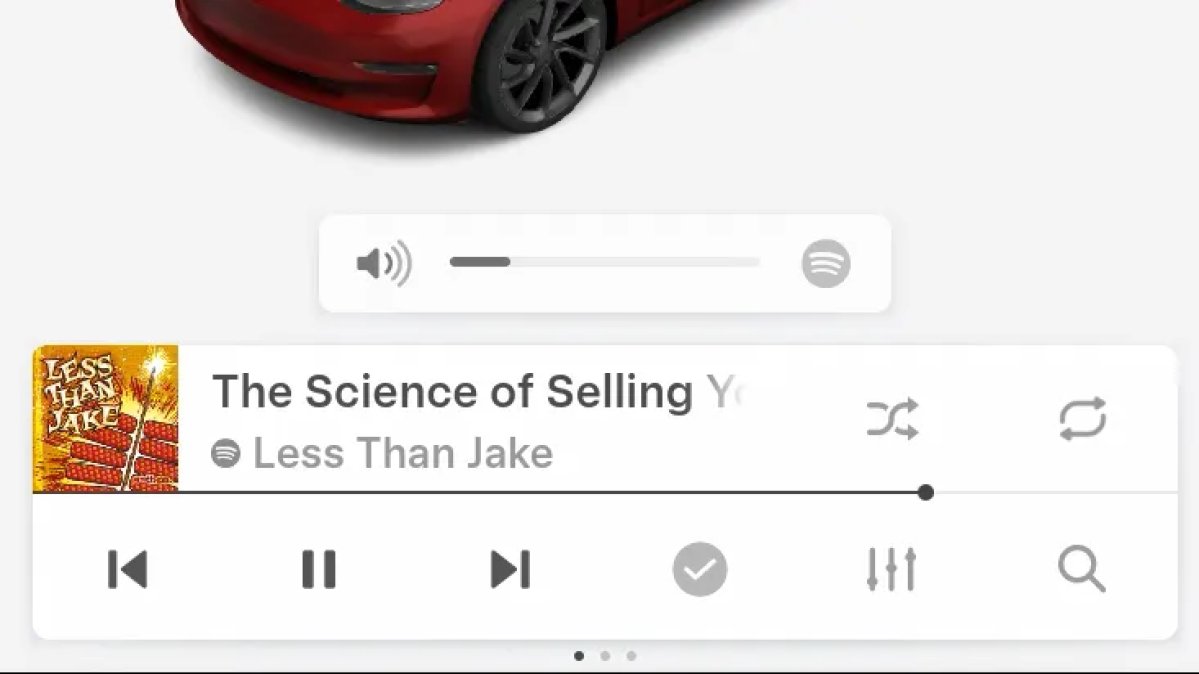
When adjusting the volume of an app, such as Spotify, the volume icon will now display the app's icon. While the navigation volume has always had its own icon and an independent volume setting, this change does not add app-dependent volume settings.
The same volume that’s used for Spotify will be used for YouTube and other apps. This icon simply makes it more obvious which volume is being changed.
Driver Profiles

Driver profiles are now also available in vehicle settings, rather than only in the Profiles icon in the status bar.
Users can navigate to Controls > Profiles to see the settings for all driver profiles.
Grok Settings

Grok settings are now also shown in the Audio section under Controls. These are the same settings available in the Grok app, but Tesla appears to be duplicating most of them under controls to make them easier to find.
Euro Semi Visualization

A new Autopilot/FSD visualization has been found in this update. The cab-over-engine style semi trucks often seen in Europe are now appearing in Autopilot visualizations with this update.
New 'All Apps' Icon

Tesla has updated the ‘All Apps’ icon displayed in the dock. Instead of an ellipsis inside of a rectangle, Tesla has now created a design that resembles iOS folders. The new design shows four apps inside the folder, but it’s not a static image.
The apps shown in the folder will change, presumably to show your most recent or most popular apps that aren't displayed in the dock.
Larger Dock Icons

To go along with the new ‘App Apps’ icon, Tesla has also increased the size of all icons in the dock. While the dock appears to remain the same size, the icons are now larger.
Animated Badges

Tesla models that have special badges, such as the Ludicrous badge on the Performance Model 3, are now animated in Software screen.
Upon navigating to the Software menu, the badge will play a short animation. You can also tap the badge to replay the animation.
New Creations Section

With the introduction of Photobooth, Tesla added a Photobooth section to the top level of the app that lets you view your saved photo sessions.
With the Spring Update and the update to the Sketchpad app for AMD Ryzen vehicles, Tesla is rebranding the Photobooth section to Creations, and it’ll now house Photobooth photos and sketches created in Sketchpad.
When you go into Creations, you’ll now have two tabs, one for Photobooth and one for Sketchpad, however, the features are similar. You’ll be able to view your saved creations and share them with others.
These creations are saved on your vehicle, not on Tesla’s servers, so when you open this section of the app, your vehicle will wake up and send the requested images.
Note: You’ll need vehicle update 2026.14 and an AMD Ryzen vehicle in order to see this new Creations section in the app.
Service Mode Improvements

New Service Mode Plus Authentication QR Code for Independent
Independent repairers can now quickly authenticate for Service Mode Plus by scanning a QR code displayed on the vehicle with a mobile device and logging in with their Toolbox credentials.
Models: All vehicles
Blinking DTC indicator added to the bottom banner
A Diagnostic Trouble Code (DTC) indicator has been added next to the Vehicle Identification Number (VIN) on the bottom Service Mode banner. The indicator is visible when DCs are present on the vehicle.
Models: All vehicles
Noise Recording Panel Updates (Service Mode Plus)
The Noise Recording panel now supports Active Noise Cancellation (ANC microphone recording. When ANC mode is enabled, the panel displays ANC microphone locations and extends the recording duration to 3 minutes.
Models: Model S (2021+), Model X (2021+), Cybertruck
Vehicle Functions Panel Added to Service Mode
The Vehicle Functions panel is now available on Service Mode. It shows an overview of degraded vehicle functions and their associated set alerts. Full functionality including more detailed functions, historical view and advanced controls are still only available on Service Mode Plus.
Models: Model 3, Model Y
New Bluetooth Panel
A new Bluetooth panel is available under Infotainment to support Bluetooth system diagnosis. The panel displays the status of both the main and rear Bluetooth modules (if rear Bluetooth is available on the vehicle), including connection states, signal strength with health indicators, and connected device information.
Models: Model S (2021+), Model 3, Model X (2021+), Model Y, Cybertruck