

FSD (Supervised)

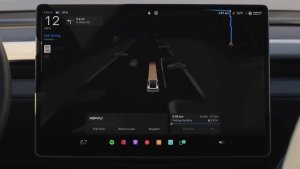
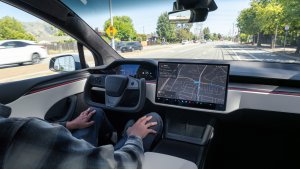
Under your supervision, FSD (Supervised) can drive your Tesla almost anywhere. It will start from a parked position, make lane changes, select forks to follow your navigation route, navigate around other vehicles and objects, make left and right turns and stop at your destination. You and anyone you authorize must use additional caution and remain attentive. It does not make your vehicle autonomous. Do not become complacent.
FSD (Supervised) is enabled on your vehicle. To use the feature, first watch the tutorial and take the quiz, available in the new Self-Driving App or in Control > Self-Driving. Then press the Start FSD (Supervised) button on the UI, or press the right scroll wheel button once. You can disable FSD (Supervised) in Self-Driving Settings.
Blind Spot Warning While Parked

If you attempt to open a door while an approaching object is detected in your blind spot (for example, a bicyclist approaching from behind) a chime sounds, and your door will not open upon initial button press. Wait a short time and press the button a second time to override the warning.
Dashcam Clip Encryption

Dashcam clips are now encrypted for privacy when saved to your USB flash drive. Only your vehicle can view them. To decrypt clips, tap the padlock icon in the Dashcam app or visit dashcam.tesla.com. To disable encryption, go to Controls > Safety > Encrypt Dashcam Recordings.
Parental Controls

You can now block Browser, Theater, and Arcade from your Tesla by going to Controls > Safety > Parental Controls while in Park.
"Hey Grok"

You can now talk to Grok, an intelligent assistant built by xAI. To launch Grok, go to App Launcher > Grok, long-press the voice button on your steering wheel, or say "Hey Grok." Enable "Hey Grok" in Grok > Settings. Say "goodbye" to dismiss.
You can choose Grok's voice and personality, ranging from Storyteller to Unhinged. Set Grok's personality to Assistant to have Grok add and edit navigation destinations, becoming your personal guide. You can also set location based reminders, like "remind me to pick up milk when I'm near home." Enable location based reminders in Grok > Settings.
Requires Premium Connectivity or a WiFi connection. Conversations are anonymous to Tesla and not associated with your vehicle.
Note: Grok is currently in early Beta and does not support voice commands for car controls other than navigation. Existing voice commands remain unchanged. "Hey Grok" is trained on American English.
Navigation Lane Guidance
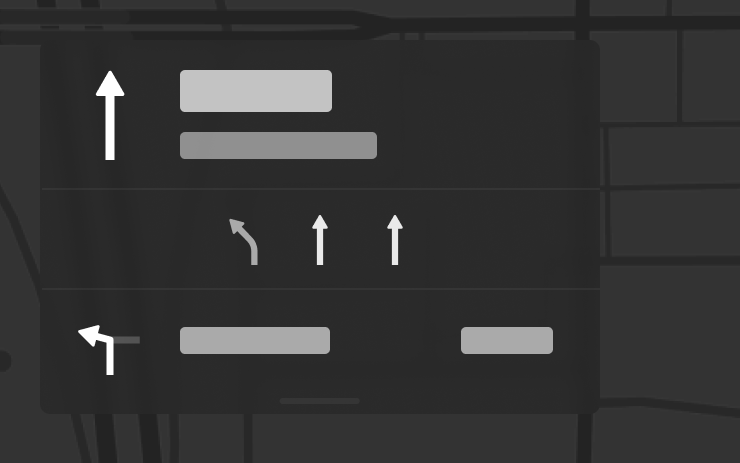
Navigation now shows which lanes to take to follow your route. This feature requires Online Routing and Maps version 2026.20 or later. To enable, go to Controls > Navigation > Online Routing.
Send Destination to Car
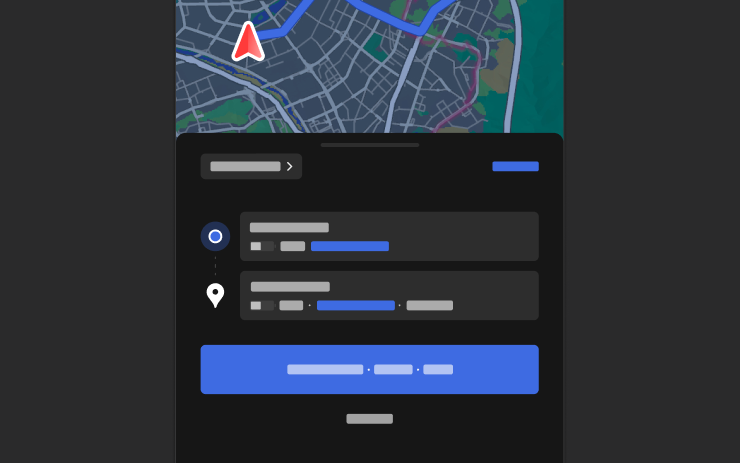
You can now send navigation destinations directly to your Tesla. To send from the Mobile App, go to Location > Navigate, add a destination, and tap Send to Car. Requires Mobile App version 4.57.0 or later.
To send from NAVER Maps or TMAP, add a destination and go to Share > Tesla. To send from KakaoMap, add a destination and go to Share > Share Address > Tesla.
Weather Maps

Maps now show weather data, including different types of precipitation like rain and snow. You can also view the past hour of weather data to see how conditions have been changing along your route. This feature requires Premium Connectivity. To view, tap the weather icon on the map.
Points of Interest
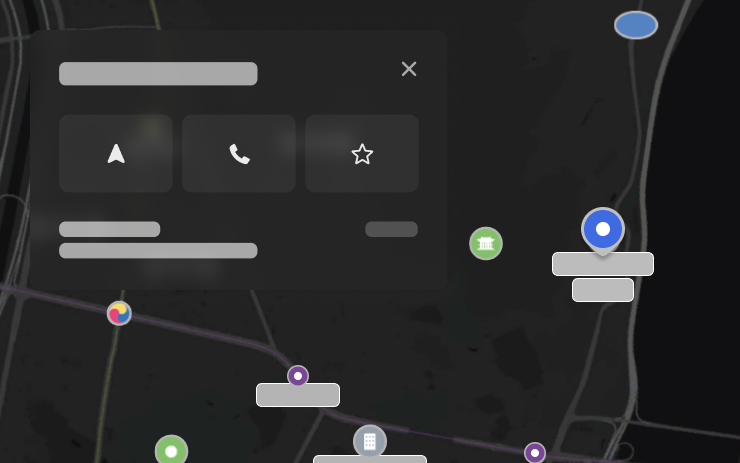
You can now tap on points of interest on the map to explore destinations or begin navigation.
Security Improvements

This update includes important security fixes and improvements.