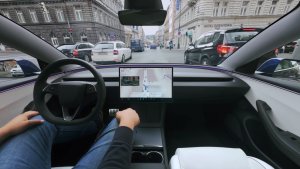
This update contains FSD v14.2.2.1, which is a bug fix release. The release notes remain the same as FSD v14.2.2.
Tesla Videos
Details
FSD Version
Release Date
FSD Beta Updates
Recent News
FSD (Supervised) v14.2.2.1
Full Self-Driving (Supervised) v14.2.2.1 includes:
- Upgraded the neural network vision encoder, leveraging higher resolution features to further improve scenarios like handling emergency vehicles, obstacles on the road, and human gestures.
- Added Arrival Options for you to select where FSD should park: in a Parking Lot, on the Street, in a Driveway, in a Parking Garage, or at the Curbside.
- Added handling to pull over or yield for emergency vehicles (e.g. police cars, fire trucks, ambulances).
- Added navigation and routing into the vision-based neural network for real-time handling of blocked roads and detours.
- Added additional Speed Profile to further customize driving style preference.
- Improved handling for static and dynamic gates.
- Improved offsetting for road debris (e.g. tires, tree branches, boxes).
- Improve handling of several scenarios including: unprotected turns, lane changes, vehicle cut-ins, and school busses.
- Improved FSD's ability to manage system faults and recover smoothly from degraded operation for enhanced reliability.
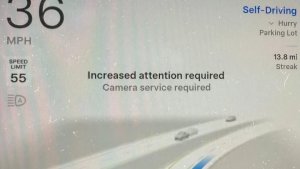
- Added alerting for residue build-up on interior windshield that may impact front camera visibility. If affected, visit Service for cleaning!
- Camera visibility can lead to increased attention monitoring sensitivity.
Upcoming Improvements:
- Overall smoothness and sentience
- Parking spot selection and parking quality
Arrival Options
- You can now select an arrival option such as Parking Lot, Street, Driveway, Parking Garage and Curbside for Robotaxi-style drop offs.
- Your preferences for arrival options and preferred parking positions are persisted for each destination.
- Our reasoning model will assess the suitable options for your destination and pick an intuitive default.
- The navigation pin will be adjusted based on the selected Arrival Option.
Sebességprofilok
Az FSD (felügyelt) mostantól a vezetői profil, a sebességkorlátozás és a környező forgalom alapján határozza meg a megfelelő sebességet.
– Bevezettük az új LAJHÁR sebességprofilt, amely a CHILL-nél alacsonyabb sebességet és visszafogottabb sávváltást biztosít.
– Bevezettünk egy új MAD MAX sebességprofilt, amely a SIETŐS-nél nagyobb sebességgel és gyakoribb sávváltással jár.
– A vezetői profil mostantól jelentősebben befolyásolja a viselkedést. Minél magabiztosabb a profil, annál nagyobb a maximális sebesség.
– A jobb oldali görgetőkerék fel/le mozgatása mostantól a sebességprofil beállításait módosítja, nem pedig a maximális sebesség mph/kmh-ban pontosan megadott ofszetjét.
UI Improvements
- You can now view your Self-Driving stats under Controls > Autopilot.
- Start Self-Driving with a tap of the touchscreen from Park, or any time during your drive.
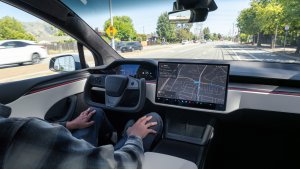
- Adjust settings like the Speed Profile and Arrival Options directly from the Autopilot visualization on the center display.
Fékezéses megerősítés
Az Önvezetés indítása gomb Fékezéses megerősítése mostantól alapértelmezés szerint ki van kapcsolva. Ha le van tiltva, az önvezetés megkezdéséhez nem szükséges lenyomni és felengedni a féket az aktiválás megerősítéséhez.
A Fékezéses megerősítést az Autopilot > Fékezéses megerősítés menüpontban engedélyezheti.
Teljes önvezetés (felügyelt)
A felügyelete alatt működő Teljes önvezetéssel (felügyelt) szinte bárhol vezetheti a Tesláját. Leparkolt helyzetből elindul, sávot vált, kiválasztja a navigációs útvonalnak megfelelő sávot, navigál a többi jármű és tárgy körül, balra és jobbra fordul, valamint leparkol az úti célnál. Önnek és a felhatalmazott személyeknek fokozott figyelemmel és éberséggel kell használniuk. Nem teszi önvezetővé a járművet. Ne bízza el magát.
A Teljes önvezetés (felügyelt) engedélyezve van a járművén. A funkció használatához nyomja meg az Önvezetés indítása gombot a felhasználói felületen, vagy nyomja meg egyszer a jobb oldali görgetőkereket. A Teljes önvezetés (felügyelt) az Autopilot beállításaiban tiltható le.
Grok navigációs parancsokkal (béta)
Grok mostantól fel tud venni és szerkeszteni tud navigációs úti célokat, így az Ön személyes kalauzává avanzsálhat. Megkérheti Grokot, hogy navigáljon az Ön közelében lévő legjobb thai étteremhez, keressen egy Superchargert sétatávolságra egy kávézótól, vagy akár tervezzen meg egy romantikus városnéző kirándulást. Premium Connectivity vagy Wi-Fi-kapcsolat szükséges a használatához. A beszélgetések névtelenek a Tesla számára, és az adatok nem lesznek a járművéhez társítva.
A navigációs parancsok használatához állítsa Grok személyiségét Asszisztensre. Grok elindításához lépjen az Alkalmazásindító > Grok elemre, vagy nyomja hosszan a beszédhang gombot a kormánykeréken, miután bejelentkezett Grok rendszerébe.
Tesla Fotókabin
Alakítsa át az autóját fotókabinná! Szelfizgessen a Tesla belsejéből, és szórakoztató szűrőkkel, matricákkal és hangulatjelekkel alakíthatja át a saját képeit. Stílusos fotóit közvetlenül a Tesla alkalmazásból oszthatja meg az ismerőseivel és családtagjaival. A járműnek Parkolás fokozatban kell lennie. A Tesla alkalmazás 4.51.5-ös vagy újabb verziója szükséges hozzá.
Lépjen az Alkalmazásindító > Toybox > Fotókabin menüpontba.
A Dog mód Élő tevékenysége iOS-en
Tartsa szemmel kisállatát! Ha a Dog mód aktív, az iPhone-ján megjelenik egy Élő tevékenység a hőmérséklet és a klímaberendezés élő frissítéseivel. Ha Prémium Kapcsolattal rendelkezik, időszakonként pillanatképeket is kap a jármű utasteréről. A Tesla alkalmazás 4.51.5-ös vagy újabb verziója szükséges hozzá.
A fedélzeti kamera megtekintőjének frissítése
A fedélzeti kamera klipjei mostantól további részleteket is tartalmaznak, például a sebességet, a kormánykerék dőlésszögét és az önvezető állapotot. Ezek az információk lejátszáskor a Fedélzeti kamera megtekintőjében a jármű kijelzőjén és a Tesla alkalmazásban is megjelennek. A használatához Prémium Kapcsolat és a Tesla alkalmazás 4.51.5-ös vagy újabb verziója szükséges.
A telefonos megtekintés engedélyezéséhez lépjen a Kezelőelemek > Biztonság menüpontba, és kapcsolja be a Kamerakép megtekintése a mobilalkalmazásban beállítást.
Mikulás mód frissítései
Terjessze az ünnepi hangulatot egész évben, és dobja fel az autóhasználati élményét az ünnepi témájú effektekkel. A Mikulás módban mostantól ünnepi hóemberek, fák, zárolási hangjelzés és havas effektusok is elérhetővé váltak, amelyek hozzájárulnak a 3D-s látványhoz.
Lépjen az Alkalmazásindító > Toybox > Mikulás menüpontra.
Fényjáték frissítése
Ünnepeljen a legújabb – Jingle Rush – fényjátékkal. Elindíthatja a műsort azonnal, vagy akár 10 perccel előre is beütemezheti, egyetlen járművön vagy ismerőseivel szinkronizálva. A fényjátékok rajongói vezérelhetik a belső világítást, színeffektusokat alkalmazhatnak, és hosszabb egyéni műsorokat is létrehozhatnak. Egyéni műsor lejátszásához mentse a fájlokat a pendrive „LightShow” mappájába, csatlakoztassa a járműhöz, majd válassza ki őket.
Elindíthatja a fényjátékot a Tesla alkalmazásból, vagy a jármű érintőképernyőjén az Alkalmazásindító > Toybox > Fényjáték menüpontra lépve.
Fényezőüzem
Tegye egyedivé Tesla-avatarját ablakszínekkel, egyedi bevonatokkal és rendszámtáblákkal. Használjon egyet a számos előre elkészített összeállítás közül, vagy készítse el és töltse fel sajátját egy USB-s pendrive használatával, hogy egyedivé varázsolja járművét.
Lépjen az Alkalmazásindító > Toybox > Fényezőüzem elemre, vagy koppintson a fényezés vagy a rendszámtábla gombra a Kezelőelemek > Szoftver menüpontban.
Paint Shop Upgrade
Paint Shop now lets you customize your Cybertruck with new wraps, window tint options and license plate designs. Perfect your look before hitting the road!
Go to App Launcher > Toybox > Paint Shop.
Navigáció fejlesztései
Mostantól átrendezheti a navigációs kedvencek sorrendjét, beállíthatja az otthoni vagy munkahelyi címét egy jelölő a térképen történő elhelyezésével, és megtekintheti a legutóbbi utazásai és a szokásai alapján javasolt úti célokat.
Automatikus telekocsisávos útvonaltervezés
A navigáció mostantól tartalmazza a nagy kihasználtságú járművek számára fenntartott (HOV) sávok használatának lehetőségét. Az útvonaltervezés automatikusan kiválasztja a telekocsis sávot, ha ez az idő, a helyszín, az utasok száma és az úton érvényes korlátozások alapján lehetséges.
Lépjen a Kezelőelemek > Navigáció > Telekocsisávok használata menüpontra.
Supercharger-töltőhelyek térképe
Mostantól a „Töltőhelyek térképének megtekintése” elemre koppintva megtekintheti egyes Tesla Superchargerek 3D-s nézetét. Ha egy tesztüzemben részt vevő helyszínre navigál, érkezéskor a helyszín elrendezése és az élő forgalmi adatok (elérhető/foglalt/nem üzemel) is láthatók.
Vezeték nélküli töltőn hagyott telefon
A jármű néhány másodperccel az ajtók becsukása után hangjelzést ad, ha a telefon a vezeték nélküli töltőn marad, és nem észlelhetők utasok.
Lépjen a Kezelőelemek > Zárak > Vezeték nélküli töltőn hagyott telefon elemhez.
Teljes önvezetés (felügyelt)
A felügyelete alatt működő Teljes önvezetéssel (felügyelt) szinte bárhol vezetheti a Tesláját. Leparkolt helyzetből elindul, sávot vált, kiválasztja a navigációs útvonalnak megfelelő sávot, navigál a többi jármű és tárgy körül, balra és jobbra fordul, valamint leparkol az úti célnál. Önnek és a felhatalmazott személyeknek fokozott figyelemmel és éberséggel kell használniuk. Nem teszi önvezetővé a járművet. Ne bízza el magát.
A Teljes önvezetés (felügyelt) engedélyezve van a járművén. A funkció használatához nyomja meg az Önvezetés indítása gombot a felhasználói felületen, vagy nyomja meg egyszer a jobb oldali görgetőkereket. A Teljes önvezetés (felügyelt) az Autopilot beállításaiban tiltható le.
Hátrahagyott telefon
A jármű néhány másodperccel az ajtók becsukása után hangjelzést ad, ha a telefonkulcs az utastérben van, vagy ha a telefon a vezeték nélküli töltőn marad, és nem észlelhetők utasok. A Telefonkulcs észleléséhez UWB-t támogató eszközök szükségesek.
Lépjen a Kezelőelemek > Zárak > Hátrahagyott telefon hangjelzése menüpontra.
Töltési határértékek mentése helyszínek szerint
Mostantól leparkolt állapotban menthet egy töltési korlátot az aktuális tartózkodási helyéhez, amely automatikusan érvénybe lép, amikor legközelebb ott tölt.
Lépjen a Kezelőelemek > Töltés menüpontra.
SpaceX-dokkolási szimulátor
Kipróbálhatja, milyen űrhajósnak lenni, és próbára teheti a készségeit, miközben a Nemzetközi Űrállomáshoz dokkolja az űrkapszulát. A NASA űrhajósai által használt tényleges felületeken alapuló vezérlők segítségével irányíthatja és navigálhatja a rakétát ebben a 3D-s dokkolószimulátoros játékban.
A játékhoz váltson Parkolás (P) fokozatba, majd indítsa el az Alkalmazásindító > Arcade > SpaceX paranccsal.
Kisebb frissítések
- Enable or disable wireless phone charging pads in Controls > Outlets & Mods.
- Your vehicle will now send a mobile alert if any cabin door is left open while Dog Mode is active.
- Add Spotify tracks to your queue right from the search screen.
- Scroll through large Spotify playlists, albums, podcasts, audiobooks, and your library seamlessly, without paging.
- Take the vibes up another level with rainbow colors during Rave Cave. Accent lights color will change along with the beats of your music. Go to App Launcher > Toybox > Light Sync.
- Lock Sound now includes Light Cycle from Tron Mode. Go to App Launcher > Toybox > Boombox > Lock Sound.
- Allow your vehicle to share charging data with Tesla to support features like Charge Stats in the Tesla app.
- You can now configure your tire season and record your seasonal tire swap. Go to Controls > Service > Wheel & Tire
New Wheel Options
The new wheel designs that are available on the Standard Model 3 and Model Y are now available for all vehicles to equip in the vehicle visualization.
The new 18” Prismata for the Model 3 and the 18” Aperture wheels are available for all models in the tire section. To view or select the new wheels, go to Controls > Service and select tires and wheels.
Express Lanes
Tesla has added support for Express Lanes in some vehicles. Similar to HOV or toll roads, Express Lanes are faster lanes that may charge fees based on vehicle occupancy, vehicle type, and time of day.
With this update, Tesla is adding the ability for users to toggle the use of Express Lanes on or off in navigation settings. This feature is not available in all vehicles and Tesla may still be testing it.
Supercharger Live Maps Shows Exact Models
The new Supercharger Site Maps not only provide a real-time 3D rendering of a Supercharger site but also show the actual vehicle models being charged at each stall.
Tesla will show what kind of vehicle is charging at each stall, whether it’s the original Model Y, the new Model Y, a Cybertruck, or show whether it’s a non-Tesla being charged.
The Supercharger maps are useful to see which stalls are open, their location, which are handicap accessible or whether a location has pull-through stalls.
Dashcam Viewer Zoom Support
When you’re viewing a video in the Dashcam Viewer, you can now pinch the video to zoom in. In addition, you can also pan the video while zoomed to see other parts of the video.
Note: This feature is limited to vehicles with Tesla’s AMD Ryzen infotainment processor.
Camera Visibility Warning Improvement
When you receive a camera visibility warning, indicating that a camera has an obscured view, the camera's view will now be labeled. This lets you know exactly which camera needs to be cleaned.
The display is similar to the Dashcam Viewer, where the camera location is overlaid on top of a photo from the camera. Previously, the camera was unlabeled, making it unclear which camera was obscured and needed to be cleaned.
Tesla will display Front for one of the front cameras underneath the windshield and fascia for the front bumper camera.
V4 Supercharger Visualization
Tesla recently launched charging visualizations on the vehicle’s display. Tesla supports a wide variety of chargers and includes a different visualization for each type, including the mobile connector, Wall Connector, v2, and v3 Supercharger styles, as well as a generic type for third-party chargers.
However, surprisingly absent was a unique visualization for the newer style, V4 Superchargers. With this update, Tesla has added a proper visualization for the V4 Superchargers.
Wrap & License Plate Icons
You can easily access the vehicle wraps and license plate options by navigating to Controls > Software. Underneath the vehicle visualization, you’ll have a photo of the selected license plate for your vehicle, as well as a wrapping paper icon that will take you directly to the vehicle visualization options.
The wrapping paper icon replaces the old colored square that used to take you to the vehicle Colorizer feature.
Car Wash Mode Notification
Tesla will now show you a notification reminding you to use Car Wash Mode. Whenever you’re near a car wash, Tesla pops up a reminder that lets you easily enable Car Wash Mode.
This is part of Tesla’s Car Wash Mode improvements in this update.
Parking Brake
Tesla has removed the ability to enable the emergency brake (parking brake) from the vehicle’s display. Near the bottom of the Controls > Safety menu, users could manually enable the vehicle’s emergency brake. However, this option has now disappeared.
However, users can still enable the vehicle’s emergency brake by using the gear stalk or Park icon on the touch screen.
Car Wash Mode Redesign
Tesla has redesigned the Car Wash Mode feature with this update. It now includes a visualization of the vehicle on the right with the usual checklist items on the left.
For anyone not familiar with Car Wash Mode, it features a real-time checklist to help prepare your vehicle for a car wash. If any items are in the proper setting, such as a window or trunk being opened, the dot next to the item will turn red.
The ‘Enable Free Roll’ option at the bottom is now more obvious, making it easier for users to find how to put their vehicle into neutral.
Switch to Bluetooth
If your phone is connected via Bluetooth and the vehicle detects that your phone is playing audio, it will now prompt you to switch over to the Bluetooth audio source, so the audio comes out of your vehicle’s speakers instead.
Most users likely listen to a music streaming service such as Apple Music or Spotify, but when they listen to audio on their phone, there is often a second pause, leaving the driver wondering why the audio isn’t coming out of their vehicle’s speakers.
This solves that problem and also makes it easier to switch to Bluetooth instead of manually finding and tapping the Bluetooth app.
New Visualizations With Unreal Engine
The new visualizations that have been available on the 2026 Model S and Model X are now available on all 2021+ Model S and Model X vehicles.
Besides the improved visuals in the instrument cluster and in the menus, you can now freely rotate your vehicle’s visualization in the Controls menu, letting you view your vehicle from any angle.
In addition, the module that pops up when parked, which lets you open the doors and trunk, is also interactive, allowing you to pan and zoom in on the vehicle.
Air Suspension Controls
Air suspension controls for the Model S and Model X are now available in the main Controls section, rather than requiring users to go to the separate Suspension tab.
The 2026 models already include this feature. 2025 and older vehicles keep the older, more detailed Suspension menu, instead of the simplified version found in the 2026 models.
Boomerang Fu Game Removed
The game Boomerang Fu has been removed from vehicles and replaced with SpaceX Docking Simulator. The game's license likely expired this year, as it was released in last year’s holiday update.
Favorites On Map
Tesla has made several changes to favorites and home/work in this update. However, this change has gone undocumented in the release notes.
In addition to putting the home/work icons into the Navigate box and showing your top two suggestions underneath, Tesla is also pinning all of your favorites, home, and work locations directly on the map.
This makes it much easier to orient yourself as you move the map around and makes it obvious when you’re near one of your favorites, such as a friend’s home, restaurant, or other favorite location.
View Dashcam Storage
You can now view the storage space of your Dashcam USB drive. You can view the amount of space used by Dashcam and the total size of the drive.
To view Dashcam storage, go to Controls > Safety and scroll down to Dashcam.
Dashcam Filters
Tesla has made additional improvements to the Dashcam Viewer. In addition to having Dashcam and Sentry tabs in the Dashcam Viewer, Tesla now includes additional categories for Dashcam videos.
The system will automatically categorize videos taken with Dashcam and Sentry Mode and put them into appropriate categories that triggered the footage, such as Honk, Manual Save, Handle Pull, etc.
Hebrew Language Added
You can now choose Hebrew as your touchscreen language.
To change the language, shift into Park, and go to Controls > Display > Touchscreen Language.
Service Mode Improvements
Thermal Control Components Panel Added to Service Mode
The Thermal Control Components panel has been added to Service Mode to support thermal Noise, Vibration, and Harshness (NVH) diagnosis. It adds the ability to individually control thermal components, set specific targets, and sweep across operating ranges with real-time feedback. It also includes a 3D static view of the heat pump, including the radiator, blower motor, louver, and pumps.
Models: Model S (2021+), Model 3 (Heat Pump), Model X (2021+), Model Y, Cybertruck
Airbag Panel Update - New Disarm Airbag and Resistance Check Routines
In the Airbags panel, a routine has been added that allows users to disarm the airbags. With this routine, users no longer need to disconnect the Low Voltage (LV) battery when diagnosing the Safety and Restraints system. Once the airbags are disarmed, individual components, such as an airbag or pretensioner, can be tapped to view the resistance readings.
Models: Model S (2021+), Model 3, Model X (2021+), Model Y, Cybertruck